

A larger surface alone doesn’t guarantee a usable bed workstation. An ergonomic laptop desk for bed with mouse pad needs enough clear space for the laptop and mouse movement, plus a stable surface that stays in place on soft bedding. If the mouse is squeezed beside the laptop or the screen and keyboard are poorly positioned, the setup can still feel cramped.
Plan around your devices and how you’ll use them rather than choosing a desk by appearance alone. Your laptop’s footprint, the space the mouse needs, and your seated position all affect the layout.
This guide explains what to look for in a bed desk, how to compare its usable surface with your laptop and mouse pad, and where to position the screen, keyboard, and mouse. It also covers basic comfort and stability checks. TopShop offers the Deskpro XL Ergonomic Adjustable Laptop Bed Desk as one option to consider when planning your workstation.
Key Takeaways
- Look beyond an “ergonomic” label. Assess whether the desk provides a steady surface and enough usable space for your devices.
- For an ergonomic laptop desk for bed with mouse pad, compare the laptop’s footprint with the space needed to move your mouse.
- Use screen position, viewing distance, and keyboard placement as practical checks when arranging your workstation.
- Start with a firm location, then check that the desk is stable and the mouse area is clear and accessible.
- Balance a compact footprint against the extra room your mouse and intended tasks require.
Essential Features of an Ergonomic Laptop Bed Desk
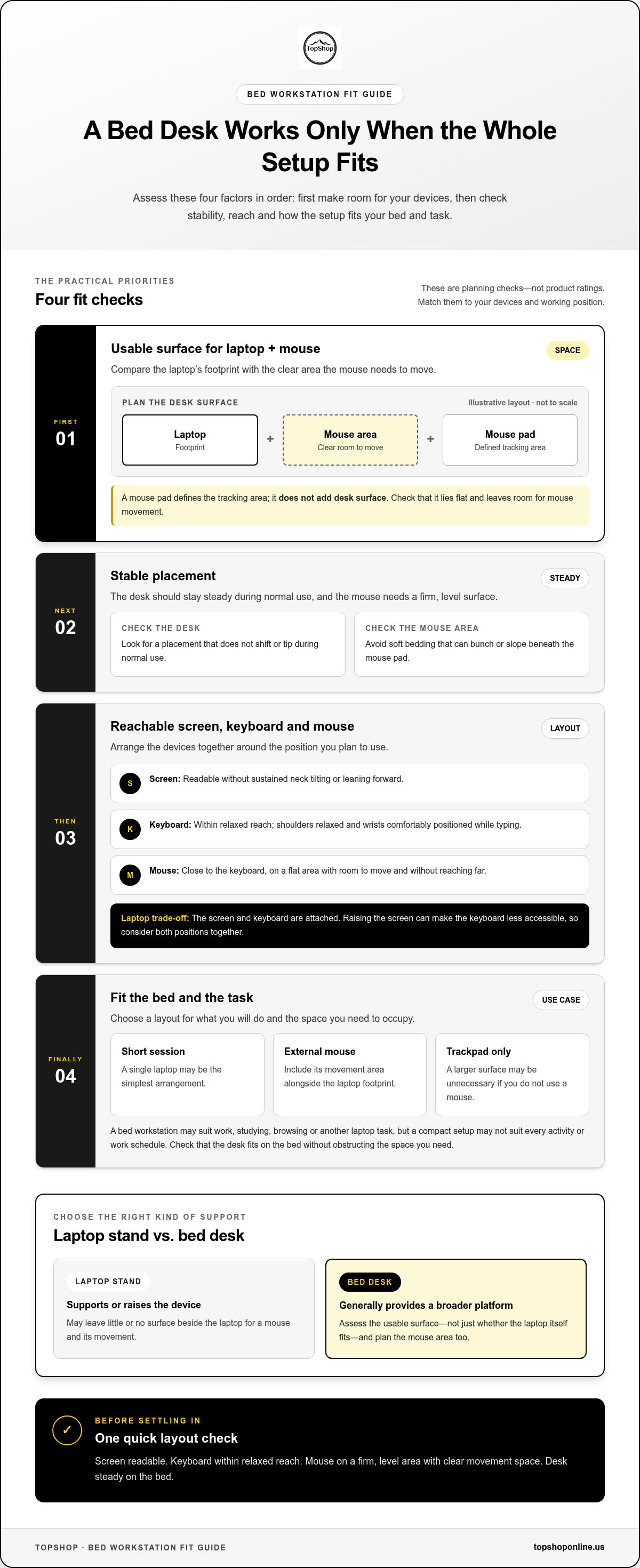
An ergonomic laptop desk for bed with mouse pad is a bed workstation with a steady surface for a laptop and enough space to use a mouse. The desk provides the work surface; the mouse pad provides a defined tracking area. These serve different purposes, so assess the desk’s usable surface against your devices and preferred working position rather than relying on its name or an “ergonomic” label.
Think of the setup as a group of parts that need to work together: the desk surface, laptop, mouse, mouse pad, and the space you occupy. The goal is practical positioning, not a medical outcome. Ergonomics broadly considers how people interact with their environment, but a product label alone can’t account for your bed, device sizes, or working position.
- Work surface: Supports the laptop and leaves room for the mouse area.
- Mouse pad: Provides a defined surface for mouse movement. Plan where it will sit in relation to the laptop.
- Stable placement: Keeps the desk from shifting or tipping during normal use.
- Usable layout: Leaves the keyboard, screen, and mouse accessible without crowding the work area.
The Deskpro XL Ergonomic Adjustable Laptop Bed Desk is one bed desk option to consider. Compare its usable surface with your laptop and the space your mouse needs, then plan the mouse pad as part of the layout.
How a bed desk differs from a laptop stand
A laptop stand supports or raises a device, while a bed desk generally provides a broader platform for working with a laptop. A stand may leave little or no space beside the computer. Mouse use needs additional clear surface for both the mouse and its movement, so account for that area instead of treating the laptop footprint as the entire setup. A separate mouse pad defines the tracking area but doesn’t add to the desk surface.
Who may find a laptop-and-mouse bed setup useful
A bed workstation may suit a short work session, studying, browsing, or another laptop task when the bed and desk provide enough room for your layout. Consider whether you’ll use an external mouse, how much space it needs, and whether you can position the screen and keyboard accessibly. A compact setup can work for limited tasks, but it may not suit every activity or work schedule.
Fit depends on the user and devices. If the laptop occupies most of the platform, there may be too little room for a mouse, even if the laptop fits securely. If you use only the laptop trackpad, a larger surface may be unnecessary. Match the desk to the task, then check that it fits on the bed without obstructing the space you need.
How Laptop Position and Mouse Placement Affect Bed Desk Comfort
Comfort depends on how the screen, keyboard, mouse, desk, and your body fit together. Use a neutral posture as a practical reference: aim to keep your head and neck from staying tilted, your shoulders relaxed, and your hands within easy reach. This isn’t a guaranteed posture or medical outcome, and a soft or uneven bed may limit how closely you can align the devices.
Screen height and viewing distance influence where your head naturally rests. If the display sits too low, you may look downward for extended periods; if it’s too far away, you may lean forward to read. A laptop’s screen and keyboard are attached, which creates a trade-off: raising the screen can make the keyboard less accessible. Consider both positions together.
Positioning check: Set the screen at a readable height and distance, keep the keyboard within relaxed reach, let your wrists rest comfortably while typing, and place the mouse on a firm, level surface close enough to use without reaching.
Position the screen, keyboard, and hands
Start by sitting in the position you plan to use, with your back supported as needed. Place the laptop so you can view the screen without sustained neck tilting. Keep the keyboard close enough that your elbows and shoulders don’t need to stretch forward. While typing, check that your wrists aren’t sharply bent. If the bed or desk makes these positions difficult, adjust your sitting position or device layout instead of forcing an awkward alignment.
For a short session, a single laptop may be the simplest arrangement. If you use a raised screen with a separate keyboard, place the keyboard on a stable, reachable surface. The best layout depends on the desk, your devices, and the position you can maintain comfortably.
Give the mouse enough room to move
Place the mouse on a clear, level area beside the laptop, not directly on soft bedding that can bunch or slope beneath it. A mouse pad can define the tracking area, but it needs to lie flat and leave room for the mouse to move. Keep it near the keyboard so you can switch between typing and pointing without repeatedly reaching across the work surface.
Choose the side that matches your dominant hand and available desk space. Right-handed users may prefer the mouse on the right; left-handed users may place it on the left. Either way, avoid positioning it so far away that your arm stays extended or your shoulder moves outward during use.
- Screen: Readable without sustained neck tilting or leaning forward.
- Keyboard: Reachable with relaxed shoulders and comfortably positioned wrists.
- Mouse: On a flat area close to the keyboard, with room for movement.
- Body position: Adjusted to the bed and desk rather than held in a strained alignment.
Use these checks to arrange an ergonomic laptop desk for bed with mouse pad around your actual working position. To consider a bed desk for that layout, view the Deskpro XL Ergonomic Adjustable Laptop Bed Desk.
How to Choose a Bed Desk and Mouse Pad That Fit Together
Choose the desk and mouse pad as a combined work surface. A laptop that fits by itself may leave too little room for mouse movement, while a larger platform may take up more bed space than your tasks require. Compare the desk’s usable surface dimensions with the footprint of your laptop and mouse pad. Use measurements rather than estimating dimensions from photos or appearance.
| Setup | Space to assess | Main trade-off |
|---|---|---|
| Laptop only | Laptop footprint, access to ports, and any space needed to operate the trackpad | A compact surface may be easier to place, but leaves less room for other items |
| Laptop and mouse | Laptop footprint plus mouse pad area and room to move the mouse | A wider usable surface can support mouse use but may occupy more bed space |
Compare usable space, not just the desk’s outside dimensions. A frame, raised edge, or other surface feature may affect where the laptop and mouse pad can sit, so use the work-area measurements when comparing desks.
Measure laptop and mouse pad requirements
Measure the laptop’s width and depth, including extra clearance for ports or cables you use. Measure the mouse pad in the orientation you plan to use it, then allow additional room for the mouse to move across it. Compare the combined layout with the desk’s usable surface, leaving enough space for both devices to sit without overlap.
- Side-by-side layout: Allow for the laptop’s width and mouse area across the desk, plus practical clearance between them.
- Front-to-back layout: Check whether the deeper device or pad extends beyond the available surface.
- Placement check: Confirm that the planned arrangement fits within the usable area, not just the overall desk footprint.
Compact surfaces can suit a laptop-only setup and may be easier to position on a bed. Larger surfaces can provide room for a mouse pad and movement, but need more available bed space and may be less convenient to move or store. Compare these trade-offs with how you expect to use the workstation.
Select a mouse pad surface for the intended use
A compact pad may work for controlled, shorter mouse movements; a larger pad provides more travel space for tasks involving broader movement. Mouse sensors can respond differently to different surfaces, so don’t assume one pad type works equally well with every mouse. Consider whether the pad lies flat, whether its edges interfere with hand movement, and whether its surface is practical to clean.
Before selecting an ergonomic laptop desk for bed with mouse pad, compare the desk’s usable dimensions with your mouse pad and laptop measurements. The Deskpro XL Ergonomic Adjustable Laptop Bed Desk is one option to evaluate against the dimensions of your own laptop and mouse setup.
How to Set Up an Ergonomic Laptop Desk for Bed With Mouse Pad
Use a consistent setup sequence so the desk, laptop, and mouse pad have defined positions before you begin. Start with a firm, level part of the bed, then arrange the devices around the measurements you’ve taken. Keep the work surface clear and leave enough room for the mouse to move without crossing cables or bedding folds.
Arrange the desk and devices
Place the desk where it sits steadily and doesn’t block the space you need to sit or recline. Set the laptop and mouse pad on the surface according to your planned layout, with the mouse on your preferred side. Route charging cables away from the keyboard and mouse movement area. If the bedding shifts under the desk, move it to a firmer location before adding your devices.
- Choose a stable location. Smooth the bedding and position the desk on the flattest available area. Check that its base is supported and that it won’t obstruct your intended position.
- Clear the work surface. Remove items that aren’t needed for the task so the laptop and mouse pad can sit flat.
- Place the laptop. Set it within the measured area, leaving access to the keyboard, trackpad, and any ports you need.
- Position the mouse pad. Place it beside the laptop on the side that suits your dominant hand, with enough clear area for normal mouse movement.
- Route cables. Guide charging cables away from your hands and mouse path. Avoid leaving a cable stretched across the space you need to use.
- Settle into position. Sit or recline as intended, then make any small layout changes before starting your task.
Check fit before settling into a work session
Test the layout with ordinary typing and mouse movement. The laptop should stay in place as you use its keyboard or trackpad, and the mouse should move freely without reaching beyond a comfortable area. Check that you can view the screen without leaning forward or holding your neck at an awkward angle. Adjust your position or device placement if the arrangement feels strained.
- Stability: The desk and laptop remain steady during normal input.
- Reach: Keyboard and mouse are accessible without extending your arms or shoulders.
- Clearance: Cables and nearby objects don’t obstruct the mouse pad or work area.
- Viewing: Screen placement lets you read without sustained leaning or tilting.
Comfort is individual, and a bed surface may shift as you change position. If the desk moves, the mouse pad slips, or you find yourself reaching, pause and reposition the desk, devices, or your body. Repeat the checks after changing the setup.
Put these steps into practice with the Deskpro XL Ergonomic Adjustable Laptop Bed Desk as one option for planning your bed workstation.
Choosing a Laptop Bed Desk for Your Mouse-and-Laptop Setup
The right desk fits your devices, available bed space, and intended tasks. A compact footprint can be easier to place and move, but may leave little room beside the laptop. A larger surface can give the mouse more travel space, yet take up more of the bed. Compare measurements rather than relying on broad labels such as “ergonomic” or “large.”
Match the desk to your laptop and available bed space
Measure the laptop’s width and depth, then include the mouse pad and the area needed to move the mouse. Compare that combined footprint with the desk’s usable surface and the flat area available on your bed. A desk’s name or appearance alone doesn’t tell you how much room your devices will need, so plan around the actual layout.
Consider where you’ll place the desk and how you’ll use it. A laptop-only task may fit a smaller platform; regular mouse use needs additional clear space. A larger work surface can make room for both devices, but it needs to sit securely without obstructing your intended position. The useful size is the surface that accommodates your actual arrangement, not simply the largest footprint you can fit.
Use the checklist to take the next step
Before choosing, compare the desk’s dimensions with your measurements. Check the laptop fit, mouse area, intended placement on the bed, and the tasks you plan to do. Use measurements to assess fit instead of estimating from a photograph or product title.
- Dimensions: Compare the desk’s usable surface measurements with your layout.
- Laptop fit: Allow room for the device and access to ports or cables you use.
- Mouse space: Include the pad and enough clear area for normal movement.
- Bed placement: Make sure the combined setup fits the available flat area.
- Intended tasks: Match the footprint to whether you’ll type, study, browse, or use a mouse regularly.
For a compact setup, prioritize a footprint that fits the bed while accommodating the devices you use. For more mouse movement, prioritize additional usable surface and make sure there’s room to place the desk without crowding your position. Neither size is automatically better; the trade-off depends on your layout and tasks.
TopShop offers the Deskpro XL Ergonomic Adjustable Laptop Bed Desk. Compare its product details with your measurements as you decide how it fits your workstation. Explore TopShop’s laptop bed desk as you finalize your setup.
Make Your Bed Workstation Fit Your Routine
Match the desk to the way you’ll actually use it. Consider the laptop, mouse, and available bed space as one setup, then choose a layout that supports your tasks without forcing you to work around cramped placement. A practical ergonomic laptop desk for bed with mouse pad is defined by that fit, not by a label alone.
TopShop sells the Deskpro XL Ergonomic Adjustable Laptop Bed Desk through its e-commerce website. Compare the product details with your measurements as you decide whether it suits your workstation plan.
Browse TopShop products and take the next step toward a bed setup that works for your routine.
Frequently Asked Questions
Can I use a wireless mouse on a mouse pad with a bed desk?
Yes, a wireless mouse can work on a bed desk if it connects to your laptop and its sensor tracks on the pad’s surface. For a Bluetooth mouse, confirm Bluetooth is enabled; for a model with a USB receiver, keep the receiver connected and unobstructed. Check the battery if the cursor skips or stops. A mouse pad can provide a consistent tracking surface, but compatibility depends on the mouse sensor and pad.
How can I keep a laptop from overheating on a bed desk?
Keep the laptop’s ventilation openings clear and follow the manufacturer’s guidance for airflow. Soft bedding can cover vents when a laptop is placed directly on a blanket, so use a firm platform and check that fabric isn’t pressed against the underside or sides. If the laptop becomes unusually hot, its fan runs constantly, or performance drops, save your work and consult its support guidance rather than covering it or placing it on a pillow.
How do I clean a mouse pad used on a bed desk?
Check the pad’s care instructions first, since cleaning methods depend on its surface and construction. For routine dust or lint, use a lint roller or soft brush. If the instructions allow damp cleaning, wipe gently with a slightly damp cloth and mild soap, then remove residue with a clean cloth. Don’t soak a pad with an unknown backing or return it to the desk until it’s fully dry.
Can left-handed users use a laptop bed desk with a mouse pad?
Yes. Place the mouse pad on the left side of the laptop and arrange the mouse for left-handed use. Before settling in, check that the pad fits without covering the keyboard, pressing against the edge, or forcing your hand into an awkward position. Some mice have a shape or button layout designed for a particular hand, so check the mouse itself as well as the desk arrangement.
What should I check if my mouse does not track well on its pad?
First, remove lint or dust from the pad and gently clean the mouse sensor according to its care instructions. Make sure the pad lies flat and dry, then test the mouse on another clean surface. If tracking remains inconsistent, check the battery or connection, move any wireless receiver closer, and review pointer settings. A mouse may respond differently to particular pad surfaces, so test another compatible surface if available.
Can I use a bed desk for tasks beyond laptop work?
Yes, a bed desk can also support tasks such as reading, handwriting, or reviewing printed notes, provided the surface suits the item and activity. Keep the load stable and avoid crowding the platform with objects that could slide onto a laptop or mouse. For drinks, food, or materials that may spill, use a separate surface away from electronics. Check any product guidance before placing heavy or bulky items on the desk.