

Reliable remote surveillance depends on precise network protocol alignment rather than simple hardware placement. Most users encounter connection timeouts, 5GHz frequency incompatibility, and QR code scanning failures during the initial pairing process. This technical guide explains exactly how to connect wifi camera to phone using 2.4GHz frequency management and mobile application synchronization. You'll learn the necessary steps to establish a stable 1080P HD video feed and enable functional motion alerts on your mobile device.
The following walkthrough provides a comprehensive overview of 1080P HD Wireless Mini Security WiFi Camera and 360° Panoramic Hidden Light Bulb Wifi Camera configuration. We analyze indicator light status codes, SSID selection protocols, and firmware synchronization requirements. This documentation ensures your hardware achieves full remote access functionality and consistent live stream stability. We focus on the transition from unboxed hardware to a fully integrated mobile security interface using standard network protocols and frequency management techniques.
Key Takeaways
- Isolate the 2.4GHz WiFi frequency band to ensure hardware compatibility and maintain sufficient bandwidth for 1080P HD video streaming.
- Follow the standardized mobile application sequence to learn how to connect wifi camera to phone through secure account registration and SSID synchronization.
- Deploy AP (Access Point) mode for direct camera-to-phone pairing in environments where standard router discovery protocols fail.
- Resolve "Device Offline" status and connection timeouts by modifying router firewall settings to permit encrypted P2P camera traffic.
- Enhance monitoring efficiency by configuring custom motion detection zones and integrating 360° panoramic devices into a single multi-camera dashboard.
Hardware and Network Requirements for Wireless Camera Integration
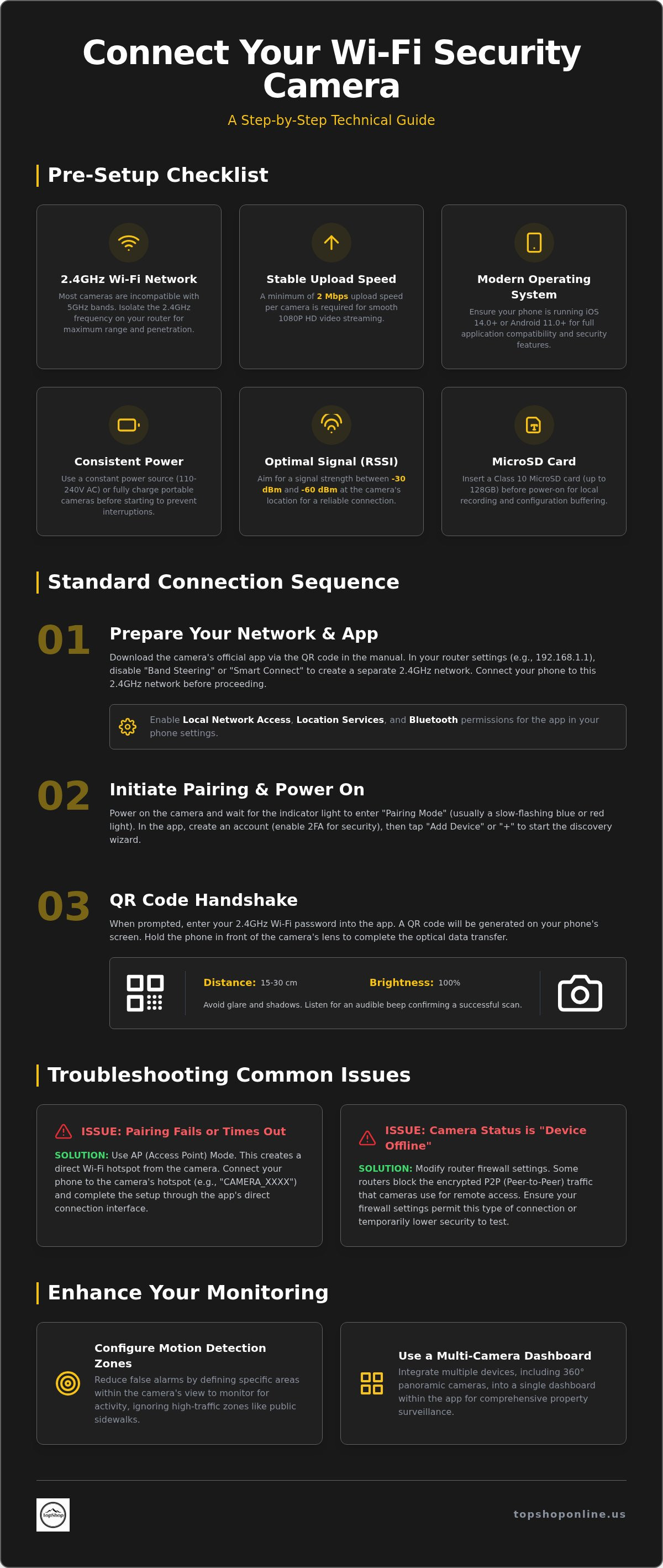
Successful synchronization of hardware depends on specific network parameters and power states. Modern IP camera technology relies on the 2.4GHz frequency band for signal penetration through structural barriers like drywall and masonry. Before initiating the process of how to connect wifi camera to phone, verify that your mobile device is running a current operating system, typically iOS 14.0 or Android 11.0 and above. High-definition 1080P video streaming requires a minimum stable upload speed of 2 Mbps per active device to prevent frame drops or latency in the live feed. Ensure your router's firmware is updated to the latest version to support modern WPA2 or WPA3 encryption protocols used by security hardware.
WiFi Frequency Management: 2.4GHz vs. 5GHz
Most compact surveillance hardware, including the 1080P HD Wireless Mini Security WiFi Camera, is incompatible with 5GHz networks. While 5GHz offers higher data transfer rates, it lacks the range and obstacle penetration necessary for consistent security monitoring. You must access your router's administrative gateway, usually via 192.168.1.1 or 192.168.0.1, to confirm SSID settings. If your router uses "Smart Connect" or "Band Steering" to merge frequencies, temporarily disable this feature. Use a WiFi analyzer application to measure signal strength (RSSI) at the intended installation point. A value between -30 dBm and -60 dBm is optimal for 1080P HD video transmission. Isolate the 2.4GHz band with a unique name to ensure the camera hardware identifies the correct signal during the handshake phase.
Power and Storage Preparation
Consistent voltage is mandatory for firmware stability during the initial pairing. For the 360° Panoramic Hidden Light Bulb Wifi Camera, ensure the light fixture provides a constant 110V-240V AC supply; don't use dimmed circuits. Portable mini cameras require a full initial charge via the provided USB cable to prevent shutdown during critical data transfers. Observe the LED indicator light patterns. A slow-flashing blue or red light typically indicates the device is in "Pairing Mode" and ready for discovery. Check for physical obstructions around the antenna housing of the mini camera. Clear line-of-sight isn't required, but dense metallic objects can cause electromagnetic interference during the pairing handshake. Insert a high-speed Class 10 MicroSD card, up to 128GB, into the dedicated slot before powering on the unit. This allows for local redundant storage and simplifies the process of how to connect wifi camera to phone by providing a physical buffer for configuration data.
Standard Connection Sequence: Step-by-Step Mobile Pairing
The initial phase of hardware integration involves the synchronization of the mobile interface with the device's wireless module. Users must download the manufacturer-specified application, typically identified via a QR code located in the technical manual or on the product packaging. For the 1080P HD Wireless Mini Security WiFi Camera, ensuring the correct software version is critical for firmware compatibility. Once installed, account registration requires a valid email address and the configuration of secure credentials. Activating two-factor authentication (2FA) is a mandatory step for maintaining data integrity and preventing unauthorized stream access. This setup forms the foundation of how to connect wifi camera to phone securely.
Application Installation and Permissions
Mobile operating systems require specific permission grants to facilitate device discovery. You must enable "Local Network" access, "Location Services," and "Bluetooth" within the phone's system settings. Location services are necessary for the application to identify the current SSID of the 2.4GHz network. Without these permissions, the application cannot bridge the connection between the smartphone and the camera's internal chipset. After establishing the account, select the "Add Device" or "+" icon within the interface to initiate the pairing wizard. This direct interaction is the most efficient way to start the handshake process.
QR Code Pairing Logic
The optical handshake is the primary method for transferring network credentials to the camera hardware. After entering the 2.4GHz WiFi password into the app, a QR code will appear on the smartphone screen. Hold the phone 15 to 30 centimeters from the camera lens. Ensure the smartphone screen brightness is at 100% and avoid direct glare or shadows on the display. This optical transfer allows the camera to read the encrypted SSID and password data directly from the mobile display.
Successful decoding is usually confirmed by an audible beep or a specific LED color transition. If the camera remains in pairing mode without acknowledgment, check for special characters in the WiFi password that might cause parsing errors. For those seeking high-utility hardware, the 360° Panoramic Hidden Light Bulb Wifi Camera utilizes this exact sequence for rapid deployment. Once the handshake completes, the device will appear on the dashboard with a "Connecting" status before transitioning to a stable "Online" state. This finalizes the process of how to connect wifi camera to phone, allowing for real-time monitoring and parameter adjustment. Wait for the progress bar to reach 100% before moving the hardware to its final installation location.
Alternative Setup Protocols: AP Mode and Direct Hotspot Connection
Access Point (AP) mode serves as a secondary integration protocol when standard automated discovery fails. This method bypasses external network requirements by utilizing the camera’s internal wireless chipset to broadcast a localized signal. If the QR code handshake described previously fails due to optical interference or router broadcast restrictions, AP mode provides a reliable manual alternative. Understanding how to connect wifi camera to phone via AP mode is essential for troubleshooting environments with hidden SSIDs or restrictive firewall settings that block standard P2P discovery.
Activating AP Mode on Mini Cameras
Manual hardware resets trigger the internal hotspot module for initial configuration. Locate the recessed reset button on the 1080P HD Wireless Mini Security WiFi Camera housing or the base of the 360° Panoramic Hidden Light Bulb Wifi Camera. Depress this button for 5 to 10 seconds until the LED indicator transitions to a rapid strobe pattern. Open the smartphone WiFi settings menu to identify the camera-specific SSID. These identifiers usually carry technical prefixes such as "IPC-", "BCCQ-", or "MV-". Establish the point-to-point link by selecting this network. The smartphone may display a "No Internet Connection" warning; you must accept this state to maintain the configuration bridge.
Configuring Remote Access via Hotspot
Once the direct link is active, return to the mobile application interface to finalize the network bridge. The software should automatically detect the localized hardware through the active WiFi handshake. Within the device settings menu, locate the "Network Station Mode" or "WiFi Configuration" sub-menu. This interface allows you to map the camera to the local 2.4GHz router. Select the primary home network from the scanned list and input the encryption key with precision. This is the final stage of how to connect wifi camera to phone for permanent remote access. The hardware will reboot, terminate its local hotspot, and request an IP address from the router DHCP server. Verify the connection by switching the smartphone to cellular data; a successful live feed confirms the P2P tunnel is operational across external networks.
Troubleshooting Signal Failures and Network Incompatibility
Network instability often results in "Device Offline" status codes or persistent connection timeouts during the handshake phase. These failures usually occur when the P2P (Peer-to-Peer) tunnel is interrupted by router security protocols or significant signal attenuation. If you are struggling with how to connect wifi camera to phone, verify that the router is not blocking encrypted traffic from unknown MAC addresses. High-density smart home environments frequently suffer from IP address conflicts where two devices attempt to occupy the same network slot. Resolving these technical bottlenecks requires a methodical approach to router configuration and hardware placement to ensure the 1080P HD video stream remains consistent.
Signal Strength and Interference
2.4GHz signals provide superior range but are highly susceptible to interference from household electronics such as microwave ovens, baby monitors, and cordless phones. Physical obstructions like reinforced concrete, metal siding, or thick masonry significantly reduce signal decibels. Use a WiFi extender or a dedicated mesh node if the 1080P HD Wireless Mini Security WiFi Camera is positioned more than 10 meters from the primary router. Monitoring the RSSI (Received Signal Strength Indicator) within the application helps identify dead zones where the bit rate drops below the 2 Mbps threshold required for 1080P HD streaming. Repositioning the hardware even 30 centimeters can sometimes bypass localized electromagnetic interference.
Router and Firewall Optimization
Most modern routers utilize advanced firewalls that may categorize P2P camera traffic as a security threat. Access the router administrative panel via your browser to ensure DHCP (Dynamic Host Configuration Protocol) is active for automatic IP assignment. If the 360° Panoramic Hidden Light Bulb Wifi Camera fails to synchronize, check if MAC address filtering is enabled; you must whitelist the camera’s unique hardware ID to allow network entry. Some older firmware versions require manual port forwarding for specific ports to enable remote access outside the local network. For hardware that remains unresponsive after these network adjustments, perform a factory reset by holding the reset button for 15 seconds to clear corrupted cache files and restore default communication parameters. If hardware failures persist despite correct configuration, consider upgrading to a reliable 1080P HD wireless security camera with updated firmware protocols for better compatibility.
Finalize the troubleshooting process by clearing the mobile application cache and restarting the smartphone. This ensures that previous failed connection attempts do not interfere with the new configuration. Once the "Online" status is stabilized, the process of how to connect wifi camera to phone is complete, and you can proceed to optimize motion detection and alert parameters for your specific environment.
Remote Access Configuration and Hardware Optimization
After completing the process of how to connect wifi camera to phone, you must calibrate the firmware settings for specific environmental conditions. Motion detection sensitivity requires precise adjustment to prevent false triggers from shifting shadows or small pets. Most applications provide a 0 to 100 sensitivity scale; set this value to 60 for standard indoor monitoring. Define specific push notification zones within the app interface to focus on high-priority areas like entry points or safes. This ensures the mobile device only receives alerts for significant movement within designated coordinate blocks.
Integrating multiple devices into a single monitoring dashboard allows for simultaneous viewing of various security points. Within the application, use the multi-channel view to monitor up to four 1080P HD streams on a single mobile screen. Optimizing resolution is critical for remote viewing over cellular networks. Switch from "HD" to "SD" mode when operating on limited bandwidth to maintain a fluid frame rate. This adjustment doesn't affect the local recording quality on the MicroSD card, which remains at full 1080P resolution. You can also configure scheduled recording cycles to preserve storage space on the 128GB MicroSD card, ensuring that critical data is retained while overwriting less relevant footage during low-activity periods.
Optimizing 360° Panoramic Views
The 360° Panoramic Hidden Light Bulb Wifi Camera utilizes a specialized fish-eye lens that requires digital dewarping for clear visualization. Select the mounting orientation, such as ceiling, wall, or desk, within the app settings to calibrate the image perspective correctly. Use the virtual PTZ (Pan-Tilt-Zoom) controls to navigate the 360-degree field of view without moving the physical hardware. This device must remain connected to a live AC circuit; turning off the wall switch will terminate the WiFi bridge and remote access. Ensure the socket provides a consistent 110V-240V supply for uninterrupted panoramic surveillance and stable network connectivity.
Mini Camera Placement and Stealth Setup
Effective deployment of the 1080P HD Wireless Mini Security WiFi Camera depends on stable mounting and glare management. If positioning the camera behind glass, disable the internal IR (Infrared) LEDs to prevent night vision rebound which obscures the image. Use external IR illuminators or ambient lighting for nighttime monitoring through windows. For detailed technical specifications on mounting angles and lens focal lengths, refer to the 1080p Wireless Mini Security Camera with Night Vision Guide. Secure the mounting bracket to a non-vibrating surface to ensure the motion detection algorithms function with precision. This finalizes the technical sequence of how to connect wifi camera to phone and optimizing it for long-term surveillance. Verify the signal strength one final time after the hardware is permanently fixed to confirm the RSSI value remains above -60 dBm.
Establish Reliable Mobile Security Integration
Successful hardware deployment requires precise network frequency management and protocol synchronization. You now understand how to connect wifi camera to phone by isolating the 2.4GHz frequency band and utilizing standardized mobile application pairing sequences. Technical optimization of motion detection zones and 360° panoramic views ensures your surveillance system provides comprehensive coverage without unnecessary data alerts. Addressing router firewall restrictions and signal attenuation is essential for maintaining a stable, encrypted P2P handshake across external networks. Consistency in these network settings prevents the common "Device Offline" errors that disrupt remote monitoring.
High-utility security hardware provides the foundation for consistent remote surveillance. You can Browse Technical Security Camera Solutions at TopShop to find devices featuring 1080P High-Definition video feeds and integrated mobile app control. These systems offer 360° panoramic coverage options and wireless portability for diverse installation environments. Maintaining these technical parameters ensures consistent access to your live security stream from any location. Start your configuration today to achieve professional-grade surveillance with functional remote monitoring capabilities and stable video transmission.
Frequently Asked Questions
Why won’t my WiFi camera connect to my 5G network?
Most wireless cameras, including the 1080P HD Wireless Mini Security WiFi Camera, utilize the 2.4GHz frequency band for its superior range and obstacle penetration capabilities. 5GHz networks operate at higher frequencies that cannot effectively pass through walls or floors. You must access your router settings to enable a dedicated 2.4GHz SSID. Many routers use band steering to merge frequencies; disable this feature to ensure the hardware identifies the correct signal during the initial handshake process.
How do I reset my mini security camera to factory settings?
Locate the recessed reset button on the camera housing, typically found near the MicroSD slot or power port. Use a pin or the provided reset tool to depress the button for 10 to 15 seconds. Observe the LED indicator light; a rapid flash or color change confirms the firmware has cleared the previous configuration. This step is necessary when troubleshooting how to connect wifi camera to phone after a failed handshake or when moving the device to a new network.
Can I connect my camera to my phone without a router?
Establish a direct connection using AP (Access Point) mode without an external router. The camera generates its own localized WiFi signal, usually identified by a prefix like "IPC-" or "BCCQ-". Connect your smartphone directly to this SSID within your phone's WiFi settings menu. This configuration allows for local monitoring and parameter adjustment within a 10-meter range. However, remote access from external networks requires a permanent bridge to a 2.4GHz router with active internet connectivity for data transmission.
What should I do if the camera QR code won’t scan?
Ensure your smartphone screen brightness is set to 100% and remove any protective film from the camera lens. Hold the phone 15 to 30 centimeters away from the lens and avoid direct sunlight or shadows on the display. If the optical handshake fails, switch to the manual AP mode connection method. This allows the application to identify the hardware via the localized hotspot signal instead of the QR code. Clean the lens with a microfiber cloth to ensure optimal clarity.
How many phones can be connected to one WiFi camera?
Most modern security cameras support multiple simultaneous connections, typically allowing 3 to 5 users to view the live feed concurrently. Share the device access through the primary account's "Device Sharing" menu within the application. Each additional user requires a registered account and the specific sharing permission grant. Note that multiple active streams increase the bandwidth load on your 2.4GHz network, which may result in latency or reduced frame rates for 1080P HD video feeds during peak usage.
Does my phone need to be on the same WiFi as the camera to view the feed?
Your smartphone only requires the same WiFi connection during the initial pairing and configuration phase. Once the P2P (Peer-to-Peer) tunnel is established, you can access the live 1080P HD feed using cellular data or any external WiFi network. The camera maintains a persistent connection to your home router, uploading data to a secure server. This allows for remote monitoring and real-time motion alerts from any global location with a stable internet connection.
Why is there a delay in the live video stream on my phone?
Latency in the video feed is usually caused by low upload speeds or high network congestion. A 1080P HD stream requires a minimum of 2 Mbps upload bandwidth per device. If the signal strength (RSSI) is below -70 dBm, data packets may drop, causing a 3 to 5-second delay. Check for electromagnetic interference from other electronics or move the camera closer to the router. Reducing the app resolution from HD to SD can also minimize lag during remote viewing.
How do I enable motion alerts on my mobile device?
Access the device settings menu within the mobile application and locate the "Alarm Configuration" or "Motion Detection" section. Toggle the motion detection switch to the "On" position and set the sensitivity level to approximately 60. Ensure that your smartphone's system settings permit push notifications for the specific camera app. You can also define active detection zones to focus on entry points. This completes the process of how to connect wifi camera to phone for automated security monitoring.