

Standard DualSense controller input speeds often fail to meet the communication requirements of modern 2026 multiplayer environments. Manual character selection via the D-pad remains a slow, inefficient process that disrupts gameplay flow and social interaction. Integrating a dedicated wireless keyboard for ps5 provides a high-density input solution for faster messaging and system navigation. This technical guide outlines the exact procedures for connecting and configuring external HID peripherals on the latest PS5 system software version 26.04-13.42.00.
You require a stable, low-latency connection to avoid the frequent drops associated with unoptimized Bluetooth peripherals. This article details the setup process for Bluetooth 5.1 devices and 2.4GHz USB dongle hardware. You'll learn to adjust system-level key repeat rates, delay settings, and language layouts to ensure maximum hardware performance. We compare the utility of controller-mounted, 3.5mm audio-integrated mini chatpads against full-size, high-tactility, RGB mechanical gaming keyboards for comprehensive desktop-style setups. Follow these steps to achieve successful pairing and optimized system configurations for all compatible wireless hardware.
Key Takeaways
- Execute the precise discovery and pairing sequence for Bluetooth 5.1 peripherals on the latest 26.04-13.42.00 system software update.
- Identify the technical utility of a dedicated wireless keyboard for ps5 for high-speed in-game chat and efficient PlayStation Store navigation.
- Optimize HID input performance by adjusting key repeat rates and delay intervals within the PS5 Accessories settings menu.
- Compare ergonomic form factors between controller-mounted mini chatpads with integrated 3.5mm audio jacks and standalone mechanical keyboards.
- Match peripheral specifications to specific usage scenarios, including social multiplayer interaction and professional-grade competitive gaming setups.
Wireless Keyboard for PS5: Technical Utility and Hardware Specs
A wireless keyboard for ps5 functions as a standard Human Interface Device (HID) peripheral. Modern console firmware recognizes these external inputs for specific system tasks. According to the PlayStation 5 hardware specifications, the console supports both Bluetooth 5.1 and USB-based wireless protocols. These peripherals allow users to bypass the slow digital keyboard interface of the DualSense controller. Primary utility focuses on text-heavy operations. These include in-game chat windows, PlayStation Store search queries, and media application navigation within YouTube or Netflix. Most software titles don't support keyboard-based movement or combat. Users should expect to switch between the controller for gameplay and the keyboard for social interaction.
Connectivity relies on two primary standards. 2.4GHz wireless dongles offer low-latency performance through a dedicated USB-A or USB-C receiver. Bluetooth 5.1 provides a direct connection without occupying a USB port. Both methods provide stable input across typical living room distances. Users should verify that their chosen hardware utilizes modern power delivery via USB-C for fast charging cycles. Reliable battery life is essential for long-term gaming sessions where frequent peripheral disconnects disrupt communication.
Why Use a Dedicated Keyboard for Console?
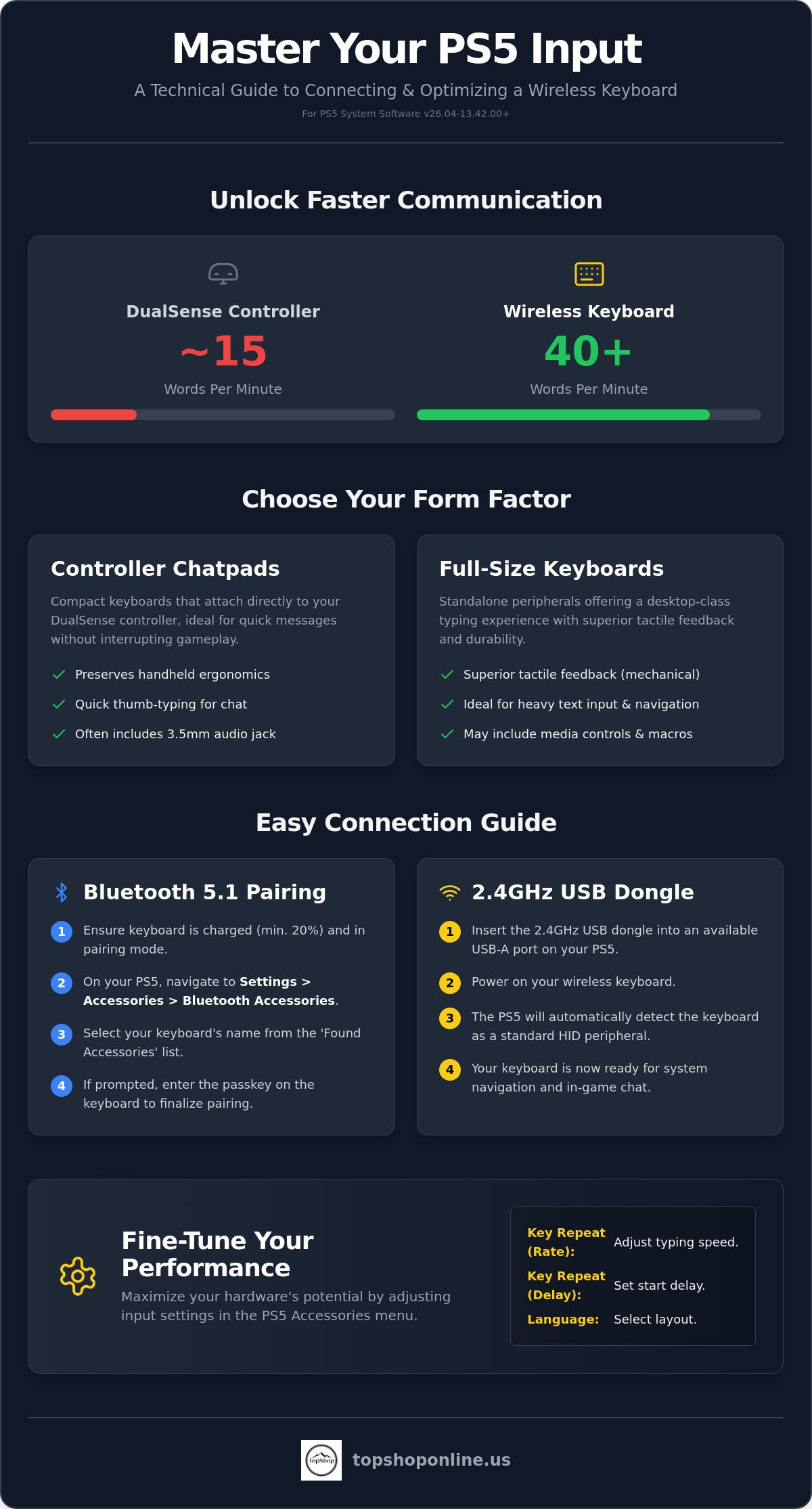
Efficiency metrics demonstrate the advantage of physical keys. Standard typing speeds on a physical layout often exceed 40 words-per-minute (WPM), whereas DualSense input usually remains below 15 WPM. This speed is critical for MMOs and cross-platform titles requiring rapid communication. Physical keys also streamline system navigation, allowing for instant search results in the OS interface. Quick access to search functions in media apps reduces the time spent on menu interaction.
Form Factors: Mini Chatpads vs. Standard Keyboards
Hardware selection depends on the user's primary activity. Mini chatpads, such as the Wireless Keyboard for PS5 Controller, attach directly to the DualSense chassis. These devices preserve the handheld ergonomic profile while providing a full QWERTY layout and integrated 3.5mm audio jacks. Conversely, full-size peripherals like the RGB Mechanical Gaming Keyboard - ROG Strix Flare offer a desktop-style experience. Mechanical switches provide superior tactile feedback and higher durability ratings compared to membrane-based mini keyboards. Choosing between these form factors requires an assessment of available desk space and specific typing volume requirements. Full-size keyboards often include dedicated media controls and programmable macros, which enhance navigation efficiency in non-gaming applications. Mini chatpads prioritize weight distribution, ensuring the controller remains balanced during active gameplay while still allowing for quick thumb-based typing.
How to Connect a Wireless Keyboard to PS5 Consoles
Initializing a wireless keyboard for ps5 requires specific hardware states and system-level configuration steps. Before starting the pairing process, ensure the peripheral has sufficient battery charge to maintain a stable signal during the discovery phase. Most modern units require at least a 20% charge to prevent handshake failures. For devices like the Wireless Keyboard for PS5 Controller, physical attachment to the DualSense chassis precedes the electronic pairing. Users must confirm the device is in active pairing mode, usually indicated by a flashing LED sequence on the peripheral's interface. Proper initialization ensures the console correctly identifies the device as an external HID.
Bluetooth Pairing Procedure
Navigate the PS5 user interface to Settings, then select Accessories, General, and Bluetooth Accessories. This menu displays currently registered devices and searches for new signals. Activate the pairing mode on your keyboard by holding the designated synchronization buttons. Consult the technical manual for specific key combinations, as these vary by manufacturer. Once the device name appears under 'Found Accessories', select it using the DualSense controller. If the system prompts for a passkey, enter the six-digit numerical code using the keyboard and press Enter to finalize the registration. This process aligns with the official PS5 keyboard and mouse support guidelines for Bluetooth-enabled hardware.
USB Dongle Connection Steps
USB-based peripherals utilize a 2.4GHz radio frequency dongle for plug-and-play functionality. Locate an available USB-A or USB-C port on the console’s I/O panel. Insert the receiver and monitor the screen for a 'Keyboard Connected' notification. This indicates the console has loaded the necessary generic HID drivers. For optimal signal integrity, use the front-facing USB ports to maintain a clear line-of-sight between the receiver and the keyboard. Rear ports are subject to thermal interference and physical shielding from the console chassis, which can cause input lag or intermittent disconnects.
Final verification involves testing the input within the system environment. Press the Triangle button on the home screen to open the Search field. Type a string of characters to confirm that the wireless keyboard for ps5 registers every keystroke with zero latency. If the system fails to recognize the input, restart the console and repeat the discovery sequence to clear any cached connection errors. Confirming the 'Key Repeat' settings in the accessories menu is also recommended to ensure the input speed matches your typing rhythm.
Comparing PS5 Controller Keyboards vs. Full-Size Peripherals
Selecting a wireless keyboard for ps5 involves a direct trade-off between handheld portability and stationary input performance. Users must evaluate hardware based on physical footprint, ergonomic impact, and specific feature density. Controller-mounted units prioritize immediate social interaction without requiring the user to change their physical posture. Standalone full-size keyboards provide a traditional desktop experience, utilizing mechanical switches for superior tactile feedback and durability. These two categories serve distinct operational needs within the PlayStation 5 ecosystem, ranging from quick lobby communication to extensive system-level navigation.
Ergonomic analysis reveals that adding a mini chatpad increases the DualSense controller weight by approximately 60 to 80 grams. This weight distribution remains centered, preserving access to the adaptive triggers and haptic feedback motors. Conversely, full-size peripherals require a dedicated flat surface, such as the Deskpro XL Ergonomic Adjustable Laptop Bed Desk, to maintain proper typing alignment. Battery management also differs across form factors; mini keyboards typically utilize internal rechargeable lithium-ion cells, while larger mechanical units may offer a choice between integrated batteries and replaceable AA or AAA options for extended operational life.
The Wireless Keyboard for PS5 Controller (Mini Chatpad)
The Wireless Keyboard for PS5 Controller features a specialized chassis that snaps directly into the DualSense frame. This design ensures the peripheral does not block the charging port or the front-facing touchpad. A critical technical specification is the integrated 3.5mm audio jack, which provides a pass-through connection for gaming headsets. This allows users to maintain voice communication while utilizing the QWERTY layout for text-based messaging. The utility of this device is optimized for 'fire-and-forget' messages, enabling players to type quick responses during short respawn timers or lobby transitions without setting down the controller.
RGB Mechanical Gaming Keyboards
For users requiring high-speed actuation and long-term reliability, the RGB Mechanical Gaming Keyboard - ROG Strix Flare provides a high-tactility feedback system. These full-size units feature zero-ghosting technology, ensuring every keystroke registers accurately during intense navigation or in supported software titles. While the PS5 operating system offers limited lighting synchronization compared to PC environments, the aesthetic integration of RGB lighting remains a primary draw for coordinated gaming setups. These peripherals offer superior durability, often rated for millions of keystrokes, making them a more stable investment for users who share hardware between their console and a home office workstation. The increased surface area allows for a standard key pitch, reducing input errors during extensive typing sessions in the PlayStation Store or media applications.
Optimizing Keyboard Settings and Troubleshooting Connectivity
Achieving peak input efficiency requires manual adjustment of the console's internal HID parameters. Users should navigate to Settings, Accessories, and then External Keyboard to access the primary configuration panel. This menu allows for the calibration of a wireless keyboard for ps5 to match individual typing speeds and hardware response times. Incorrect settings often result in perceived input lag or unintended character repetition, which disrupts system-level navigation and in-game communication. Precise calibration ensures the hardware functions as a reliable extension of the console interface.
System-Level Performance Tweaks
Repeat Delay defines the duration the system waits before repeating a character when a key is held down. Selecting the Short option reduces this interval, enabling faster cursor movement in menu-heavy environments. Key Repeat Rate determines the speed at which characters appear after the initial delay. Configuring this to Fast ensures high-frequency input for rapid text entry. Users must also verify the Type setting matches their physical hardware layout, such as United States (QWERTY) or specialized regional variants, to ensure correct symbol mapping across the entire key set.
Common Connection Troubleshooting
Connection stability depends on firmware compatibility and signal integrity. The PlayStation 5 system software version 26.04-13.42.00, released on July 1, 2026, improved overall peripheral stability. If the console displays a Device Not Supported notification, check for available hardware-side firmware updates through the manufacturer's software. Input lag often stems from physical obstructions or excessive distance from the console. Maintain a clear line-of-sight and keep the peripheral within 3 meters of the I/O panel. For persistent handshake failures, delete the device from the Bluetooth Accessories list and initiate a fresh discovery sequence to clear the system's Bluetooth cache.
Managing multiple active peripherals prevents signal interference. High-density wireless environments with multiple 2.4GHz dongles or Bluetooth 5.1 devices can experience packet loss. If connectivity remains intermittent, power down non-essential accessories like secondary controllers or headsets to free up bandwidth. You can purchase a high-performance wireless keyboard for ps5 to replace aging or incompatible hardware that fails to maintain a stable handshake with the latest console firmware. Consistent maintenance of these settings preserves the technical utility of your gaming setup.
Selecting the Right Gaming Peripherals for PS5 Hardware
Hardware selection requires a technical assessment of specific usage patterns and environmental constraints. Social gamers prioritize compact form factors for rapid text-based interaction during multiplayer sessions. Competitive users require high-tactility feedback for navigating complex system menus or managing supported software interfaces. A wireless keyboard for ps5 must integrate into the existing console ecosystem without compromising signal integrity or power management protocols. Selecting the correct peripheral involves balancing physical footprint against the required input density for your primary activities.
Multi-functional integration extends beyond the keyboard itself. Stationary setups benefit from centralized power distribution and ergonomic surface management. Mobile configurations require lightweight, controller-mounted solutions that preserve the handheld experience. Effective peripheral management ensures all components remain charged and ready for immediate deployment. Users should evaluate their workspace to determine if a standalone mechanical unit or a controller-integrated chatpad better serves their operational requirements.
TopShop Peripheral Solutions
TopShop inventories specific hardware solutions for the 2026 PlayStation 5 environment. The Wireless Keyboard for PS5 Controller serves as a primary solution for streamlined chat, snapping directly into the DualSense frame to provide a 47-key QWERTY layout. For users maintaining a permanent desktop-style console station, RGB Mechanical Gaming Keyboards offer superior durability and high-speed actuation. Maintaining these wireless peripherals requires stable power delivery and port availability. Utilizing a power strip with USB ports allows for simultaneous charging of controllers, keyboards, and headsets from a single AC outlet, reducing cable clutter in the gaming area.
Expanding the Setup
Advanced configurations often involve pairing a wireless keyboard for ps5 with large-scale display solutions for social environments. Integrating a smart wifi projector 1080p portable enables social gaming on surfaces exceeding 100 inches, where a physical keyboard facilitates easier content searching. This setup requires dedicated charging stations to prevent peripheral failure during extended sessions. The current PS5 system software version 26.04-13.42.00 maintains broad compatibility with standard HID profiles across all 2026 hardware revisions. Ensure your peripheral ecosystem includes verified Bluetooth 5.1 connectivity, calibrated repeat delay settings, and integrated power management for a stable, high-performance interface.
Finalizing Your Console Peripheral Integration
Integrating a wireless keyboard for ps5 into your hardware configuration eliminates the input constraints of standard controller navigation. Successful deployment relies on executing the precise Bluetooth 5.1 discovery sequence or initializing 2.4GHz USB receivers on the latest system software. It's essential to calibrate system-level repeat rates and delay intervals to ensure the peripheral operates at peak efficiency for in-game messaging and store searches. Input speed matters.
Hardware selection must match your specific operational requirements, whether you're utilizing a controller-mounted mini chatpad for social mobility or a high-tactility mechanical keyboard for stationary desktop setups. TopShop provides detailed technical hardware specifications and competitive pricing on a high-volume inventory of gaming peripherals. All orders include national US shipping to ensure rapid delivery of your console accessories. Maintaining a fully optimized peripheral ecosystem increases communication speed and streamlines system-level tasks. You're now ready to achieve maximum input performance and social efficiency on your PlayStation 5 console.
Shop PS5 Wireless Keyboards and Gaming Accessories at TopShop
Frequently Asked Questions
Is any wireless keyboard compatible with PS5?
Most standard HID-compliant Bluetooth 5.1 and 2.4GHz USB wireless keyboards are compatible with the console. Specialized hardware requiring proprietary software drivers for basic functionality may fail to initialize correctly. The system software supports generic keyboard profiles for system navigation, PlayStation Store searches, and text entry across all 2026 hardware revisions.
How do I charge a wireless keyboard for the PS5 controller?
Charge the Wireless Keyboard for PS5 Controller by connecting a standard USB-C cable to the console's front-facing I/O ports. Most mini chatpad units feature internal lithium-ion batteries that reach full capacity within 60 to 90 minutes of active charging. Monitor the integrated LED indicator to confirm the charging status and prevent unexpected peripheral power failure during gameplay.
Can I use a wireless keyboard and mouse at the same time on PS5?
The PS5 supports the simultaneous connection of multiple HID peripherals via Bluetooth or separate USB receivers. The system software manages these inputs as independent accessories, allowing for combined navigation in supported applications and games. You'll need sufficient USB port availability or a Bluetooth 5.1 connection to minimize the physical hardware footprint on your console.
Why is my PS5 not recognizing my Bluetooth keyboard?
Recognition failure often results from the device being in an incorrect pairing mode or the system's Bluetooth cache requiring a reset. Verify the keyboard isn't currently paired with another active host device like a smartphone or PC. If the issue persists, delete the accessory from the PS5 settings menu and re-initiate the handshake process under the latest system software update.
Does the PS5 mini keyboard attachment affect controller haptics?
The mini keyboard attachment doesn't disable the DualSense haptic feedback motors or adaptive triggers. It adds approximately 60 to 80 grams of weight to the controller chassis, which might slightly alter the perceived intensity of vibrations. The ergonomic frame is designed to snap securely into the controller without obstructing the internal actuator movement or the 3.5mm audio jack.
Can I play Call of Duty or Fortnite with a wireless keyboard on PS5?
Both Fortnite and Call of Duty offer native support for a wireless keyboard for ps5 for gameplay movement and combat. Many other titles restrict keyboard utility to text chat only. You must check the individual game settings menu for "Input Device" options to switch from the standard controller to keyboard and mouse controls for active play.
What is the range of a 2.4GHz wireless keyboard for console use?
A 2.4GHz wireless keyboard for ps5 typically provides a stable operational range of approximately 8 to 10 meters. Physical obstructions like cabinet doors or thermal interference from the console chassis can reduce this distance. For optimal signal integrity, use the front-facing USB ports to maintain a direct line-of-sight between the receiver dongle and the peripheral.
Do I need a specific driver to use a mechanical keyboard on PS5?
The PS5 utilizes generic HID drivers to support mechanical hardware like the RGB Mechanical Gaming Keyboard - ROG Strix Flare without additional software. Advanced customization programs used on PC for macro programming or complex lighting synchronization won't function on the console OS. The hardware will operate using its onboard memory profiles and standard key mappings for all system tasks.