

Placing a high-performance laptop directly on soft bedding surfaces causes immediate thermal throttling and long-term hardware degradation. Standard fabric surfaces block critical intake vents, leading to rapid heat accumulation and reduced CPU processing speeds. Most users recognize the physical discomfort of cervical spine strain and wrist fatigue when working from a bed without a rigid, elevated support structure. Utilizing an adjustable laptop stand for bed resolves these stability and thermal issues by creating a ventilated, multi-angle platform with dedicated heat dissipation pathways.
This guide provides the technical specifications and setup procedures required to maintain ergonomic alignment and hardware integrity. You'll learn to calibrate height, tilt angle, and joint tension to achieve eye-level viewing and neutral wrist positioning. We cover specific configuration steps for the Deskpro XL Ergonomic Adjustable Laptop Bed Desk, focusing on intake vent clearance, load-bearing stability, and surface friction. The following sections detail the transition from a makeshift setup to a professional, thermally optimized workstation designed for sustained productivity.
Key Takeaways
- Prevent hardware thermal throttling by analyzing "chimney effect" cooling mechanics and intake vent clearance on fabric surfaces.
- Calculate mattress-specific stability requirements using leg width and center of gravity specifications for an adjustable laptop stand for bed.
- Achieve ergonomic alignment through lumbar support positioning and eye-level screen height calibration to reduce cervical spine strain.
- Implement routine maintenance protocols for mechanical locking pins and tray cleaning to ensure long-term structural integrity.
- Enhance workflow efficiency using peripheral integration and power management strategies for high-performance bed-based computing.
Technical Mechanics of Adjustable Laptop Stands for Bed Use
An adjustable laptop stand for bed functions as a precision-engineered mechanical riser designed for ergonomic bed-based computing. These devices utilize multi-jointed leg systems, often constructed from anodized aluminum alloy or reinforced high-density polymers, to elevate hardware above irregular bedding surfaces. Aluminum components provide superior heat dissipation through high thermal conductivity, whereas polymer variants offer reduced weight for portable use. By providing a rigid, perforated tray, these stands prevent the structural instability and physical discomfort associated with direct lap or mattress placement. The mechanical design allows for infinite height and angle adjustments to accommodate different mattress depths and user heights.
Thermodynamics of Bed-Based Computing
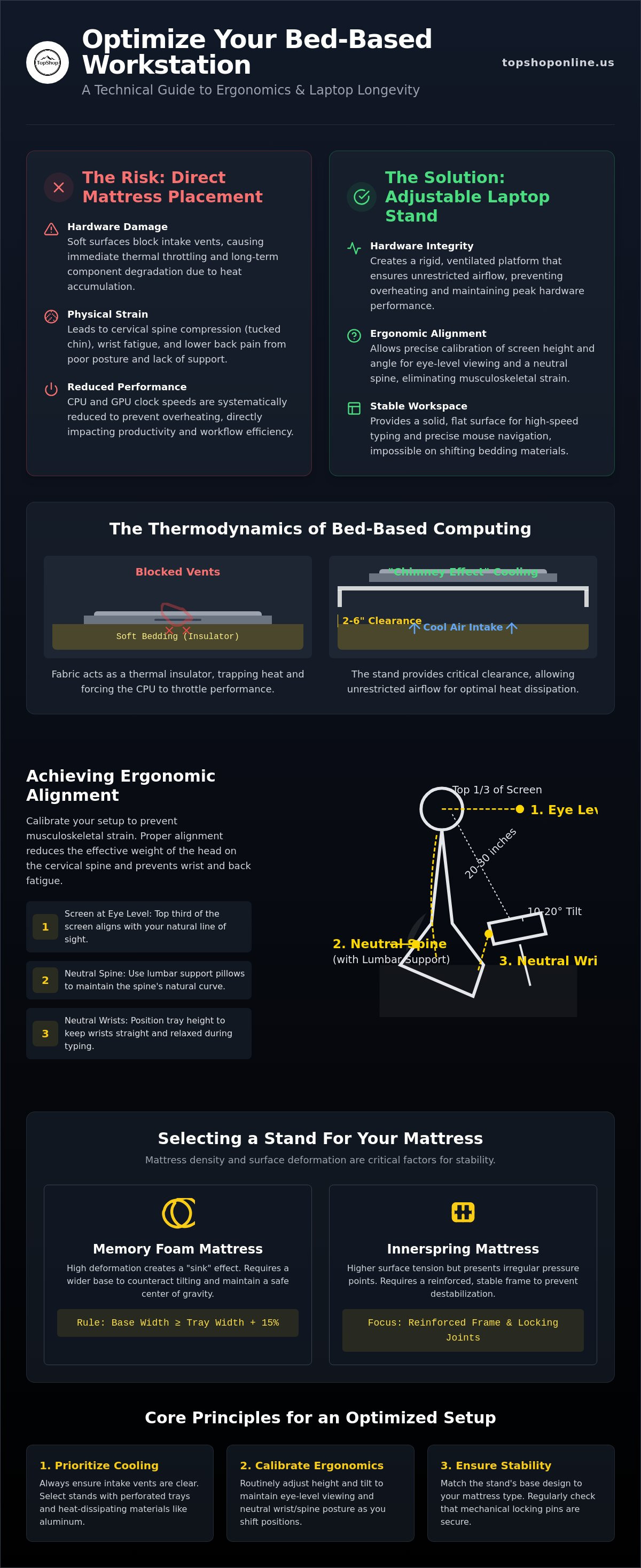
Soft surfaces like duvets and memory foam mattresses act as thermal insulators that trap heat against the laptop chassis. Most portable computers utilize bottom-mounted intake vents to draw cool air into internal heat sink assemblies. Placing hardware on bedding obstructs these vents, preventing the chimney effect where hot air rises and escapes through exhaust ports. An adjustable laptop stand for bed maintains a 2 to 6-inch clearance gap, ensuring unrestricted airflow for CPU and GPU performance. Thermal throttling is the systematic reduction of processor clock speeds caused by fabric obstruction and subsequent heat accumulation.
Anatomy of Ergonomic Alignment
Proper screen positioning is critical to avoid musculoskeletal strain during extended work sessions. Standard bed use often forces the user into a tucked chin posture, which increases the effective weight of the head on the cervical spine. Adhering to ergonomic principles for computer use requires the top third of the screen to be at eye level. This alignment prevents C1-C7 vertebrae compression and reduces ocular fatigue. Using an adjustable stand allows for precise height calibration, moving the device from the lap to the user's natural line of sight.
- Viewing Distance: Maintain a focal point between 20 and 30 inches from the eyes to reduce ocular strain.
- Screen Tilt: Adjust the tray to a 10 to 20-degree angle for optimal viewing while semi-reclined.
- Spine Position: Use lumbar support pillows to maintain a neutral spine and prevent lower back fatigue.
- Wrist Alignment: Set the tray height to allow for a neutral wrist position during typing, preventing carpal tunnel irritation.
The transition from a flat mattress surface to an elevated platform eliminates repetitive neck flexion. Rigid trays provide the necessary stability for high-speed typing and mouse navigation, which is impossible on shifting bedding. These technical specifications ensure that the bed-based workspace functions with the same ergonomic efficiency as a standard office desk.
How to Select Stand Specifications for Your Mattress Type
Selecting an adjustable laptop stand for bed requires an analysis of mattress density and surface deformation. Stability is determined by the interaction between the stand's footprint and the mattress's compression variables. Memory foam mattresses exhibit high viscoelastic deformation, creating a "sink" effect that can tilt narrow-based stands. In contrast, innerspring mattresses provide higher surface tension but present irregular pressure points that may destabilize lightweight frames. To maintain a safe center of gravity, the base width of the stand should ideally exceed the tray width by 10 to 15 percent, ensuring the device remains centered even as the user shifts weight on the bedding.
According to university ergonomics and safety data, the structural limitations of portable computers require specific external modifications to support neutral body postures during extended sessions. Most professional-grade stands utilize 5-position height adjustment ranges as an industry standard. This versatility allows users to compensate for varying torso lengths and the height of lumbar support pillows. For those requiring maximum surface area and stability on high-density foam, the Deskpro XL Ergonomic Adjustable Laptop Bed Desk offers a reinforced frame designed to resist tipping on soft surfaces.
Base Design and Surface Stability
Base architecture typically falls into U-shaped or T-shaped configurations. U-shaped legs distribute weight across a continuous perimeter, making them superior for soft, low-density foam where localized sinking is common. T-shaped legs provide more lateral legroom but require firmer mattress surfaces to prevent wobbling. High-quality stands feature spring-loaded locking pins and 360-degree rotational joints for granular angle control. Non-slip silicone pads on both the base and the tray surface are mandatory to maintain high friction coefficients, preventing the laptop chassis from sliding during high-angle tilt configurations.
Dimensional Compatibility for Laptops
Tray dimensions must be matched to the specific laptop chassis size, typically categorized as 13-inch, 15.6-inch, or 17-inch. A tray that is too small for a 17-inch gaming laptop leads to overhang, which shifts the center of gravity and increases the risk of a hardware fall. Weight capacity is equally critical; gaming laptops often exceed 5 pounds and require reinforced aluminum trays to prevent mid-plate bowing. Users who prefer external mice should look for trays with a minimum of 6 inches of additional lateral clearance beyond the laptop width. This extra space ensures the mouse remains on a level plane, reducing the repetitive wrist strain associated with cramped, uneven tracking surfaces.
Step-by-Step Setup: Achieving Ergonomic Alignment in Bed
Establishing a stable foundation is the primary requirement for bed-based computing. Begin by positioning the torso against the headboard using high-density lumbar support pillows. These supports stabilize the lower back and prevent the posterior pelvic tilt that leads to slouching and spinal fatigue. Once the spine is neutral, deploy the adjustable laptop stand for bed. Align the base legs laterally to distribute weight across the mattress surface. Ensure the leg segments don't exert direct pressure on the thighs, as localized compression can impede circulation during long work sessions. The base must remain level to prevent the center of gravity from shifting as you type.
Height calibration is the next critical phase in the setup procedure. Adjust the tray elevation so the top third of the laptop screen sits at horizontal eye level. This configuration eliminates the need for neck flexion and maintains proper cervical spine alignment. For an average adult user in a semi-reclined position, the tray surface typically requires an elevation of 10 to 14 inches above the mattress surface to reach eye level. After setting the height, adjust the tray tilt to a range between 0 and 15 degrees. This angle allows the hands to rest in a neutral position, reducing the risk of repetitive strain injuries in the wrists and forearms.
The 90-90-90 Rule for Bed Ergonomics
Bed ergonomics rely on maintaining specific mechanical angles to optimize musculoskeletal efficiency. Adjust the stand's proximity and height until the elbows form a 90-degree angle with the forearms parallel to the tray. Simultaneously, use firm bedding or specialized wedges to ensure the hips maintain a 90-degree angle relative to the torso. This alignment prevents the rounding of the shoulders and minimizes tension in the upper trapezius and levator scapulae muscles. Maintaining these angles ensures that the body's weight is distributed through the skeletal structure rather than the soft tissues.
Securing the Device
Hardware security protocols involve mechanical checks to prevent accidental device falls. Always engage the anti-slip baffle or integrated stopper located at the leading edge of the tray. This component provides the necessary friction to resist downward sliding when the tray is tilted. Center the laptop chassis exactly over the stand’s center of mass to maintain equilibrium. Before placing the laptop, manually test each locking pin and joint on the adjustable legs. Confirm that the pins are fully engaged in their respective slots to prevent sudden structural collapse under the weight of the hardware. Routine verification of these locking mechanisms ensures long-term operational safety.
Optimizing the Bed-Based Workspace: Stability and Peripheral Integration
Sustaining productivity in a bed-based environment requires a technical approach to power distribution and peripheral connectivity. An adjustable laptop stand for bed provides the structural foundation, but the surrounding hardware ecosystem determines long-term utility. Managing these elements prevents accidental device disconnection and reduces the mechanical strain on integrated laptop ports. A centralized power hub is necessary to support the laptop, mobile devices, and secondary peripherals without creating a cluttered or hazardous work area. Stability is not merely a physical attribute of the stand; it is a result of organized cable routing and balanced weight distribution.
Power and Charging Solutions
Positioning a power strip with 6 AC outlets & 6 USB ports near the bed frame allows for simultaneous charging of high-draw hardware and low-voltage accessories. Use a power strip with integrated surge protection to shield sensitive electronics from voltage spikes. Ensure at least 12 inches of cord slack between the power source and the laptop. This slack prevents the stand from tipping or the charging port from receiving lateral tension when the user shifts positions. Power bricks generate significant heat; they must be placed on a rigid surface or the floor rather than on flammable bedding or under pillows. This practice prevents thermal runaway in the transformer and reduces the risk of fire.
Input Peripherals and Lighting
Utilizing external input devices reduces the wear on integrated laptop components and allows for more flexible ergonomic positioning. A wireless keyboard for PS5 controller or a standard Bluetooth keyboard enables remote data entry while the laptop remains at eye level. This separation allows the user to maintain a neutral arm position even if the stand is elevated for ocular alignment. Ocular fatigue is a primary concern in dim bed environments. Adding smart LED fairy lights for indoor use provides essential bias lighting. This secondary illumination reduces the contrast between the bright screen and the dark room, stabilizing the pupil response. For extended monitoring or secondary screen tasks, a smart wifi projector 1080p portable can be positioned to project content onto a nearby wall, further reducing the need for constant near-field focus.
Explore the full range of workstation accessories at topshoponline.us to complete your ergonomic setup.
Cable management involves more than organization; it is a safety protocol. Use hook-and-loop fasteners to secure cables to the legs of the adjustable laptop stand for bed. This prevents wires from tangling with the user's legs or bedding. Routing cables along the stand's frame ensures that the weight of the cords does not pull the device off-center. Proper peripheral integration transforms a temporary setup into a stable, high-performance workstation suitable for professional tasks. Routine checks of cable integrity and port connections prevent data loss and hardware damage during movement.
Maintaining Hardware Longevity and Surface Stability
Routine maintenance of an adjustable laptop stand for bed ensures the continued safety of the mounted hardware and the structural integrity of the riser system. Mechanical wear typically occurs at high-friction pivot points and spring-loaded locking interfaces during frequent height and angle adjustments. Systematic inspection of these components prevents tray sagging or sudden leg collapse under the weight of the laptop. Longevity is a function of material care and mechanical calibration. By adhering to a scheduled maintenance protocol, users can maintain the high friction coefficients and rigid stability required for bed-based computing.
Mechanical Joint Maintenance
Periodic tightening of the primary structural screws on the Deskpro XL Ergonomic Adjustable Laptop Bed Desk is necessary to maintain chassis rigidity. Use a standard hex key or screwdriver to verify that all fasteners are seated firmly against the frame. Inspect polymer leg segments for stress whitening or hairline fractures, which are primary indicators of material fatigue. If the height adjustment mechanism becomes resistant, apply a dry PTFE-based lubricant to the friction joints. Avoid oil-based lubricants as they attract dust and lint from bedding, which can lead to mechanical binding. Verify that the leg locking pins move freely and engage fully into the adjustment detents to prevent accidental structural failure.
Surface Care and Hygiene
Dust accumulation in tray ventilation holes directly restricts the airflow necessary for maintaining the thermal efficiency described in previous sections. Use compressed air to clear these apertures monthly to prevent CPU heat accumulation. Cleaning protocols vary by material composition:
- Anodized Aluminum: Use a non-abrasive microfiber cloth dampened with water or a mild detergent to remove oils.
- High-Density Polymers: Disinfect high-touch areas like the mouse pad and wrist rest using 70% isopropyl alcohol wipes.
- Wood Composites: Wipe with a dry cloth and store in a low-humidity environment to prevent moisture-related warping or delamination.
Proper folding and storage techniques protect the hinge assemblies from lateral stress. Always collapse the legs in the manufacturer-specified sequence to avoid cross-threading or hinge misalignment. Store the stand in a horizontal or vertical orientation where it won't be subjected to external weight loads. If stability issues arise on soft surfaces, re-evaluate the mattress-specific footprint. Irregular mattress compression often stems from loose joints or uneven weight distribution. Ensure the laptop is centered on the tray and that all locking pins are verified before each use. These protocols extend the operational lifespan of the adjustable laptop stand for bed while protecting the integrated components of the laptop.
Optimizing Your Bed-Based Workstation for Long-Term Performance
Implementing a technical setup for bed-based computing prevents the physical strain and hardware overheating common with makeshift arrangements. Effective use of an adjustable laptop stand for bed requires precise calibration of screen height and tray tilt to maintain a neutral spine. This configuration eliminates the "tucked chin" posture and reduces cervical vertebrae compression during extended sessions. Proper thermal management involves maintaining clear intake pathways to prevent CPU throttling and long-term hardware degradation. By following the 90-90-90 rule for elbow and hip alignment, you create a sustainable environment for high-speed productivity outside of a traditional office desk.
To achieve professional-grade stability and hardware protection, Shop the Deskpro XL Ergonomic Adjustable Laptop Bed Desk at TopShop. This riser features durable aluminum alloy construction and a 5-level height adjustment system for maximum ergonomics. Integrated cooling vents provide essential ventilation for high-performance laptops during intensive processing tasks. Routine inspection of locking pins and joint tension ensures your workstation remains secure and rigid over time. Transitioning to a dedicated, ventilated platform secures both your physical health and your device's operational lifespan.
Frequently Asked Questions
Is an adjustable laptop stand for bed worth it for daily use?
An adjustable laptop stand for bed is a necessary investment for daily remote work or sustained digital consumption. It provides a rigid, elevated platform that prevents the musculoskeletal issues associated with improper laptop placement on soft bedding. Daily use facilitates a neutral spine position and ensures consistent airflow to internal hardware components, mitigating the risks of thermal throttling and repetitive strain injuries.
How high should my laptop stand be when I am sitting in bed?
The optimal height for a laptop stand in bed requires the top third of the display to align with horizontal eye level. For most adult users in a semi-reclined posture, this typically involves an elevation of 10 to 14 inches above the mattress surface. This height calibration prevents neck flexion and trapezius muscle tension, maintaining proper cervical spine alignment during extended work sessions.
Can using a laptop in bed without a stand damage the hardware?
Direct placement of a laptop on soft bedding surfaces obstructs bottom-mounted intake vents, leading to rapid heat accumulation. This heat causes thermal throttling and can permanently damage internal CPU and GPU components through sustained high-temperature exposure. Additionally, fabric fibers and lint from blankets are frequently drawn into the cooling fans, causing mechanical failure and reducing the efficiency of the internal heat sink.
Will an adjustable lap desk fit over a large person or thick blankets?
High-capacity adjustable laptop stands are designed with wide lateral leg clearance to accommodate various body types and thick bedding. Models such as the Deskpro XL Ergonomic Adjustable Laptop Bed Desk feature telescopic legs with wide width settings to ensure a stable footprint over duvets and memory foam. Always verify the internal leg-to-leg distance against your specific requirements to maintain a level surface and prevent thigh compression.
How do I stop my laptop from sliding off an angled bed stand?
Prevention of device slippage at high tilt angles is achieved through integrated mechanical stoppers and high-friction surface materials. Most stands include an anti-slip baffle or stopper at the leading edge of the tray to provide a physical barrier. Additionally, utilizing trays with non-slip silicone pads increases the friction coefficient between the laptop chassis and the stand, ensuring stability even at angles up to 15 degrees.
What is the best material for a laptop bed desk to prevent overheating?
Anodized aluminum alloy is the superior material for thermal management due to its high thermal conductivity. Aluminum acts as a passive heat sink, drawing heat away from the laptop chassis and dissipating it into the surrounding air. Trays featuring perforated patterns or integrated cooling vents further enhance this effect by facilitating the chimney effect, allowing hot air to rise and escape without obstruction.
Can I use an adjustable laptop stand for a tablet or book?
Adjustable laptop stands function as multi-purpose mechanical risers suitable for tablets, e-readers, and physical books. The multi-angle tray allows for precise positioning of ocular focal points, reducing eye strain during long-duration reading or media consumption. Many stands feature adjustable clips or deeper baffles specifically designed to secure thinner tablets or hold book pages in place, providing a stable, hands-free viewing experience.
How do I clean an ergonomic laptop bed desk with a mouse pad?
Cleaning an ergonomic laptop bed desk involves material-specific hygiene protocols. For integrated mouse pads and wrist rests, use a microfiber cloth dampened with 70% isopropyl alcohol to remove skin oils and bacteria. For the aluminum or polymer frame, a mild detergent and water solution is sufficient. Ensure the unit is completely dry before storage to prevent moisture accumulation in the mechanical joints or locking pins.