

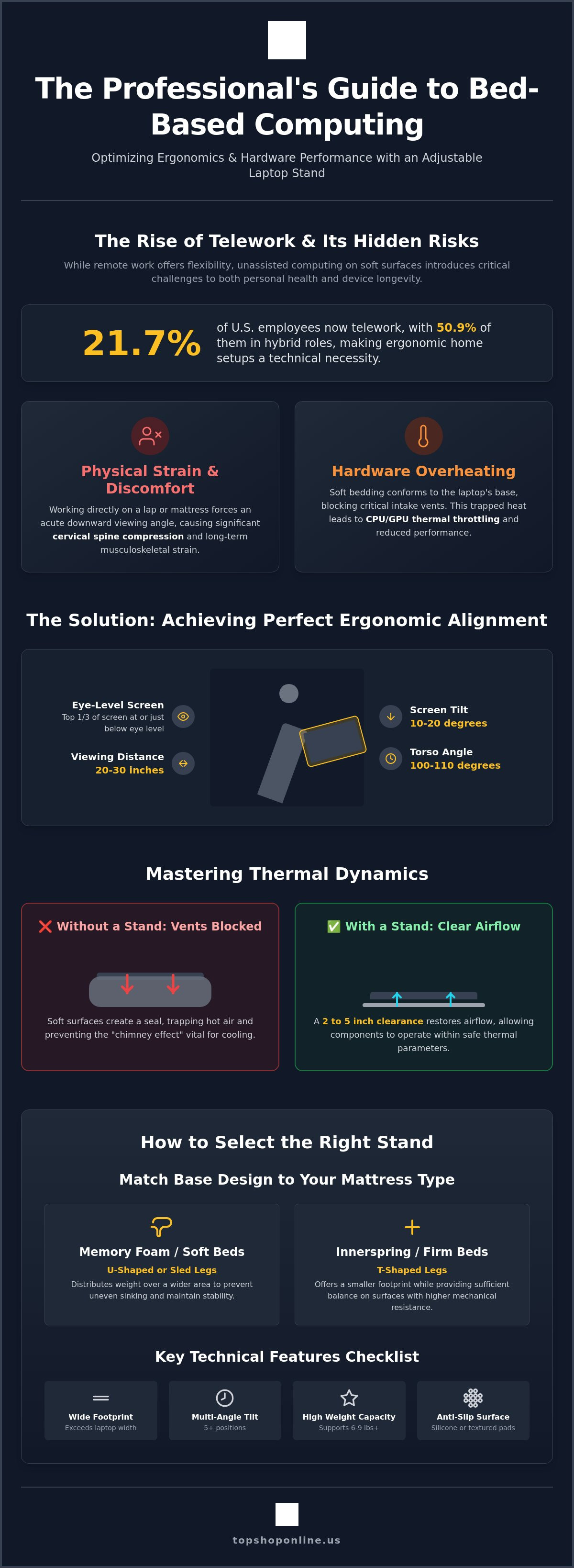
Recent data from June 2026 indicates that 21.7% of U.S. employees telework, with 50.9% of those workers in hybrid positions. This high prevalence of home-based work often results in computing from soft surfaces, which leads to cervical spine strain and hardware overheating. Using an adjustable laptop stand for bed is a technical necessity to prevent these issues. Without a stable platform, soft bedding blocks intake vents and forces poor viewing angles, resulting in thermal throttling and physical discomfort.
You've likely experienced the instability and heat buildup associated with unassisted bed-based computing. This article provides the technical specifications and setup procedures required to maintain ergonomic alignment and hardware performance. We'll cover the calibration of height and tilt for eye-level viewing, wrist alignment for typing, and the maintenance of clear airflow paths. This overview ensures your setup remains stable and your laptop operates within safe thermal parameters during extended use.
Key Takeaways
- Technical procedures for thermal optimization using the chimney effect to prevent intake vent obstruction and hardware throttling.
- Stability assessment criteria for various mattress types based on footprint dimensions and center of gravity safety calculations.
- Setup protocols for achieving neutral ergonomic alignment using lumbar support and an adjustable laptop stand for bed.
- Integration strategies for external peripherals and power management to reduce operational strain on internal laptop components.
- Maintenance schedules for mechanical joint inspections and material-specific cleaning of aluminum, plastic, or wood surfaces.
Technical Mechanics of Adjustable Laptop Stands for Bed Use
An adjustable laptop stand for bed functions as a specialized mechanical riser designed to elevate computing hardware above non-uniform, compressible surfaces. These units provide a rigid, ventilated platform that replaces the unstable and thermally insulating environment of standard bedding. High-performance models, such as the Deskpro XL Ergonomic Adjustable Laptop Bed Desk, utilize multi-axial, friction-locking, zinc-alloy joints and reinforced aluminum-frame legs to facilitate precise height and tilt adjustments. These technical specifications allow users to transition from a flat, heat-trapping orientation to an elevated, ergonomically sound configuration. The primary objective is to create a stable work surface that mimics the geometry of a traditional desk while accommodating the physical constraints of a mattress.
Thermodynamics of Bed-Based Computing
Soft surfaces like memory foam, polyester fill, or down comforters create a physical seal around the base of a laptop chassis. This seal obstructs intake vents and prevents the chimney effect, which is the natural upward movement of air through the internal cooling system. When fabric blocks these critical pathways, internal temperatures rise rapidly. Thermal throttling occurs when the CPU or GPU automatically reduces clock speeds to prevent permanent hardware damage from excessive heat. An adjustable laptop stand for bed maintains a critical 2 to 5 inch clearance between the device and the mattress surface. Material selection directly impacts this process. Aluminum alloy trays provide passive heat dissipation through high thermal conductivity. Conversely, high-density polymers offer a lightweight, impact-resistant, cost-effective alternative with lower thermal transfer rates but higher portability for mobile use.
Anatomy of Ergonomic Alignment
Operating a laptop directly on a lap or mattress introduces significant ergonomic hazards related to musculoskeletal strain. The primary risk involves cervical spine compression caused by an acute downward viewing angle. Raising the screen to eye level eliminates the need for neck flexion and reduces the load on the upper vertebrae. Proper setup requires the top third of the display to sit at or slightly below horizontal eye level. Users should maintain an ocular focal distance of 20 to 30 inches and a screen tilt of 10 to 20 degrees to minimize glare and eye fatigue. Achieving a neutral spine position in a semi-reclined state requires the torso to be supported at a 100 to 110 degree angle. The adjustable laptop stand for bed must provide enough vertical range to accommodate this posture without forcing the user to hunch forward. This alignment preserves the natural curvature of the spine and prevents long-term postural degradation.
How to Select Stand Specifications for Your Mattress Type
Stability on a mattress depends on the interaction between the stand's footprint and the surface's compression modulus. High-density memory foam presents a specific challenge for an adjustable laptop stand for bed because the material contours to the leg's pressure points, often causing uneven tilting. Users must select a stand with a footprint width that exceeds the laptop chassis width to ensure the center of gravity remains within the base perimeter. Innerspring mattresses provide immediate mechanical resistance, which allows for narrower T-shaped bases, whereas memory foam or hybrid beds require U-shaped or sled-style legs to distribute weight over a larger surface area.
Standard industry specifications favor 5-position height settings for an adjustable laptop stand for bed to accommodate various seated heights and bedding thicknesses. This adjustability range ensures that users can maintain proper laptop ergonomics by keeping the screen at eye level regardless of mattress sinkage. Weight capacity is another critical metric; heavy gaming laptops weighing 6 to 9 pounds require reinforced mechanical joints. To prevent device slippage at steep angles, the tray must feature a high friction coefficient, typically achieved through integrated silicone pads or textured surface coatings. For those seeking a robust solution, the Deskpro XL Ergonomic Adjustable Laptop Bed Desk provides the necessary structural integrity and stability for diverse mattress types.
Base Design and Surface Stability
Leg geometry determines the balance of the stand on soft surfaces. U-shaped legs provide a continuous contact patch that reduces the psi (pounds per square inch) exerted on the mattress, preventing the stand from leaning. T-shaped legs offer a smaller footprint but require higher mattress firmness to stay upright. Non-slip silicone pads on the base are essential for preventing the stand from sliding on silk or high-thread-count cotton sheets. Mechanical durability depends on the leg locking mechanisms; spring-loaded pins or friction-lock knobs must be rated for repeated adjustments to prevent structural failure over time.
Dimensional Compatibility for Laptops
Tray dimensions must match the laptop's physical footprint, typically categorized for 13-inch, 15.6-inch, or 17-inch devices. A 17-inch laptop requires a tray width of at least 16.5 inches for full chassis support. If you intend to use an external mouse, the tray must include an additional 5 to 7 inches of lateral clearance. Trackpad-only users can opt for compact trays to minimize the overall footprint. Weight distribution is also a factor; ultra-portable tablets exert minimal pressure, but high-performance workstations require a centered load to avoid tipping the stand on soft bedding.
Step-by-Step Setup: Achieving Ergonomic Alignment in Bed
Systematic calibration of your workstation begins with torso stabilization. Place high-density lumbar support pillows against the headboard to maintain the natural curvature of the lower spine. This prevents the posterior pelvic tilt common in bed-based computing. Once the torso is fixed, deploy the adjustable laptop stand for bed by extending the legs to a width that clears the outer thighs. Ensure the base legs sit flat on the mattress surface to distribute the load evenly and avoid localized pressure points on the lower limbs. This structural foundation is critical for maintaining stability during long-duration typing sessions.
Height calibration follows torso positioning. Adjust the tray elevation so the top third of the laptop display aligns with your horizontal eye level. This prevents chronic neck flexion. For most users in a semi-reclined position, the tray surface requires an elevation of 9 to 11 inches above the mattress to achieve this ocular focal point. Simultaneously, set the tray tilt between 0 and 15 degrees. This specific angular range facilitates a neutral wrist position, reducing the strain on the carpal tunnel and forearm tendons while maintaining access to the integrated keyboard.
The 90-90-90 Rule for Bed Ergonomics
Optimal alignment requires the elbows to remain at a 90-degree angle with the forearms parallel to the tray surface. Achieve this by adjusting the stand height relative to your seated shoulder position. Maintain a 90-degree angle at the hips using firm, supportive bedding or dedicated wedge pillows to prevent slouching. For an average adult user, the laptop screen's top edge should sit approximately 18 to 22 inches above the mattress surface to reach eye level. This configuration minimizes musculoskeletal stress and ocular fatigue.
Securing the Device
Mechanical safety is paramount when using an adjustable laptop stand for bed on an incline. Engage the integrated anti-slip baffle or front-edge stopper to prevent the laptop from sliding downward during high-angle viewing. Position the laptop chassis so its center of mass aligns with the stand’s vertical axis. This prevents the unit from tipping backward or forward on soft bedding. Before applying the full weight of the device, manually test the locking pins or friction joints on each leg. Ensure each joint is fully seated in its designated slot to prevent sudden mechanical collapse during operation.
Optimizing the Bed-Based Workspace: Stability and Peripheral Integration
Stability for an adjustable laptop stand for bed extends beyond mechanical leveling to include environmental cable management and power distribution. Peripheral integration reduces mechanical wear on integrated laptop components like the trackpad and internal keyboard. A centralized hub for power and connectivity prevents the accumulation of heat-generating hardware on soft bedding surfaces. Proper workspace optimization ensures that the ergonomic gains achieved through stand height and tilt aren't neutralized by cord strain or poor lighting conditions.
Power and Charging Solutions
Long-duration computing sessions require high-capacity power distribution. Positioning a power strip with 6 AC outlets & 6 USB ports near the bed frame allows for simultaneous charging of the laptop, mobile devices, and peripherals. It's essential to maintain 12 to 18 inches of cord slack between the power source and the laptop stand. This slack prevents the adjustable laptop stand for bed from tipping if the user shifts position during use. Power bricks should be placed on a hard side table or a dedicated ventilated shelf rather than directly on the mattress. This placement avoids thermal accumulation in flammable bedding materials and preserves the lifespan of the power adapter.
Input Peripherals and Lighting
External input devices facilitate a more flexible ergonomic range. Using a wireless keyboard for PS5 controller or a standard Bluetooth mechanical keyboard allows the user to position the laptop screen at a greater focal distance. This setup keeps the hands in a neutral, supported position on the lap or stand tray. To mitigate ocular fatigue in low-light environments, users should implement bias lighting. Adding smart LED fairy lights for indoor use behind the display reduces the contrast ratio between the screen and the dark room. For secondary screen viewing or collaborative tasks, setting up a smart wifi projector 1080p portable from the stand's surface provides a large-format display without increasing the physical load on the bed.
Effective cable management involves securing wires to the stand legs using Velcro ties or integrated clips. This prevents port strain on the laptop chassis and eliminates tripping hazards for the user. Port strain is a common cause of motherboard failure in mobile workstations, as repeated tension on USB-C or HDMI ports can loosen internal solder joints. For high-quality ergonomic hardware and workspace accessories, browse the full inventory at topshoponline.us to optimize your home office configuration.
Maintaining Hardware Longevity and Surface Stability
Long-term operational efficiency of an adjustable laptop stand for bed depends on the structural integrity of its mechanical fasteners and the cleanliness of its thermal interface. Regular maintenance prevents the gradual degradation of locking mechanisms and ensures the tray remains a stable platform for high-value computing hardware. Neglecting these protocols can lead to mechanical failure or hardware overheating due to obstructed airflow. Maintaining the unit ensures that the ergonomic and cooling benefits established during the initial setup remain consistent over years of use.
Mechanical Joint Maintenance
Routine inspection should focus on the tension of the zinc-alloy friction joints and leg-locking pins. For the Deskpro XL Ergonomic Adjustable Laptop Bed Desk, users must periodically verify the tightness of the primary hinge screws using a standard hex key to maintain structural rigidity. This prevents the tray from sagging under the weight of heavy 17-inch laptops. Polymer legs require inspection for stress whitening or hairline fractures, which indicate material fatigue from over-extension. If the height adjustment mechanism utilizes spring-loaded pins, ensure the internal springs remain free of bedding fibers. Dry-film lubricants can be applied to metal-on-metal friction points to facilitate smooth transitions without attracting environmental dust.
Surface Care and Hygiene
Cleaning protocols vary based on material composition. Aluminum trays require non-abrasive microfiber cloths and 70% isopropyl alcohol to remove skin oils and maintain high thermal conductivity for passive cooling. Plastic and high-density polymer surfaces should be wiped with damp cloths and mild detergents to prevent surface staining. High-touch zones, including the integrated wrist rest and mouse pad area, require frequent disinfection to prevent bacterial accumulation. Users must clear dust from the tray’s ventilation holes using compressed air to maintain the "chimney effect" necessary for optimal CPU and GPU cooling during high-load tasks.
Correct folding sequences prevent unnecessary torque on the hinges during storage. Users should collapse the legs fully before rotating the tray into the flat transport position to avoid hinge strain. Storing the unit in a vertical orientation in a dry, climate-controlled environment prevents the corrosion of metal pins and the warping of organic materials. If stability issues arise on soft surfaces, re-evaluate the locking pins to ensure they are fully seated in their designated adjustment slots. Ensuring the stand is level on the mattress prevents the center of gravity from shifting, which protects both the stand and the laptop from accidental tipping.
Calibrating Your Bed-Based Workstation for Long-Term Performance
Sustainable bed-based computing requires precise technical calibration of hardware elevation and thermal clearance. You've identified the specific methods for mitigating ergonomic hazards by maintaining a neutral spine and preventing thermal throttling via the chimney effect. Implementing these setup procedures ensures internal laptop components remain within safe operating temperatures while musculoskeletal health is preserved. Consistency in routine maintenance, including joint tension checks and surface hygiene, remains essential for hardware longevity.
Integrating a high-performance adjustable laptop stand for bed provides the structural foundation for these physical and technical optimizations. For a professional-grade solution, Shop the Deskpro XL Ergonomic Adjustable Laptop Bed Desk at TopShop. This model utilizes durable aluminum alloy construction and integrated cooling vents for maximum hardware protection. The 5-level height adjustment system allows for precise ergonomic customization to match mattress firmness and seated height variables. Transitioning to a technically sound setup protects your physical health and your technology investments simultaneously. Maintain a stable, efficient, and healthy workspace starting today.
Frequently Asked Questions
Is an adjustable laptop stand for bed worth it for daily use?
An adjustable laptop stand for bed is essential for daily use if you work remotely or consume media frequently in a reclined position. It mitigates ergonomic hazards like cervical spine strain by elevating the screen to a proper viewing height. Without a stand, users often experience physical discomfort that leads to reduced focus. The stable platform also prevents the laptop from sinking into soft bedding, which preserves hardware integrity over time.
How high should my laptop stand be when I am sitting in bed?
The ideal height typically ranges from 9 to 11 inches above the mattress surface for most adult users. Your specific requirement depends on your seated torso height and the compression modulus of your mattress. The primary goal is to align the top third of the display with your horizontal eye level. This configuration reduces neck flexion and allows you to maintain a neutral spine without hunching forward.
Can using a laptop in bed without a stand damage the hardware?
Operating a laptop directly on blankets frequently causes permanent hardware damage due to thermal accumulation. Soft fabrics seal the intake vents on the bottom of the chassis, which prevents the cooling fans from drawing in ambient air. This obstruction triggers thermal throttling and increases internal temperatures. Over time, consistent heat exposure degrades the motherboard solder joints and reduces the operational lifespan of the CPU and GPU.
Will an adjustable lap desk fit over a large person or thick blankets?
Standard ergonomic models like the Deskpro XL feature wide-set legs designed to clear the hips and thick winter comforters. These stands typically offer a lateral clearance of 20 to 24 inches between the legs. This width accommodates various body types and heavy bedding without restricting movement or causing pressure points. Users should verify the leg-to-leg dimensions before purchase to ensure the stand doesn't press against the thighs.
How do I stop my laptop from sliding off an angled bed stand?
Integrated anti-slip baffles and front-edge stoppers are the primary mechanisms for securing your device on an incline. These components prevent the laptop from sliding downward when the tray is set to a steep viewing angle. Additionally, you should ensure the stand’s silicone pads are free of dust to maintain high surface friction. Centering the laptop’s mass over the stand’s vertical axis also prevents the unit from tipping on uneven surfaces.
What is the best material for a laptop bed desk to prevent overheating?
Aluminum alloy is the superior material for thermal management due to its high thermal conductivity. It acts as a passive heat sink, drawing thermal energy away from the laptop chassis during operation. While high-density polymers are lighter, they don't dissipate heat as efficiently as metal. Aluminum stands often include perforated ventilation holes to further enhance the chimney effect, ensuring that internal cooling fans can maintain safe operating temperatures.
Can I use an adjustable laptop stand for a tablet or book?
You can utilize an adjustable laptop stand for bed for tablets, e-readers, or physical books. The tilt adjustability allows for optimal viewing angles while reading in a reclined position. Many stands include adjustable clips or deeper baffles that secure thinner devices like tablets or heavy hardcover books. This multi-functionality makes the stand a versatile tool for both professional work and leisure activities, reducing the need for multiple specialized risers.
How do I clean an ergonomic laptop bed desk with a mouse pad?
Clean the aluminum or plastic tray surfaces using 70% isopropyl alcohol and a non-abrasive microfiber cloth. For integrated mouse pads, use a damp cloth with mild detergent to remove skin oils and debris. You should avoid saturating the mouse pad material to prevent adhesive failure. Regularly clear the ventilation holes with compressed air to remove accumulated lint from bedding, as this debris can migrate into your laptop’s internal cooling system.