

A camera can provide live viewing without a plan while requiring a subscription for recorded clips, longer video history, or advanced alerts. A wireless indoor security camera no subscription can avoid recurring fees if its recording and storage features work without a paid plan, but the details vary by model. The camera’s label alone won’t tell you which functions remain available after setup.
It’s reasonable to expect “wireless” to mean fewer cables and “no subscription” to mean usable footage at no extra monthly cost. In practice, wireless may refer only to the Wi-Fi connection, while the camera still needs power. Live viewing, motion alerts, and saved recordings may also have different requirements.
This guide compares local and cloud storage, free and paid alert features, Wi-Fi and power needs, and privacy controls to help you match a camera to your home and recording preferences. The same checks apply to indoor Wi-Fi options such as TopShop’s 1080P HD Wireless Mini Security WiFi Camera and 360° Panoramic Hidden Light Bulb Wifi Camera. Compare each option’s recording, storage, and alert features with your needs.
Key Takeaways
- Compare live viewing, motion notifications, recording, playback, and downloads separately. Access to one feature doesn’t guarantee access to the others.
- Compare local and cloud storage by playback access, internet dependence, privacy, and possible recording interruptions.
- A wireless indoor security camera no subscription can reduce recurring service costs, but check which recording and alert functions work without a paid plan.
- Plan coverage around the room, entrances, and areas that need monitoring, then configure alerts and test saved footage.
- Match resolution, field of view, night vision, storage preference, and network access to the footage you need to review.
What “No Subscription” Means for a Wireless Indoor Security Camera
A wireless indoor security camera no subscription setup avoids a recurring camera-service plan, but it doesn’t necessarily eliminate every ongoing cost. Depending on its design, a camera may need a separate memory card, recording hub, or replacement battery. The phrase also doesn’t guarantee that every function is available without payment.
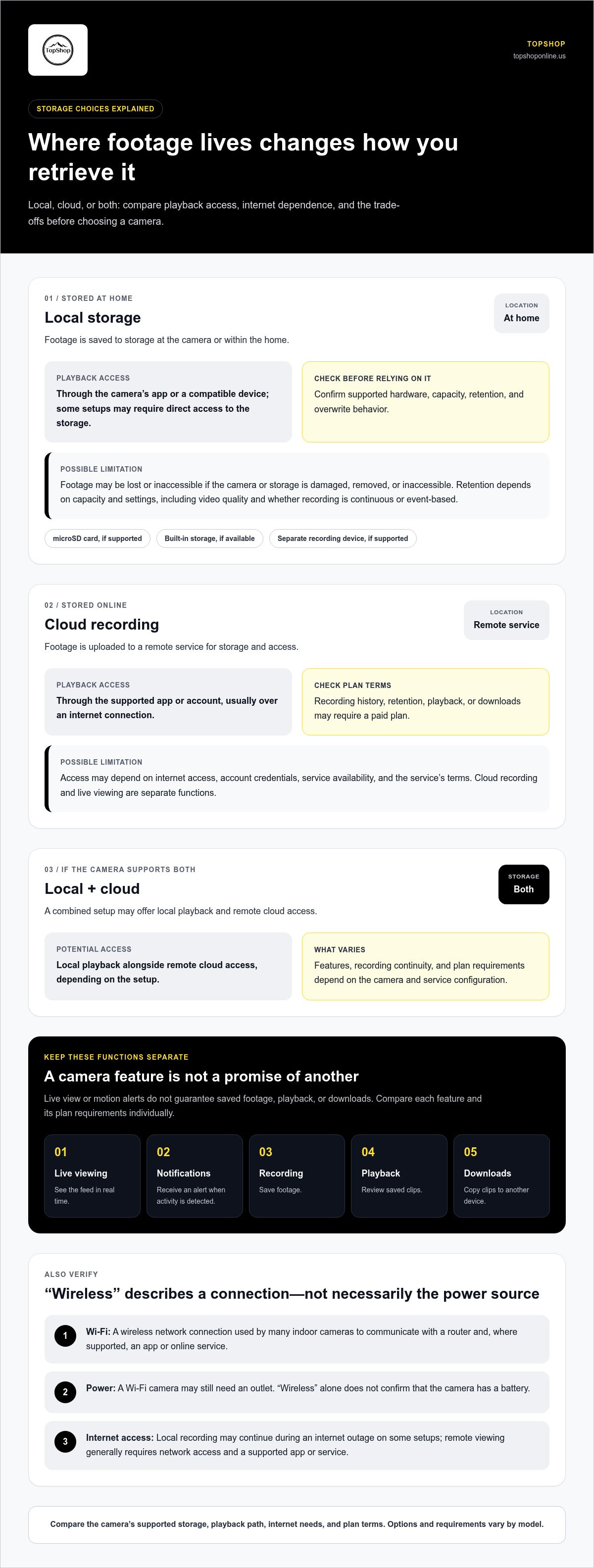
Check each function separately. Live viewing shows the camera feed in real time. Motion notifications send an alert when activity is detected. Recording saves footage, playback lets you review saved clips, and downloads let you copy them to another device. A camera may provide live view and alerts while limiting recording history, playback, or downloads to a paid plan. Plan terms may also distinguish basic motion detection from more detailed alert features.
Does no subscription mean recordings are always free?
No. Recording access depends on the camera’s storage options and software design. Some cameras save footage to local storage, while others rely on cloud recording or offer both. Cloud history, longer retention, or particular playback and download tools may require a plan; policies differ by camera. Before choosing, compare plan requirements for recording, event history, playback, downloads, and notifications. Don’t assume an advertised free app includes saved video.
Local recording saves footage to storage at the camera or within the home; cloud recording uploads footage to an online service for storage and access. Local storage can avoid cloud-plan fees, but access methods and recording continuity depend on the camera’s setup. Cloud access can support remote playback, but usually depends on an internet connection and the service’s terms.
Wireless, Wi-Fi, and battery power are different features
“Wireless” may describe a camera’s network connection, its power source, or both. Wi-Fi is the wireless network connection used by many indoor cameras to communicate with a router and, where supported, an app or online service. A Wi-Fi camera may still need to plug into a power outlet. A battery-powered camera is a separate power configuration, and “wireless” alone doesn’t confirm that a camera has a battery.
Wireless also doesn’t mean internet-free. Local recording may continue during an internet outage on some setups, but remote viewing generally requires network access and a supported app or service. Treat the camera’s connection method, power arrangement, storage, and remote-access features as separate specifications. For a broader overview of camera types and wireless technology, see Understanding Wireless Security Camera Technology.
How Local Storage and Cloud Recording Change Camera Use
Storage method determines where footage is saved and how it’s retrieved. That choice affects playback access, reliance on an internet connection, privacy considerations, and what may happen if the camera or network becomes unavailable. Some cameras support local storage, cloud recording, or both; the options and plan requirements vary by model.
Use this comparison to identify the practical differences. “Playback access” describes the usual retrieval path, not a guarantee that every feature works during an outage.
| Storage location | Playback access | Possible limitations |
|---|---|---|
| Local, such as a supported memory card or recording device | Through the camera’s app or compatible device; some setups may require direct access to the storage | Requires compatible hardware and enough capacity; footage may be affected if the camera or storage is damaged, removed, or inaccessible |
| Cloud, on a remote service | Through the supported app or account, usually over an internet connection | May depend on internet access, account access, service terms, and a paid plan for recording history or other features |
| Both, if supported | May offer local playback and remote cloud access | Features, recording continuity, and plan requirements depend on the camera and service configuration |
Local storage: what it can and cannot provide
A camera may support a microSD card, built-in storage, or a separate recording device, but these are model-specific options, not standard features of every camera. Capacity and retention depend on supported hardware and settings such as recording length, video quality, and whether the camera records continuously or saves selected events. Review storage limits and overwrite behavior before relying on footage for a particular period.
Local storage can reduce dependence on a cloud account, but it has practical trade-offs. You may need to access or manage the card or device, and footage stored at the camera could be lost or inaccessible if that equipment is damaged or removed.
Cloud recording: access and plan trade-offs
When supported, cloud recording uploads footage to a remote service, allowing playback through an account and compatible app. This can make saved clips accessible away from home, but access may depend on the internet connection, account credentials, service availability, and plan terms. Check whether a plan affects event history, retention, playback, or downloads.
Cloud recording and live viewing are separate functions. A camera may support live viewing under different conditions from saved cloud clips. For another perspective on plan-free camera features, see CNET’s Top Subscription-Free Security Cameras. For indoor Wi-Fi camera options, visit TopShop’s indoor Wi-Fi cameras.
Subscription-Free Cameras: Features, Trade-Offs, and Common Misunderstandings
A common misconception is that “no subscription” means every camera feature is included indefinitely. The label only describes the absence of a recurring service plan for functions available without one. A camera may have hardware capable of detecting motion or saving video, while access to those functions still depends on its app, account, network connection, software, or optional service terms.
Evaluate each function separately. A wireless indoor security camera no subscription may suit a household that needs basic monitoring, but the no-plan label alone doesn’t establish whether it saves usable footage or sends dependable alerts.
Which features may work without a paid plan?
Live view, motion alerts, local recording, and playback are distinct capabilities. Their availability can vary by camera model, app, firmware version, storage configuration, and service terms. A feature listed in the hardware specifications may still require an account, network access, compatible storage, or a particular software setting.
Use this checklist for each camera:
- Live view: Can you view the feed without enrolling in a paid plan?
- Motion alerts: Are notifications included, and do they reach your phone as expected?
- Recording: Can video be saved locally, and what hardware or settings are required?
- Playback and history: Can you review saved footage without a plan, and how much history remains available?
- Downloads: Can you export clips, or does that function depend on an account or service?
What trade-offs should shoppers expect?
Local recording can keep footage within the home and reduce dependence on a remote account, but access may require the camera, storage device, or local network to remain available. Cloud recording can make clips accessible remotely through a supported app, but may rely on internet access, account credentials, and service terms. Retention periods and history tools can also differ.
No-plan setups may offer fewer options for long-term clip history or remote retrieval. That can matter more than the subscription label if you need to identify an event after several days. Conversely, cloud convenience may not outweigh account dependence if local access is your priority. Compare the full workflow: detection, notification delivery, recording, and playback.
Prioritize reliable alerts and usable footage. A motion notification has limited value if it doesn’t arrive when needed, and recording has limited value if clips can’t be located or reviewed. Confirm how each function works without an ongoing plan before deciding whether the trade-off fits your monitoring needs.
How to Choose and Set Up a Wireless Indoor Security Camera
Set up the camera around a defined coverage goal, not just a convenient outlet or shelf. For a wireless indoor security camera no subscription, confirm that the camera’s network, storage, and app functions match how you plan to use it before relying on alerts or recordings.
- Define coverage: Choose the room, entrance, or specific area you need to monitor.
- Check network access: Test Wi-Fi and live view at the intended camera position.
- Compare storage: Identify where footage will be saved and how you’ll retrieve it.
- Configure alerts: Set motion zones and notification preferences for relevant activity.
- Test playback: Trigger a test recording, then confirm that you can find and view the clip.
Plan indoor camera placement and Wi-Fi coverage
Match the camera’s field of view to the room and target area. A wider view may cover more of a room, while a camera aimed at an entrance may better show who approaches it. Check for furniture, walls, glare, and other obstructions that could affect the view. Avoid pointing the camera toward private spaces or areas beyond the coverage you need. Before fixing its position, test Wi-Fi signal and live view from that exact spot.
Configure recording, alerts, and account access
Review recording settings and confirm where clips are stored, how long they remain available, and how playback works in your setup. Adjust motion zones to focus on the intended area, then set notification preferences to reduce irrelevant alerts. In the camera app, review permissions, secure the account with a unique password, and remove shared-user access that’s no longer needed. Test an alert and recorded clip after configuration.
Setup summary: Place the camera for the intended view, connect it to a tested network, review privacy and account access, then configure recording and verify playback. Complete each step before depending on the camera for routine monitoring.
See the TopShop indoor Wi-Fi camera selection while comparing options.
Choose a No-Subscription Camera by Matching Features to Your Needs
Choose based on what you need to see, save, and retrieve, rather than relying on a “no subscription” label. For a wireless indoor security camera no subscription, compare the camera’s recording options, storage location, alert functions, privacy controls, and network requirements as separate features. The right combination depends on the room and how you’ll use the footage.
Match camera features to the room and recording need
Start with the coverage area. Field of view affects how much of a room appears in the frame; a wide view may capture more space, while a narrower view can focus on a specific doorway or section. Resolution affects how much visible detail the video can retain, but usefulness also depends on distance, lighting, and camera placement. Night vision matters if you need to monitor a room in low light. Review how the camera handles each feature rather than assuming a specification guarantees a particular result.
- For room coverage: Compare field of view with the area you need to monitor, including potential obstructions.
- For identifying visible details: Consider resolution alongside the distance between the camera and the subject.
- For low-light monitoring: Check whether night vision is included and how it operates in your intended placement.
- For saved footage: Match storage and retention options to how soon and how often you expect to review clips.
- For timely awareness: Consider whether motion alerts meet your needs and whether the camera’s network connection supports reliable access.
Review TopShop’s indoor Wi-Fi camera options
TopShop offers the 1080P HD Wireless Mini Security WiFi Camera and the 360° Panoramic Hidden Light Bulb Wifi Camera. Compare each camera’s product information with your storage, recording, alert, and privacy priorities. For resolution and connectivity context related to the mini camera, read the wireless mini security camera guide.
Before choosing, make a short decision list: what area needs coverage, whether you need saved recordings or live viewing, where footage should be stored, which alerts are useful, and how the camera will connect to your network. Then compare the product information with those requirements. Explore TopShop’s indoor Wi-Fi cameras.
Choose a Camera That Fits Your Recording Priorities
The right wireless indoor security camera no subscription is the one that matches your coverage, storage, alert, and privacy needs, not simply the one labeled “subscription-free.” Compare live viewing, motion notifications, recording, playback, and downloads separately. Local and cloud storage also differ in where clips are kept and how you access them. Check the camera’s Wi-Fi connection and power requirements before setup, then test alerts and saved footage in the intended room.
TopShop offers the 1080P HD Wireless Mini Security WiFi Camera and the 360° Panoramic Hidden Light Bulb Wifi Camera. Compare each option’s product information with your needs, including its recording and storage features. Browse TopShop’s indoor Wi-Fi cameras to explore the available options.
With a clear checklist and a test of the features you plan to use, you can choose with confidence and set up a camera that fits your home.
Frequently Asked Questions
Can an indoor security camera record without a subscription?
Yes, an indoor camera can record without a subscription if its hardware and software support recording without a paid plan. That may involve a compatible memory card or another local storage option. Check whether recording, playback, retention, and downloads are included separately. A camera may offer live viewing and alerts but not save footage without a plan, so verify the no-plan functions before choosing a wireless indoor security camera no subscription.
Do wireless indoor security cameras need Wi-Fi to work?
Not always, but many wireless indoor cameras use Wi-Fi to connect to an app or service. “Wireless” may describe network connectivity, battery power, or both, so it doesn’t establish whether a camera works without Wi-Fi. A camera with local recording may support some functions without an internet connection, depending on its design. Check the network requirements for setup, live viewing, notifications, and saved footage separately.
What happens to camera footage without a cloud subscription?
Footage may be saved locally if the camera supports storage such as a memory card or compatible recording device. It may also not be recorded if saving video requires a cloud plan or another supported storage option. Playback, retention, and downloads can have separate requirements. Review the camera’s plan terms and storage settings to learn where clips go, how long they remain available, and how you can retrieve them.
Can I view a wireless security camera remotely without paying monthly?
Possibly. Remote viewing without a monthly plan depends on whether the camera’s app or service includes remote live access without a paid subscription. The camera and viewing device generally need network access, and some services may require an account. Don’t assume local recording automatically provides remote playback. Check the camera’s plan terms for live view, remote access to saved clips, account requirements, and any features that require a subscription.
Is local storage safer than cloud storage for an indoor camera?
Neither option is automatically safer. Local storage keeps footage on a device in your home, reducing reliance on a cloud account, but the camera or storage could be damaged, removed, or accessed by someone nearby. Cloud storage allows remote access but depends on account security and the service’s data protections. Consider who can access the camera, how footage is retrieved, and which storage risks matter most to your household.
How do I know whether a security camera requires a subscription for alerts?
Check the camera’s plan comparison or feature details for motion notifications, alert history, and advanced detection. Distinguish a phone notification from saved event clips: they’re separate functions and may have different plan rules. Review app, account, and service requirements, then test a motion alert during setup. Confirm that notifications arrive on the intended device and that the alert type you need is available without a recurring plan.
Can an indoor security camera work without an internet connection?
Some functions may work, but it depends on the camera. A model with supported local storage may record without internet access, while remote viewing, cloud uploads, and phone notifications typically require a network connection. Wi-Fi and internet access aren’t identical: a local network may connect devices even when the internet is down, but features vary. Check the camera’s outage behavior and test local recording and playback before relying on them.