

Tangled cables aren't just an eyesore; they're an active threat to your hardware. Strained connectors, restricted airflow around power sources, and knotted peripheral runs all contribute to accelerated port wear and unplanned equipment downtime. Effective cable management for home office setups is a technical maintenance requirement, not a cosmetic preference, and most workspaces fail to treat it that way until something breaks.
If you've ever yanked a USB cable at the wrong angle, watched dust accumulate inside a wire nest beneath your desk, or spent ten minutes tracing which cable belongs to which device before swapping a peripheral, you already understand the operational cost of poor routing. These aren't minor inconveniences; they're friction points that compound over time into real hardware damage and lost productivity.
This guide delivers a functional roadmap for restructuring your workspace wiring from the ground up. You'll get specific routing strategies, hardware placement principles, and a clear breakdown of which organizational tools address which failure points, including how a centralized power hub with consolidated AC and USB outputs can eliminate the wall-adapter sprawl that creates most of the chaos in the first place.
Key Takeaways
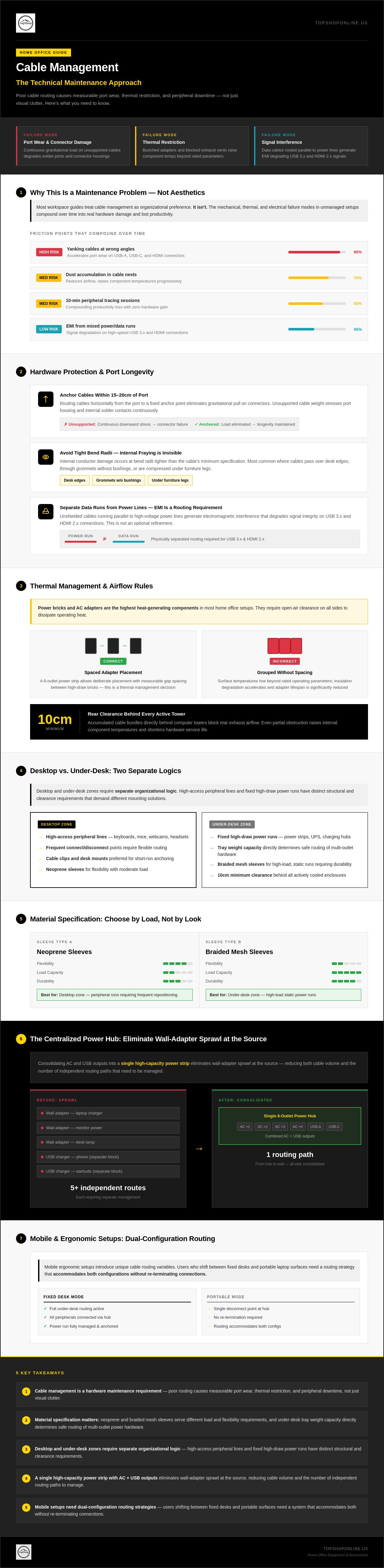
- Effective cable management for home office environments is a hardware maintenance requirement — poor routing causes measurable port wear, thermal restriction, and peripheral downtime, not just visual clutter.
- Material specification matters: neoprene and braided mesh sleeves serve different load and flexibility requirements, and under-desk tray weight capacity directly determines safe routing of multi-outlet power hardware.
- Desktop and under-desk zones require separate organizational logic — high-access peripheral lines and fixed high-draw power runs have distinct structural and clearance requirements that demand different mounting solutions.
- Consolidating AC and USB outputs into a single high-capacity power strip eliminates wall-adapter sprawl at the source, reducing both cable volume and the number of independent routing paths that need to be managed.
- Mobile ergonomic setups introduce unique cable routing variables — users who shift between fixed desks and portable laptop surfaces need a routing strategy that accommodates both configurations without re-terminating connections.
Understanding Cable Management for Home Office Environments
Proper cable management is a branch of hardware maintenance with direct, measurable consequences for device longevity, thermal performance, and electrical safety. Most workspace guides treat it as an organizational preference. It isn't. The mechanical, thermal, and electrical failure modes that develop inside unmanaged cable environments are well-documented, and they operate on a timeline that most users don't notice until a port fails, a peripheral drops connection, or a power adapter overheats.
Effective cable management for home office environments requires understanding why each failure mode occurs before selecting any organizational hardware to address it. Without that diagnostic foundation, users apply surface-level fixes to structural problems and wonder why the chaos returns within weeks.
Hardware Protection and Port Longevity
Every USB-A, USB-C, and HDMI connector in your workspace is subject to gravitational and tensional loading whenever a cable hangs unsupported from a port. That loading is continuous. Over weeks and months, the cumulative mechanical stress on solder joints and connector housings degrades retention force and increases contact resistance. The result is intermittent disconnection, reduced data transfer reliability, and eventual port failure.
- Gravitational pull on connectors: Unsupported cable weight pulls connectors downward at the insertion point, stressing the port housing and internal solder contacts. Routing cables horizontally from the port to a fixed anchor point within 15-20cm eliminates most of this load.
- Sharp-bend wire fraying: Internal conductor damage occurs at bend radii tighter than the cable's minimum specification. This is most common where cables pass over desk edges, through grommets without bushings, or are compressed under furniture legs. Fraying is invisible until signal degradation or heat generation makes it detectable.
- Interference and data transmission: Unshielded cables running parallel to high-voltage power lines generate electromagnetic interference that degrades signal integrity on USB 3.x and HDMI 2.x connections. Maintaining physical separation between data and power runs is a routing requirement, not an optional refinement.
Thermal Management and Airflow Optimization
Power bricks and AC adapters are the highest heat-generating components in most home office setups. They require open-air clearance on all sides to dissipate operating heat. When adapters are grouped without spacing on a power strip, or buried inside a cable nest behind a tower, surface temperatures rise beyond rated operating parameters and insulation degradation accelerates.
- Spacing on high-density power strips: A power strip with consolidated AC outlets, such as a 6-outlet configuration, allows deliberate adapter placement with measurable gap spacing between high-draw bricks. That physical separation is a thermal management decision, not just a convenience.
- Cable nests behind towers: Accumulated cable bundles directly behind computer towers block rear exhaust airflow. Even partial obstruction raises internal component temperatures and shortens hardware service life. Keep a minimum 10cm clearance behind any actively cooled enclosure.
Troubleshooting efficiency is the operational benefit that's easiest to quantify. Visible, labeled cable pathways reduce peripheral swap time from minutes to seconds. When each run is routed with intent and separated by function, isolating a faulty cable or identifying a disconnected peripheral requires no physical disassembly of a cable mass. That's a direct productivity gain with zero additional hardware cost.
Essential Cable Management Components and Specifications
The selection of cable management for home office hardware depends on the material composition and load-bearing requirements of the specific workstation. Selecting components based on technical specifications rather than aesthetics ensures the system maintains structural integrity under constant tensional load. Standard plastic organizers often fail when subjected to the weight of high-gauge power cords or multiple transformer bricks.
Cable sleeves are categorized by material density and thermal properties. Neoprene sleeves provide a dense, opaque synthetic rubber barrier that offers high abrasion resistance and moderate liquid protection. They are ideal for high-visibility areas where total concealment is required. Conversely, braided mesh sleeves utilize an expandable PET (polyethylene terephthalate) weave. This structure prioritizes passive cooling and allows for cable breakouts at any point along the run, making it the superior choice for heat-sensitive data lines.
Under-desk routing trays require a minimum weight capacity of 5kg to safely support heavy power hardware. A high-density Power Strip with 6 AC Outlets & 6 USB Ports combined with multiple external power bricks can easily exceed the limits of adhesive-only plastic trays. Steel wire mesh trays with screw-in mounting points are the industry standard for structural stability. For surface-mounted clips, industrial-grade acrylic foam tape is necessary to prevent peeling under the continuous gravitational pull of hanging cables.
Fastening and Bundling Hardware
Fastening choices impact the long-term maintenance of the setup. Reusable hook-and-loop straps are the primary fastener for peripherals subject to frequent relocation, such as keyboards or mobile charging cables. They prevent the insulation compression and internal wire damage associated with over-tightened plastic ties. Nylon zip ties remain the standard for permanent structural runs where high-tensile security is required. Implementing a color-coding system during the bundling process allows for rapid port identification without tracing the entire cable length through the routing system.
Routing and Concealment Systems
Structural routing systems define the physical path of every wire in the office. Floor cord covers made of high-durability PVC or rubber prevent trip hazards in high-traffic zones, adhering to general workplace ergonomics and safety standards. These covers protect cables from mechanical impact and foot traffic. Split-loom tubing offers a rigid, protective exterior for high-density bundles prone to crushing. J-channel raceways provide a fixed vertical or horizontal path for desk leg organization, utilizing a gravity-fed open-top design for quick cable additions or removals during hardware upgrades.
Desktop vs. Under-Desk Organization Strategies
Desktop and under-desk zones operate under fundamentally different organizational logic. Surface-level cable runs service high-access peripherals, including keyboards, mice, and charging lines, that require frequent repositioning or disconnection. Under-desk infrastructure carries fixed, high-draw power hardware that rarely moves but imposes significant structural and thermal demands on mounting hardware. Treating both zones with the same organizational approach produces a system that fails on at least one axis.
The core diagnostic question for any cable management for home office workspace is simple: how often does this cable move? High-frequency access lines belong on the surface, routed with retention hardware that allows quick release. Fixed power runs belong underneath, secured with structural mounting systems rated for continuous load.
Surface-Level Cable Retention
Silicone cable clips are the correct fastening hardware for keyboard and mouse cord management on the desktop surface. Their low-profile grip holds cables at consistent routing points without compressing insulation, and they release cleanly when peripherals need repositioning. For monitor stands with integrated routing ports, threading display and USB-hub cables through the stand's built-in channels eliminates the horizontal slack that accumulates between the monitor base and the desk edge. Weighted cable anchors serve a specific function on flat surfaces where adhesive clips aren't viable: they hold charging cables at the desk edge without requiring surface contact, keeping cable heads accessible and preventing them from falling when disconnected.
Structural Under-Desk Trays and Channels
Screw-mounted steel wire mesh trays are the only structurally reliable option for under-desk power hardware. Adhesive-mounted plastic trays lack the load rating required to support a high-density power strip combined with multiple external AC adapters. The cumulative weight of that hardware, including the power strip itself and attached transformer bricks, routinely exceeds the adhesive failure threshold of standard plastic systems within weeks of installation.
- Screw-mounted trays: Rated for sustained static loads; appropriate for power strips with 6 AC outlets and multiple USB ports, plus attached adapter bricks. Mounting points distribute load across the desk substrate rather than concentrating stress at a single adhesive contact point.
- Adhesive-mounted trays: Appropriate for lightweight data cable bundling only; not rated for transformer brick weight under continuous gravitational load.
- Legroom clearance: Tray depth and positioning must preserve a minimum ergonomic clearance zone beneath the work surface. Per OSHA ergonomics guidelines for safe workspace setup, cord and equipment placement beneath desks must not restrict lower-limb movement or create contact stress points at the knee or thigh.
Height-adjustable desk configurations introduce a variable that fixed-desk setups don't face: cable slack management across a vertical travel range. A desk that moves between sitting and standing height requires enough routed slack in every cable run to accommodate full vertical extension without pulling connectors taut or dislodging under-desk tray hardware. The standard approach is a dedicated cable loop, secured with a hook-and-loop strap, that feeds additional length into the run as the desk rises. This loop must be sized to the desk's full travel distance, not its average operating position. Routing this slack inside a J-channel raceway on the desk leg keeps it contained without restricting movement.
Competitors who rely solely on integrated desk channels address this problem only for new furniture purchases. Retrofitting an existing adjustable desk with external J-channel raceways, screw-mounted trays, and loop-managed slack delivers equivalent structural performance without requiring a full workstation replacement.
Step-by-Step Implementation for Workspace Cable Routing
Most cable management for home office guides skip the order of operations entirely. That omission is where implementations fail. Executing routing in the wrong sequence means re-terminating connections, repositioning hardware mid-process, or discovering length miscalculations after mounting hardware is already installed. The correct sequence is: audit first, map second, route third, test last.
Initial Hardware Mapping and Port Analysis
Start with a complete disconnection of every non-essential line. Power down the workspace and physically remove all cables from their ports. Lay them flat on the desk surface. This step forces a full inventory and eliminates the common error of routing cables that belong to devices no longer in use.
Identify primary and secondary power requirements before touching any mounting hardware. Primary loads include desktop towers, monitors, and powered USB hubs. Secondary loads include laptop chargers, phone charging lines, and peripheral adapters. Group cables by destination node, not by cable type. All lines terminating at the PC form one bundle. All lines terminating at the monitor form a second. This destination-based grouping determines your routing pathways before a single clip is installed.
Measure required cable lengths with the device at its full range of motion. For height-adjustable configurations, measure at maximum desk extension, not resting height. A cable that reaches comfortably at sitting height will pull taut at standing height and stress the connector at the port insertion point. Add 15cm of slack to every measured length to accommodate routing curves and anchor points.
Systematic Bundling and Labeling
Label both ends of every cable before bundling begins. Use flag-style labels or heat-shrink sleeves marked with the destination device and port type. Labeling after bundling requires partial disassembly to access cable ends, which defeats the purpose of systematic organization.
Secure bundles at consistent 15cm intervals using hook-and-loop straps. Intervals tighter than 10cm compress insulation; intervals wider than 20cm allow sag between anchor points that reintroduces gravitational loading on connectors. Consistent spacing distributes tensional load evenly across the entire run.
Integrate a centralized power strip with USB ports as the single origin point for all AC and USB charging lines. A unit with 6 AC outlets and 6 USB ports consolidates what would otherwise be six to twelve independent routing paths into one managed bundle originating from a single under-desk mounting position. That reduction in independent paths is the structural change that makes every downstream routing decision simpler.
Final testing requires physical verification, not visual inspection. Pull each cable gently at the connector end to confirm the anchor points are absorbing tension before it reaches the port. Rotate peripheral devices through their full range of motion. A cable that passes visual inspection but fails under light tensional load has an anchor point that's either incorrectly positioned or under-fastened. Reposition the nearest clip 5cm closer to the connector and retest.
Centralize your power infrastructure first. Shop the Power Strip with 6 AC Outlets and 6 USB Ports to establish the single-origin routing architecture that the rest of this implementation depends on.
Integrating Power Solutions and Ergonomic Desk Accessories
Power infrastructure and ergonomic hardware don't operate independently in a home office. The routing decisions you make for one directly constrain the other. A high-capacity power solution placed without regard for desk mobility creates cable tension at standing height. An ergonomic laptop surface without a dedicated power routing plan generates the same wall-adapter sprawl that a centralized hub is designed to eliminate. Treating these two systems as a single integrated unit is the final structural requirement for effective cable management for home office environments.
High-Density Power Strip Deployment
The power strip 6 outlet 6 USB configuration addresses two distinct load categories simultaneously. The 6 AC outlets handle high-draw fixed hardware: desktop monitors, powered USB hubs, and PC towers. The 6 USB ports absorb the secondary device load, including webcams, mechanical keyboards, and mobile charging lines, without requiring individual wall adapters for each. That consolidation removes between four and eight independent cable origins from the routing system in a single hardware swap.
Thermal management is the deployment variable most installations get wrong. Mounting the power strip in a screw-secured under-desk tray with open-face orientation, rather than flush against a wall or inside an enclosed cable box, maintains the clearance required for heat dissipation from high-draw AC adapters. Each transformer brick needs measurable air gap on its exposed surfaces. Grouping bricks without spacing on a strip's AC outlets raises surface temperatures beyond rated operating parameters and degrades insulation over time. Position high-wattage adapters at alternating outlets, leaving one outlet gap between each brick where load density allows.
Ergonomic Desk Integration for Mobile Setups
Mobile ergonomic configurations introduce routing variables that fixed-desk implementations don't face. The adjustable laptop stand for bed shifts the cable origin point away from a fixed desk surface, requiring slack management across both horizontal and vertical axes. A cable routed tightly from a wall outlet to a bed-surface laptop stand will pull taut during positional adjustment and stress the charging port at the insertion point.
- Slack loops for positional range: Route a managed loop of 20-25cm of excess cable length secured with a hook-and-loop strap near the stand's base. This loop feeds additional length into the run as the stand repositions without pulling the connector.
- Peripheral cable routing: Portable security cameras and LED lighting strips connected to the USB outputs of the central power strip require dedicated J-channel routing along the desk leg or wall surface to prevent floor-level cable runs in high-traffic zones.
- Daisy-chaining prohibition: Connecting one power strip to another compounds the load on a single wall outlet beyond safe operating limits. A single high-density strip with consolidated AC and USB outputs eliminates the load distribution problem that prompts daisy-chaining in the first place. Surge protection rating on the primary strip is a non-negotiable specification; it protects the full connected hardware load from voltage transients on a single circuit.
Users who shift between a fixed desk and a portable laptop surface need one routing architecture that serves both configurations. The centralized power strip stays mounted under the desk. The laptop stand's power and data lines terminate at that hub via managed slack runs. No re-termination, no adapter relocation. That's the operational standard that separates a functional cable management for home office system from one that only works until the next positional adjustment.
Build the Routing Architecture Once, Maintain It Long-Term
Effective cable management for home office environments comes down to three structural decisions: separating power runs from data lines, mounting hardware rated for actual load weights, and consolidating AC and USB outputs into a single origin point. Get those three variables right, and every downstream routing decision becomes simpler and more maintainable.
The implementation sequence covered here doesn't require a full workstation replacement. A screw-mounted tray, correctly specified sleeve materials, and a centralized power hub address the mechanical, thermal, and organizational failure modes that degrade hardware over time. The tools exist; the order of operations is what most setups get wrong.
For the power infrastructure layer, TopShop's high-density solutions, including the Power Strip with 6 AC Outlets and 6 USB Ports and the Ergonomic Adjustable Laptop Bed Desk, ship nationwide across the US and provide the hardware foundation this routing architecture depends on.
Upgrade your workspace with TopShop Power Solutions and establish the single-origin routing system your setup needs to stay organized and functional long-term.
Frequently Asked Questions About Cable Management for Home Office Setups
What are the best materials for home office cable sleeves?
Material selection depends on the cable's function and location. Braided PET mesh sleeves are the correct choice for data lines and heat-sensitive runs because the woven structure allows passive airflow and permits mid-run cable breakouts. Neoprene sleeves suit high-visibility areas where total concealment is the priority, offering stronger abrasion resistance and moderate liquid protection. Don't use neoprene on power adapter runs where heat dissipation is required.
How do I prevent my power strip from overheating under my desk?
Mount the strip in an open-face screw-secured tray rather than inside an enclosed cable box or flush against a wall surface. Position high-wattage transformer bricks at alternating AC outlets, leaving measurable air gap between each brick. Enclosed mounting traps radiant heat from high-draw adapters and accelerates insulation degradation. A strip with consolidated AC and USB outputs reduces the total number of adapters competing for clearance space on the same circuit.
Can cable management improve my internet speed?
Not directly, but it removes interference variables that degrade signal reliability on wired and wireless connections. Unshielded data cables routed parallel to high-voltage power lines generate electromagnetic interference that measurably affects USB 3.x and HDMI 2.x signal integrity. Separating power runs from data lines eliminates that interference source. Physical separation won't increase your ISP-provisioned bandwidth, but it does prevent routing-induced signal degradation from reducing the throughput you're already paying for.
How many USB ports do I need for a standard home office setup?
A standard home office with a desktop or laptop, external keyboard, webcam, phone charging line, and one or two peripheral devices typically requires six USB ports at minimum. That count increases quickly with desk lighting, a wireless receiver dongle, and a secondary mobile device. A power strip with six dedicated USB ports consolidates that load into a single managed hub, eliminating the individual wall adapters that generate most of the cable sprawl in a typical workspace.
What is the safest way to hide long extension cords?
Route long extension cords inside J-channel raceways fixed to baseboard or desk legs, or inside rigid PVC floor cord covers in high-traffic zones. Never run extension cords under rugs or carpeting; that configuration traps heat generated by the cord's resistive load and creates a fire risk. Don't coil excess cord length tightly, as inductance buildup in a tightly coiled energized cable raises operating temperature. Leave coiled slack loose and secured with a hook-and-loop strap rather than a zip tie.
Are adhesive cable clips safe for finished wood desks?
Standard acrylic foam adhesive clips are generally safe on sealed hardwood and laminate surfaces if removed carefully, but the adhesive bond weakens under sustained gravitational load from heavy cables. On finished wood, use clips rated for the specific cable weight they'll carry and avoid repositioning them repeatedly, as each removal risks surface finish damage. For heavier power runs on a finished desk, a screw-mounted tray underneath the surface is the structurally correct alternative that eliminates adhesive contact with the desk surface entirely.
How often should I re-evaluate my cable organization?
Reassess the full routing architecture whenever hardware changes, including adding a monitor, swapping a peripheral, or upgrading a power strip. Beyond hardware changes, a practical interval is every six months: check anchor points for adhesive fatigue, inspect cables at bend radii for visible insulation wear, and confirm that power adapter spacing hasn't shifted. Effective cable management for home office environments isn't a one-time installation; it's a maintenance system that degrades without periodic physical verification.
Do I need surge protection for all home office electronics?
Surge protection is a non-negotiable specification for any device with a microprocessor, including desktop towers, monitors, laptops, and powered USB hubs. Voltage transients on residential circuits are common during utility switching events and weather-related grid fluctuations. A single unprotected transient can degrade or destroy storage hardware and motherboard components. Centralizing your workspace onto one surge-protected power strip with consolidated AC outlets ensures the full connected hardware load sits behind a single protection layer without requiring individual surge protectors per device.