

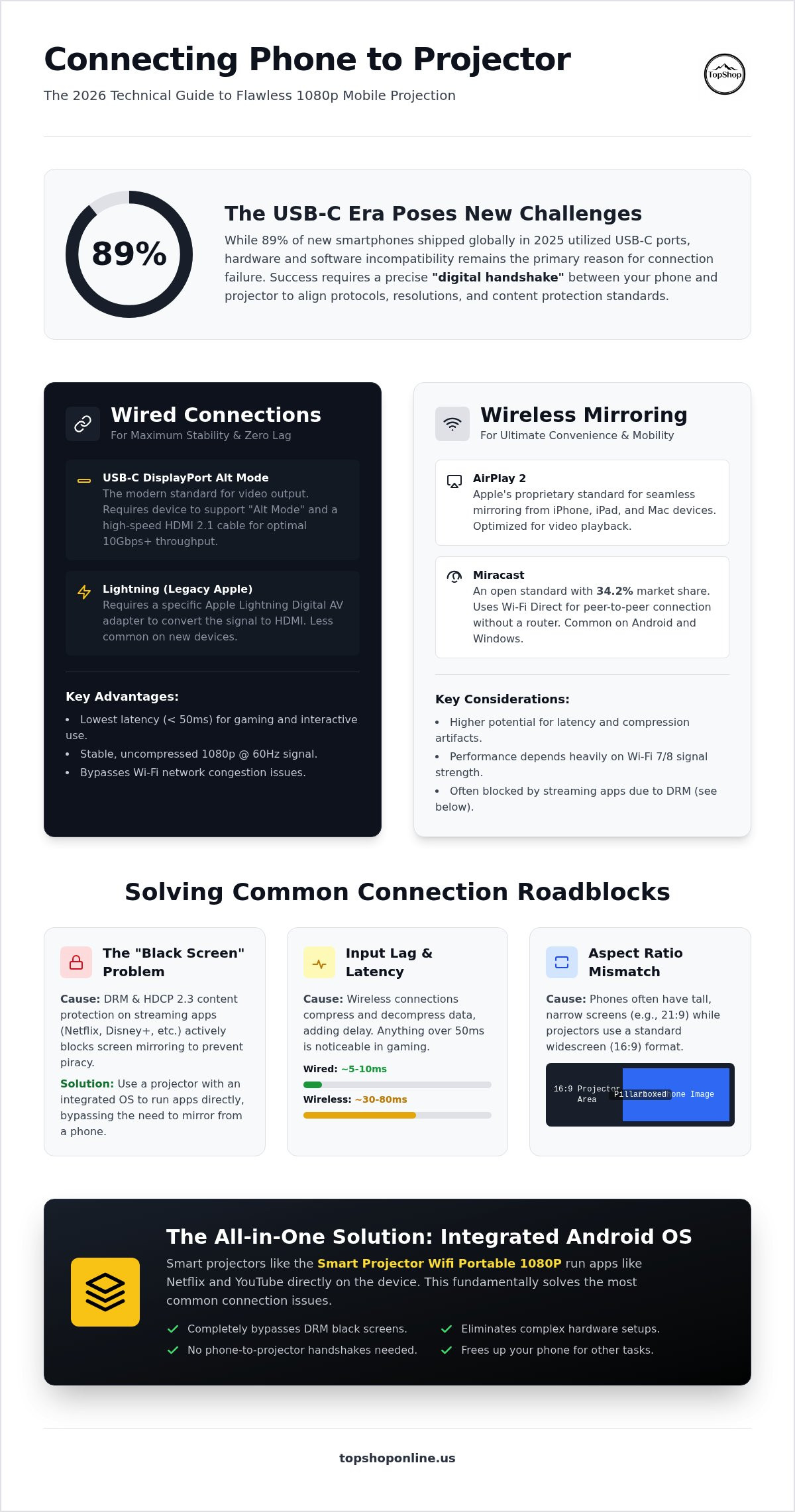
89% of new smartphones shipped globally in 2025 utilized USB-C ports, yet cable incompatibility remains a primary failure point for users learning how to connect phone to portable projector. Technical obstacles such as DRM-related black screens on streaming applications or high latency during wireless mirroring are common. These issues stem from mismatched hardware protocols and HDCP encryption standards that block unauthorized content transmission. Reliable signal delivery requires precise alignment between the mobile source device and the display engine's input specifications.
This 2026 setup guide provides a technical breakdown of the wired and wireless protocols required to interface mobile devices with portable projection hardware. You'll learn the specific requirements for successful 1080p image transmission and lag-free playback using current standards like Wi-Fi 7 and iOS 26.6. We cover the transition from legacy Lightning adapters to universal USB-C Alt Mode and explain how integrated Android OS systems, like the Smart Projector Wifi Portable 1080P, bypass traditional interface restrictions. This analysis includes detailed specifications for HDMI 2.1 wired connections, Miracast 34.2% market share data, and Bluetooth 6.3 ranging accuracy improvements. We focus on achieving a stable, high-bitrate connection while navigating HDCP 2.3 content protection layers.
Key Takeaways
- Identify technical display handshake protocols and signal conversion requirements between mobile operating systems and projector firmware.
- Learn how to connect phone to portable projector using USB-C DisplayPort Alt Mode or Lightning Digital AV adapters for high-bitrate 1080p transmission.
- Configure low-latency wireless mirroring through AirPlay 2, Miracast, and Wi-Fi Direct peer-to-peer standards.
- Solve common black screen errors caused by HDCP encryption and Digital Rights Management (DRM) restrictions on streaming services.
- Leverage the integrated Android OS within the Smart Projector Wifi Portable 1080P to execute apps directly and bypass complex external hardware configurations.
Understanding Mobile-to-Projector Interface Protocols
The interface between a mobile device and a projection unit relies on a specific sequence of electronic signals known as the display handshake. This process initiates when the mobile operating system detects a physical or wireless connection to external display firmware. For users determining how to connect phone to portable projector, understanding this handshake is critical for troubleshooting failed connections or resolution mismatches. The mobile device acts as the source, while the projector serves as the sink. During the initial contact, the sink transmits its hardware capabilities to the source to establish a compatible signal path. This interaction prevents hardware damage from incompatible voltage levels and ensures the source device outputs a compatible video format.
Digital Signal Handshake Mechanisms
The primary mechanism for hardware identification is Extended Display Identification Data (EDID). This metadata format allows the projector to communicate its native resolution, supported refresh rates, and color depth specifications to the phone. Modern mobile software uses these data points to trigger an automatic resolution negotiation. If a phone outputs a 4K signal to a 1080p native display, the internal scaling engine must downsample the image to prevent signal rejection. This ensures the 1080p display engine, like that found in the Smart Projector Wifi Portable 1080P, receives a readable bitstream. The software handshake also verifies HDCP compliance to allow for the playback of protected content.
Bandwidth and Refresh Rate Constraints
Signal bandwidth determines the maximum data volume transmitted per second, measured in Gigabits per second (Gbps). A standard 1080p signal at 60Hz requires approximately 4.45 Gbps of sustained throughput. Lowering the refresh rate to 30Hz reduces bandwidth requirements but results in visible motion blur during high-speed video playback. High-definition interfaces also depend on the Google Cast protocol or similar wireless standards to manage data packets over Wi-Fi 7 or Wi-Fi 8 networks. Interactive applications and mobile gaming require latency thresholds below 50 milliseconds to avoid input lag. Wired connections typically offer the lowest latency by bypassing the packet compression required for wireless transmission.
Aspect ratio matching is another technical requirement. Most smartphones utilize narrow 19.5:9 or 21:9 screens, while portable projectors typically use a 16:9 widescreen or 4:3 standard format. The interface protocol must decide whether to pillarbox the image (adding black bars to the sides) or stretch the pixels to fill the projection area. This logic is handled by the mobile device's GPU during the signal conversion process from the native mobile port to the projector's HDMI or DisplayPort input. High-amperage power strips are recommended during these sessions to maintain stable voltage for both the mobile device and the display hardware.
Wired Connection Hardware: USB-C, Lightning, and HDMI
Selecting physical hardware is the primary requirement for users researching how to connect phone to portable projector without signal dropouts. While various wireless display standards provide mobility, wired interfaces deliver a dedicated, high-bandwidth path for uncompressed 1080p video data. It's essential to match the mobile device's output port with the projector's input specifications to avoid handshake failures. This process involves selecting either a direct cable or an active adapter capable of digital-to-digital signal conversion. Wired connections bypass the packet compression issues common in wireless streaming, providing the most stable frame rates for video and gaming applications.
USB-C DisplayPort Alt Mode Specifications
USB-C is the universal standard for 2026 mobile devices, but video output depends on the presence of DisplayPort Alternate Mode (Alt Mode) hardware. 89% of smartphones shipped in 2025 included this protocol, yet budget-tier devices often restrict the USB-C port to power and data transfer only. Users must verify their device supports Alt Mode to enable direct HDMI or DisplayPort output. High-speed HDMI 2.1 cables are recommended for these connections to support 10 Gbps throughput. Non-responsive connections often result from using passive cables that lack the necessary chipsets to negotiate the video handshake between the phone and the display engine. It's a common failure point that is easily solved by using certified active cables.
Hardware Adapters and Hubs
Mobile devices typically feature a single port, necessitating the use of multi-port hubs for sustained projection. These hubs support Power Delivery (PD) pass-through, which allows the mobile device to charge while transmitting high-definition video. Signal degradation is a common issue in low-quality third-party adapters that lack shielded internal components. Active adapters are required for cable runs exceeding 5 meters to maintain signal integrity. Don't ignore the importance of power management during extended projection sessions. Utilizing a power strip with usb ports ensures both the projector and the mobile hub receive consistent amperage. This prevents the mobile device from discharging during high-resolution playback.
Legacy iOS devices released prior to the iPhone 15 require the proprietary Lightning to Digital AV Adapter. This hardware contains a dedicated chipset to convert the Lightning signal into an HDMI-compatible format. Unlike universal USB-C solutions, these proprietary adapters are strictly constrained by the Apple hardware ecosystem and require specific firmware updates for compatibility with iOS 26.6. For modern setups, a direct USB-C to HDMI connection provides the most efficient path. If you are building a professional mobile theater, selecting high-quality portable hardware components ensures long-term compatibility with evolving video standards.
Wireless Mirroring Standards: AirPlay, Miracast, and Cast
Wireless mirroring standards facilitate mobile-to-projector data transmission without physical tethering. Users identifying how to connect phone to portable projector wirelessly must select a protocol compatible with their device's operating system. AirPlay 2 remains the standard for Apple hardware running iOS 26.6, requiring a shared network or peer-to-peer discovery. Miracast, which held a 34.2% market share in 2025, utilizes Wi-Fi Direct to establish a direct connection between Android devices and projector firmware. This peer-to-peer approach bypasses the need for a central router, reducing potential points of failure. Google Cast provides an alternative by allowing users to stream specific application data or mirror the entire display. The Google TV Streamer received a critical security and performance update in June 2026 to enhance these casting handshakes.
Protocol Compatibility and Setup
Activation on Android 14 and newer versions requires navigating to the Connection Preferences menu and selecting the Cast option. The projector must be set to the corresponding wireless input mode to broadcast its Service Set Identifier (SSID). For Apple devices, ensure the projector supports AirPlay 2 and that the feature is toggled to "On" within the system settings. PIN authentication is recommended for all wireless sessions to prevent unauthorized signal hijacking in public or shared spaces. This security layer ensures that only users with physical access to the projector's display can initiate a mirroring handshake. Direct peer-to-peer connections are preferred when external Wi-Fi networks are unstable or unavailable.
Optimizing Wireless Performance
Wireless stability depends on the local electromagnetic environment. Standard 2.4GHz bands are prone to interference from Bluetooth 6.3 peripherals and household appliances. Utilizing the 5GHz or 6GHz bands provided by Wi-Fi 7 (IEEE 802.11be) routers significantly reduces stuttering and frame drops. While pre-standard Wi-Fi 8 equipment was showcased at CES 2026, Wi-Fi 7 remains the most reliable mature standard for high-bitrate 1080p video. Maintaining a distance of less than 5 meters between the phone and the projector ensures a high-quality connection. Software updates for the projector's WiFi module are essential for maintaining compatibility with 2026 mobile OS patches. These updates often include improved buffer management and lower latency drivers for real-time mirroring.
Network congestion is a primary cause of high latency during wireless mirroring. If multiple devices occupy the same bandwidth, the video stream may experience packet loss. Prioritizing the projector and mobile device within the router's Quality of Service (QoS) settings can mitigate this issue. For environments with high levels of interference, switching to a wired connection is the only way to guarantee a lag-free experience. However, a properly configured Wi-Fi 7 environment provides sufficient throughput for most streaming and presentation requirements.
Troubleshooting DRM Restrictions and Black Screen Errors
Digital Rights Management (DRM) is a protocol designed to prevent unauthorized distribution of copyrighted material. When users research how to connect phone to portable projector for streaming apps like Netflix or Disney+, they often encounter the "Black Screen with Audio" failure state. This occurs because the streaming application detects an unauthorized display path. High-bandwidth Digital Content Protection (HDCP) is the encryption standard used to secure these paths. If any component in the signal chain, including the adapter, cable, or projector firmware, lacks HDCP 2.2 or 2.3 compliance, the video signal is terminated while the audio remains active. This is a hardware-enforced restriction that cannot be bypassed via standard software settings.
Identifying HDCP Failure Points
Hardware compliance is the first diagnostic step for signal failures. Users must verify that their USB-C to HDMI adapters and HDMI 2.1 cables support the latest HDCP versions. Using a smart wifi projector 1080p portable offers a technical workaround by utilizing native Android applications. Because the content is processed locally on the projector's internal hardware, it bypasses the need for external signal mirroring and the associated HDCP handshakes. This method ensures 1080p playback without the risk of encryption-based signal blocking. It's the most efficient way to maintain high-definition playback for protected content in 2026 mobile environments.
Software and App-Level Solutions
App-level restrictions often distinguish between screen mirroring and casting. Mirroring duplicates the entire phone UI, which triggers strict DRM blocks across most premium streaming services. Casting, which sends a specific stream URL to the display device, may have different permission levels. If errors persist, clearing the application cache or restarting the display handshake can resolve temporary handshake timeouts. When determining how to connect phone to portable projector for encrypted media, external media sticks remain a reliable fallback. These devices possess dedicated HDCP keys that mobile devices may lack when using third-party adapters. They plug directly into the HDMI port, providing a secure, compliant signal path.
Ensuring a secure signal path is mandatory for 2026 streaming standards. Most failures result from using uncertified adapters that don't support the required encryption handshakes. For high-performance setups, browsing the full range of HD-compliant projection hardware provides the necessary hardware certifications to avoid DRM-related failures. Maintaining updated firmware on both the mobile device and the projector is also necessary to support evolving security certificates. Check the latest HDCP version supported by 2026 mobile OS updates to ensure your hardware remains compatible with new app releases.
Optimizing the TopShop Smart WiFi Projector Setup
The Smart Projector Wifi Portable 1080P integrates a native Android operating system to provide a standalone display solution. This configuration reduces the technical complexity of learning how to connect phone to portable projector by hosting the source application directly on the projector hardware. Direct app execution eliminates the need for external HDMI adapters or wireless mirroring protocols that often suffer from latency or DRM blocks. Users can access the Google Play Store to install high-bitrate streaming clients. This ensures the 1080p display engine receives a clean, uncompressed digital signal. This setup prioritizes information density and operational efficiency over traditional mobile-to-projector handshakes.
Native App Configuration
Installing streaming services directly onto the projector firmware removes the mobile device as a potential failure point. Use the system's integrated Wi-Fi 7 module to establish a high-bandwidth connection to local networks. Standalone mode allows the projector to function without a physical or wireless phone tether. It preserves mobile battery life. It prevents notification interruptions. Navigate the 1080p user interface using the included hardware remote or compatible mobile remote applications. These applications utilize local network discovery to provide tactile control over the projector's internal scaling and focus settings.
Hardware Integration and Stability
Sustained 1080p projection requires consistent voltage levels and effective thermal management. High-amperage power strips are recommended to support the projector's internal cooling fans during long-duration streaming sessions. Maintain at least 50cm of clearance around the intake and exhaust vents. This prevents thermal throttling of the internal GPU. Organizing the power and audio cables is essential for portable setups. Utilize cable management for home office tools to secure high-speed HDMI 2.1 cables and power leads. This prevents accidental disconnects and maintains a professional workspace configuration.
Audio output can be routed via the integrated 3.5mm analog jack or synchronized through Bluetooth 6.3 for wireless speaker configurations. Bluetooth 6.3 provides enhanced ranging accuracy and lower latency for better lip-sync performance during movie playback. Regular firmware updates are mandatory to maintain compatibility with 2026 application security certificates and HDCP 2.3 standards. Access the system settings menu to check for OTA (Over-The-Air) updates. These patches optimize the Android OS kernel and improve the stability of the display handshake for when you choose to interface with external mobile devices. Consistent maintenance ensures the longevity of the 1080p hardware interface.
Deploying High-Definition Mobile Projection Systems
Establishing a reliable display link requires matching the mobile hardware handshake with the projector's input specifications. Wired USB-C Alt Mode and Lightning Digital AV adapters provide the highest signal bandwidth for 1080p video data. Alternatively, wireless protocols like AirPlay 2 and Miracast offer peer-to-peer mobility on Wi-Fi 7 networks. Users troubleshooting how to connect phone to portable projector must also ensure HDCP 2.3 compliance across all cables and adapters to prevent DRM-related black screen errors on streaming applications. Utilizing a display unit with an integrated operating system bypasses these external interface constraints by executing content directly on the hardware.
The Smart Projector Wifi Portable 1080P features integrated WiFi and Android OS to eliminate complex adapter chains and tethering requirements. This 1080P high-definition resolution hardware supports direct app installation for efficient media playback. We provide fast nationwide shipping on all inventory to ensure immediate deployment of your projection setup. View the Smart Projector Wifi Portable 1080P at TopShop to upgrade your mobile display capabilities. You can now achieve a stable, professional-grade projection environment with minimal technical overhead.
Frequently Asked Questions
Why does my projector show a black screen when I try to play Netflix from my phone?
Black screen errors during Netflix playback occur due to High-bandwidth Digital Content Protection (HDCP) restrictions. The streaming application detects an unauthorized signal mirroring path and terminates the video feed while maintaining audio. This is a hardware-enforced security measure common in 2026 mobile operating systems. To resolve this, use the native applications on a Smart Projector Wifi Portable 1080P or connect a compliant external media stick to the HDMI port.
Do I need a special HDMI cable to connect my phone to a projector?
You require a High-Speed HDMI 2.1 cable to ensure sufficient bandwidth for 1080p or 4K signal transmission. Standard legacy cables often fail to negotiate the digital display handshake or cause intermittent signal dropouts. Ensure the cable is certified for at least 10 Gbps throughput to maintain a stable connection between the mobile adapter and the display engine. Using shielded cables also reduces electromagnetic interference from nearby electronics.
Can I connect my phone to a projector using only a USB charging cable?
Standard USB charging cables don't support video data transmission. Learning how to connect phone to portable projector requires a dedicated USB-C to HDMI adapter or a cable supporting DisplayPort Alt Mode. Charging cables lack the internal chipsets necessary to convert mobile data into a video signal recognized by the projector's firmware. A physical connection is only possible if the cable is specifically rated for video output.
How do I fix the lag between my phone and the projector during wireless mirroring?
Wireless lag results from network congestion or electromagnetic interference on the 2.4GHz band. Switch to a 5GHz or 6GHz Wi-Fi 7 connection to reduce latency and improve frame rates. Reducing the physical distance between the phone and the projector to under 5 meters also improves signal strength. If the lag persists, a wired HDMI connection is the only way to eliminate packet delay entirely.
Is it possible to connect an iPhone to a projector without an adapter?
You can connect an iPhone wirelessly without an adapter using the AirPlay 2 protocol if the projector firmware supports Apple-specific streaming. This requires both devices to occupy the same local network or use a peer-to-peer discovery mode. If the projector lacks integrated wireless hardware, a Lightning to Digital AV or USB-C to HDMI adapter is mandatory for a physical connection. Modern iPhone 15 and newer models utilize universal USB-C standards.
Does my Android phone support HDMI output through the USB-C port?
Android device support for HDMI output depends on the presence of DisplayPort Alternate Mode (Alt Mode) hardware. While 89% of smartphones shipped in 2025 included this feature, budget-tier models often restrict the USB-C port to power and data transfer. Users researching how to connect phone to portable projector should verify their specific model's technical specifications for video output capability. Without Alt Mode support, the phone cannot transmit a wired video signal.
What is the best resolution setting for a portable 1080p projector?
The optimal resolution setting for a portable 1080p projector is 1920x1080 at a 60Hz refresh rate. Setting the mobile source to match the projector's native resolution prevents the internal scaling engine from introducing blur or input lag. This 1:1 pixel mapping ensures maximum clarity and smooth motion during high-definition video playback. Avoid using 4K output settings on a 1080p native display to reduce the processing load on the projector's GPU.