

A high-performance 1080P projection system remains ineffective if the hardware alignment or network synchronization is miscalculated by even a few degrees. Most users encounter frustrating latency or sub-par resolution because they bypass the essential technical configuration steps. Learning how to set up a portable wifi projector correctly is the primary requirement for achieving a stable, high-definition cinema experience. It's common to experience dropped wireless signals or blurry image corners during the initial deployment of mobile hardware.
You likely require a system that functions reliably without repetitive troubleshooting of the Android-based interface. This technical manual provides the specific parameters for hardware placement, network integration, and image calibration necessary for 1080P portable projectors. We'll detail the exact throw distance measurements for 100-inch screen output and the precise protocols for 2.4GHz and 5GHz network authentication. This guide also outlines mobile device screen mirroring steps to ensure a consistent, high-bitrate connection every time you initiate the projection sequence.
Key Takeaways
- Perform systematic hardware inspection and DC power input verification to ensure initial system stability and hardware integrity.
- Follow technical protocols for how to set up a portable wifi projector to synchronize 2.4GHz/5GHz SSID broadcasts with the internal OS.
- Optimize visual output through manual focus ring adjustments and digital keystone geometry correction for 1080P resolution.
- Configure high-bitrate wireless screen mirroring using specific Miracast and AirPlay interface settings.
- Implement diagnostic procedures for signal interference identification and factory software reset to sustain long-term hardware performance.
Hardware Placement and Initial Power Configuration
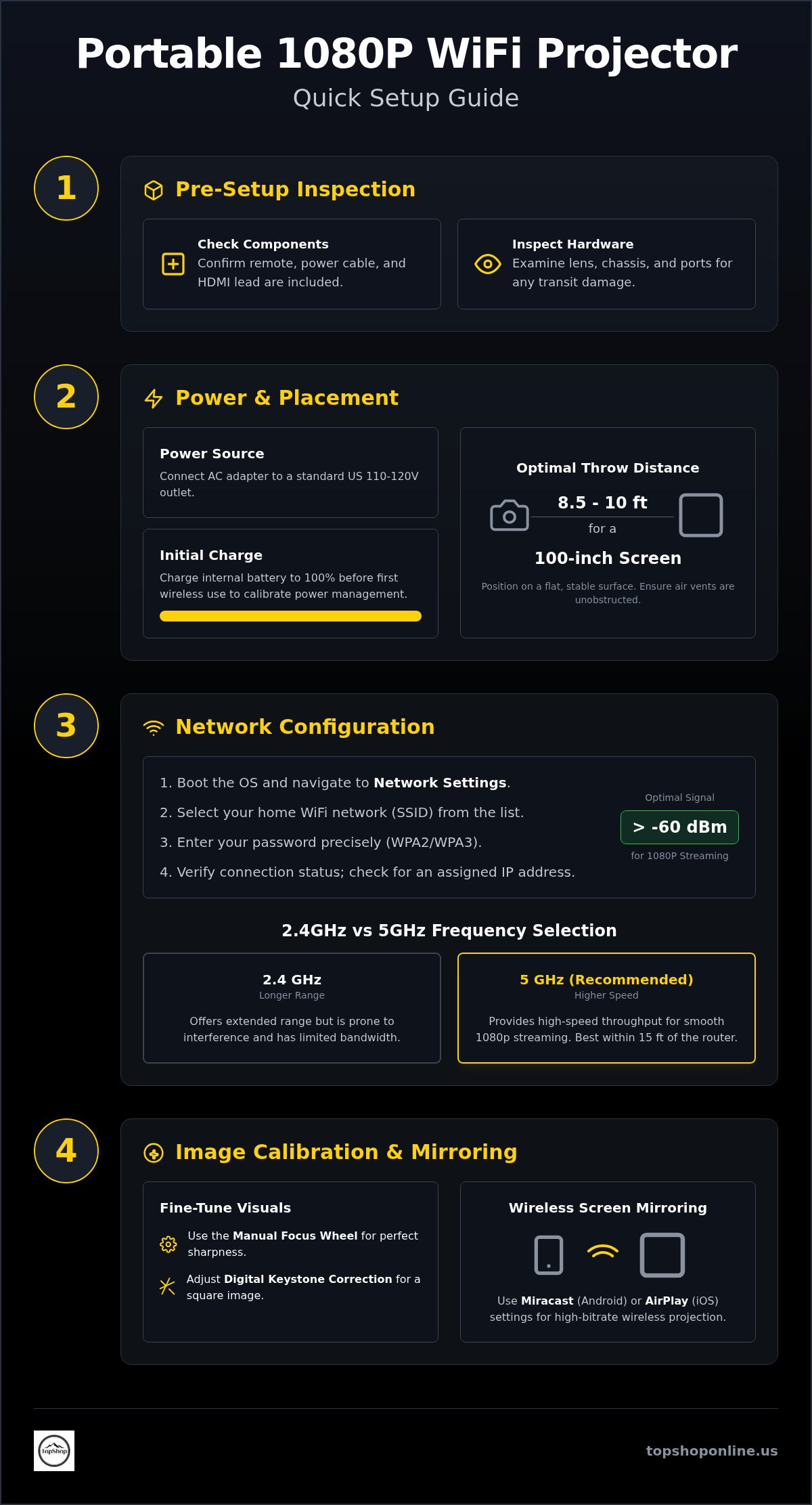
The initialization of the Smart Projector Wifi Portable 1080P begins with a thorough hardware integrity inspection. Examine the retail packaging to confirm all essential components, including the remote control, power cable, and HDMI lead, are present. Check the optical lens assembly, external chassis, and connection ports for transit damage. Successful execution of how to set up a portable wifi projector requires a stable power foundation and a clear projection path. Locate the DC input port on the rear or side panel. Connect the provided AC adapter to a compatible power source to begin the charging cycle.
Power Supply Requirements and Battery Management
Voltage compatibility is strictly limited to US standard 110-120V inputs. For multi-device configurations involving external speakers or streaming sticks, utilize a power strip with usb ports to centralize power distribution. Portable units feature internal lithium-ion cells that require a full initialization cycle. It's necessary to charge the battery to 100% capacity before the first wireless operation. This process calibrates the internal power management software for accurate runtime reporting. Don't use non-standard power adapters, as they can damage the sensitive internal circuitry. Maintain consistent charging cycles and avoid deep discharge states to ensure long-term battery health and portable performance.
Surface Stability and Throw Distance Calculations
Placement determines the final pixel clarity and brightness of the 1080P output. Position the projector on a rigid, flat surface. Use the integrated 1/4-inch tripod mount for elevated installations or ceiling configurations. Throw distance directly impacts image brightness and resolution density. Calculating the correct distance is a critical step when learning how to set up a portable wifi projector for maximum lumen efficiency. For a standard 100-inch projection, maintain a distance of approximately 8.5 to 10 feet from the screen. It's vital that the intake and exhaust vents remain unobstructed. Obstructing airflow leads to internal heat accumulation and thermal throttling, which reduces hardware lifespan and causes unexpected system shutdowns.
Identify the physical interface components before powering the unit. The focus wheel is located adjacent to the lens housing for manual sharpness adjustments. The top panel contains the 5-way navigation pad and the primary power toggle. Familiarize yourself with these tactile controls. Manual adjustments are often required during the initial boot sequence to ensure the interface is legible. Proper hardware alignment prevents the need for excessive digital correction later in the configuration process.
Network Connectivity and WiFi Integration Protocols
Boot the internal operating system to access the primary dashboard. Navigate to the technical settings interface using the remote control or integrated navigation buttons. Select the network configuration submenu to trigger a local SSID broadcast scan. The Smart Projector Wifi Portable 1080P identifies nearby wireless access points and lists them by signal strength. Choose the designated network to initiate the authentication process. Learning how to set up a portable wifi projector requires managing these digital handshake protocols with precision. Accurate navigation through the Android-based interface ensures all wireless parameters are correctly established for high-definition streaming.
Input the network security key using the on-screen alphanumeric interface. Precision is mandatory for successful WPA2 or WPA3 authentication. Once the credentials are confirmed, the projector requests a dynamic IP address from the router's DHCP server. Verify the connection status by checking the IP assignment in the network details panel. A successful connection displays a local IP address and a signal strength indicator above -60 dBm for optimal performance. High signal density is necessary to maintain the 1080P bitrates required for modern cinematic content.
2.4GHz vs 5GHz Frequency Selection
Frequency selection directly impacts 1080P video playback stability. The 2.4GHz band offers extended range but suffers from high interference and limited bandwidth. The 5GHz band provides the high-speed throughput required for high-bitrate streaming and reduced latency. Configure the projector to the 5GHz frequency whenever the hardware is within 15 feet of the router. Isolate the projector from other wireless peripherals to prevent signal congestion. High-bandwidth 5GHz connections eliminate the buffering issues often associated with lower-frequency wireless bands.
Security Protocol Compatibility and Password Entry
Standard routers utilize WPA2 or WPA3 encryption. Ensure the projector firmware supports these protocols to avoid handshake failures. If authentication errors persist, verify the character casing of the security key. Entering complex passwords with a standard remote is often inefficient. Utilizing a compatible wireless keyboard for ps5 significantly accelerates data entry and reduces input errors during the configuration phase. This peripheral integration streamlines the setup process for advanced security environments.
Execute a network ping test or launch the integrated web browser to confirm active internet throughput. This step ensures the hardware has sufficient bandwidth for 1080P content delivery. If the signal remains unstable, consider repositioning the router or using a wireless extender. You can find high-performance networking accessories and the Smart Projector Wifi Portable 1080P in our technical hardware collection. Perform a final system reboot to finalize the network integration settings. This guide on how to set up a portable wifi projector continues with image optimization in the following section.
Projection Calibration and Image Optimization Settings
Visual refinement is the final stage of the how to set up a portable wifi projector sequence. Once the hardware is powered and the network is active, the focus shifts to optical alignment. The manual focus ring, located adjacent to the lens, requires incremental rotation to achieve edge-to-edge text clarity. Start by projecting a static text menu or a high-contrast test pattern. Rotate the ring slowly until the center pixels are sharp, then verify that the corners maintain consistent definition. Native 1080P resolution requires precise mechanical positioning of the lens assembly to avoid chromatic aberration or soft edges.
Scaling the image to fit the projection surface involves adjusting the physical distance or using internal digital scaling tools. If the projector isn't perfectly perpendicular to the screen, the image will appear trapezoidal. Digital keystone correction allows for the modification of image geometry to square the output. This process is essential for mobile environments where ideal placement isn't always possible. Brightness and contrast ratios must be modified based on current ambient light levels. High-lumen environments require increased contrast to maintain visible detail in dark scenes, while dark rooms allow for lower brightness settings to preserve black levels and reduce eye strain.
Manual and Auto-Keystone Correction Procedures
Correcting vertical and horizontal distortion is necessary for off-center placement. Access the keystone menu to adjust individual corner points until image borders are parallel with the screen. Some units feature auto-keystone sensors that apply corrections instantly. If digital geometry becomes over-processed, reset settings to factory defaults for recalibration. Excessive digital zoom or heavy keystone correction can degrade native 1080P resolution quality. It's better to physically reposition the projector than to rely on digital manipulation.
Focus Adjustment and Lens Maintenance
Achieving sharp pixel definition requires a methodical approach to focus wheel rotation. Small adjustments are more effective than large turns. Beyond mechanical focus, lens hygiene is critical. Remove dust and debris using non-abrasive optical cleaning tools or microfiber cloths. Don't use household glass cleaners as they strip anti-reflective coatings. Inspect the lens for aberrations like internal haze or coating separation. These issues indicate hardware manufacturing defects. A clean optical path is vital when learning how to set up a portable wifi projector for long-term use.
Source Input and Wireless Mirroring Procedures
Access the primary input selection menu from the projector home screen to define the data transmission path. The interface categorizes sources into physical connections, such as HDMI and USB, and wireless protocols, including Miracast and AirPlay. Successful execution of how to set up a portable wifi projector requires selecting the specific receiver mode that matches the source device. For mobile integration, the projector acts as a wireless display receiver. It establishes a direct peer-to-peer link to minimize input lag and packet loss during high-bitrate 1080P playback. Select the source. Verify the link.
Android and iOS Screen Mirroring Protocols
Android devices utilize the Miracast standard for screen broadcasting. Enable WiFi-Direct within the mobile device settings. This facilitates high-speed casting without an intermediary router. The direct connection reduces latency. For Apple hardware, swipe to access the Control Center and select the Screen Mirroring icon. This initiates AirPlay discovery. The projector appears as a target device once both units share the same network subnet. Digital Rights Management (DRM) restrictions on specific streaming applications often prevent wireless mirroring of copyrighted content. Use a physical HDMI connection to bypass encryption blocks and maintain 1080P signal integrity.
HDMI and USB Interface Connectivity
Physical interfaces provide the highest reliability for uncompressed 1080P video transmission. Connect gaming consoles, laptops, or external media players via the HDMI port. The system automatically detects the active signal. It optimizes the refresh rate for the connected hardware. For local file playback, insert a USB flash drive into the designated port. Use the internal file manager to navigate directories. Launch MKV, MP4, or AVI files directly from the hardware. Integrating the smart wifi projector 1080p portable into a multi-device hub allows for seamless switching between mobile casting and high-performance wired inputs.
Maintain the source device within a 15-foot radius for wireless mirroring to ensure signal stability. Interference from secondary wireless peripherals can cause dropped frames or audio desynchronization. If signal degradation occurs, verify that the projector firmware and the source device OS are updated to the latest versions. Understanding how to set up a portable wifi projector for diverse inputs ensures maximum utility across all media types. For professional-grade home theater setups, you can purchase the Smart Projector Wifi Portable 1080P to ensure compatibility with modern wireless standards. The final section of this guide addresses maintenance and advanced troubleshooting protocols.
Maintenance, Troubleshooting, and System Longevity
Sustaining optimal hardware performance requires rigorous adherence to technical maintenance protocols. WiFi signal attenuation often stems from physical obstructions or frequency congestion within high-density wireless environments. If you encounter persistent connection drops, analyze the local RF environment for interference from non-network peripherals. Understanding how to set up a portable wifi projector involves managing these environmental variables long after the initial configuration. For recurring software glitches or unresponsive interfaces, execute a factory reset through the system recovery menu. This procedure clears the flash memory and restores the projector OS to its original factory state, which eliminates corrupted configuration files and resets network handshakes.
Monitor the acoustic output of the internal cooling fans. Unusual grinding or excessive noise levels often indicate bearing wear or significant dust obstruction. Address these mechanical issues immediately to avoid secondary damage to the 1080P LCD panel or the optical engine. Consistent maintenance ensures the hardware remains a reliable component of your home theater system. By following these diagnostic procedures, you preserve the high-definition output quality and wireless connectivity speeds established during the initial deployment phase.
Software Updates and Firmware Patching
Regular firmware deployment improves video codec support and patches critical security vulnerabilities. Access the system settings to check for Over-the-Air (OTA) updates. The projector must maintain a stable internet connection during the download and installation phase to prevent system bricking. For offline hardware, download the specific firmware binary from the official manufacturer repository onto a FAT32-formatted USB drive. Insert the drive and initiate the manual update sequence. Always verify the software version numbers to ensure compatibility with current streaming application requirements. Firmware updates often optimize internal fan curves and power management algorithms for better hardware efficiency.
Thermal Management and Airflow Requirements
Internal heat accumulation is the primary cause of premature component failure in compact projection units. Maintain a minimum of 12 inches of clearance around all intake and exhaust vents to facilitate unrestricted airflow. Inspect the air filters every 100 operating hours. Remove dust buildup using compressed air or non-conductive brushes to prevent thermal throttling. The Smart Projector Wifi Portable 1080P utilizes integrated thermal sensors to monitor internal temperatures. These sensors trigger an automatic safety shutdown if the hardware exceeds 65 degrees Celsius. Ignoring these triggers leads to permanent optical engine damage or battery degradation. Proper thermal management is as critical as the initial steps of how to set up a portable wifi projector for achieving maximum system longevity.
Optimizing Your Mobile Cinema Infrastructure
Successful deployment of a high-definition mobile theater depends on methodical technical execution across hardware and software layers. You've learned how to set up a portable wifi projector by prioritizing precise throw distance calculations, 5GHz network synchronization, and digital keystone geometry correction. These specific protocols eliminate the latency and resolution degradation common in unoptimized configurations. Maintaining a clear optical path through regular lens hygiene and implementing consistent firmware updates protects the internal components from premature failure. The integration of 1080P native resolution and high-speed WiFi connectivity provides a stable platform for high-bitrate media consumption in diverse environments. This specific portable form factor ensures high-fidelity projection is achievable without complex permanent installations.
Your technical configuration is now complete. For those seeking to upgrade their current visual hardware, Order the Smart Projector Wifi Portable 1080P at TopShop to secure a device engineered for these advanced networking standards. Applying these methodical setup procedures ensures your projection system delivers peak performance and reliable wireless mirroring from the very first power cycle. Enjoy the precision of a calibrated 1080P display.
Frequently Asked Questions
How do I connect my iPhone to a portable WiFi projector?
To connect an iPhone to the Smart Projector Wifi Portable 1080P, ensure both devices share the same wireless network. Open the iOS Control Center and select the Screen Mirroring icon to initiate AirPlay discovery. The projector's internal ID will appear in the target list. Select the device to establish the link. Learning how to set up a portable wifi projector for iOS requires using this specific receiver mode for high-definition transmission.
Why is the video lagging when I mirror my screen to the projector?
Video latency during screen mirroring is typically caused by 2.4GHz frequency interference or insufficient network bandwidth. Switch both the projector and source device to a 5GHz SSID to increase data throughput and reduce packet loss. Ensure the wireless signal remains above -60 dBm for stable 1080P playback. Closing unnecessary background applications on the mobile device also optimizes the hardware encoding process for smoother wireless transmission.
Can I use a portable projector without a WiFi connection?
You can operate the Smart Projector Wifi Portable 1080P without an active internet connection by utilizing physical inputs. Connect external hardware like laptops or gaming consoles via the HDMI port for uncompressed video transmission. Alternatively, insert a USB flash drive to access local media files through the integrated file manager. For mobile devices, use WiFi-Direct or Miracast protocols to establish a peer-to-peer wireless link that functions independently of a router.
What is the best throw distance for a 1080P portable projector?
The optimal throw distance for a 1080P portable unit to project a 100-inch image is approximately 8.5 to 10 feet. Maintaining this specific range ensures maximum pixel density and lumen efficiency. Placing the projector too far from the surface results in decreased brightness and a softer image. Always verify the manufacturer's throw ratio specifications to align the hardware precisely with the intended projection screen dimensions.
How do I update the firmware on my smart WiFi projector?
Access the system settings menu and navigate to the software update section to check for OTA (Over-the-Air) patches. If the unit is offline, download the firmware binary from the official support site onto a FAT32-formatted USB drive. Insert the drive into the projector's USB port and select the manual update option. This process updates the internal operating system to improve video codec compatibility and security protocols.
Why is my projector image blurry even after adjusting the focus?
Blurry images often persist if the digital keystone correction is over-extended, which causes pixel interpolation. Reset the keystone settings to factory defaults and physically realign the hardware perpendicular to the screen. If the edges remain soft, clean the lens with non-abrasive optical tools to remove dust or oily residue. Ensure the throw distance is within the mechanical focus limits of the lens assembly to achieve sharp 1080P output.
Does the portable projector support 5GHz WiFi networks?
The Smart Projector Wifi Portable 1080P supports dual-band WiFi, including 5GHz networks. Using the 5GHz frequency is recommended for high-bitrate 1080P streaming because it offers higher bandwidth and lower interference than 2.4GHz bands. When learning how to set up a portable wifi projector, prioritize the 5GHz connection for low-latency screen mirroring and stable playback of high-definition content from mobile devices or streaming applications.
How do I fix keystone distortion if the projector is at an angle?
Fixing keystone distortion requires accessing the digital geometry settings in the projector's internal OS. Use the 4-point or 8-point keystone correction tools to adjust each corner until the image borders are perfectly rectangular. If the projector is positioned at a severe vertical or horizontal angle, physical realignment is necessary. Relying too heavily on digital correction can degrade the native resolution and reduce the overall sharpness of the 1080P image.