

Manual D-pad text entry on PlayStation 5 yields an average input speed significantly slower than standard desktop configurations, frequently causing critical communication delays and session timeouts. You likely find the default on-screen interface inefficient for rapid coordination in competitive environments. This technical overview explains how to speed up typing on ps5 through a combination of software-based shortcuts, mobile device integration, and specialized hardware peripherals. We provide specific data on achieving near-PC input rates by bypassing traditional directional pad limitations.
The following analysis covers the installation and configuration of the Wireless Keyboard for PS5 Controller for compact, direct-mount accessibility. It also details the compatibility requirements for an RGB Mechanical Gaming Keyboard using the USB-HID protocol for maximum words-per-minute performance. You'll learn to optimize PS5 system software version 26.05-13.60.00 settings, including predictive text, motion typing, and voice dictation features. This guide ensures hardware-level efficiency for all text-heavy console applications through precise hardware selection and system calibration.
Key Takeaways
- Master built-in DualSense features including touchpad cursor navigation and motion sensor coordinate-based input to bypass standard D-pad limitations.
- Learn how to speed up typing on ps5 by integrating the PlayStation App for remote mobile keyboard entry during long-form text sessions.
- Deploy the Wireless Keyboard for PS5 Controller for a low-latency, direct-mount hardware solution that maintains ergonomic controller grip.
- Utilize high-performance RGB Mechanical Gaming Keyboard peripherals via USB-HID protocols to achieve maximum words-per-minute (WPM) throughput.
- Configure system settings and Bluetooth 5.0 pairing protocols to ensure stable, high-speed hardware connections for all PS5 text-entry tasks.
Optimizing On-Screen Keyboard Efficiency and System Shortcuts
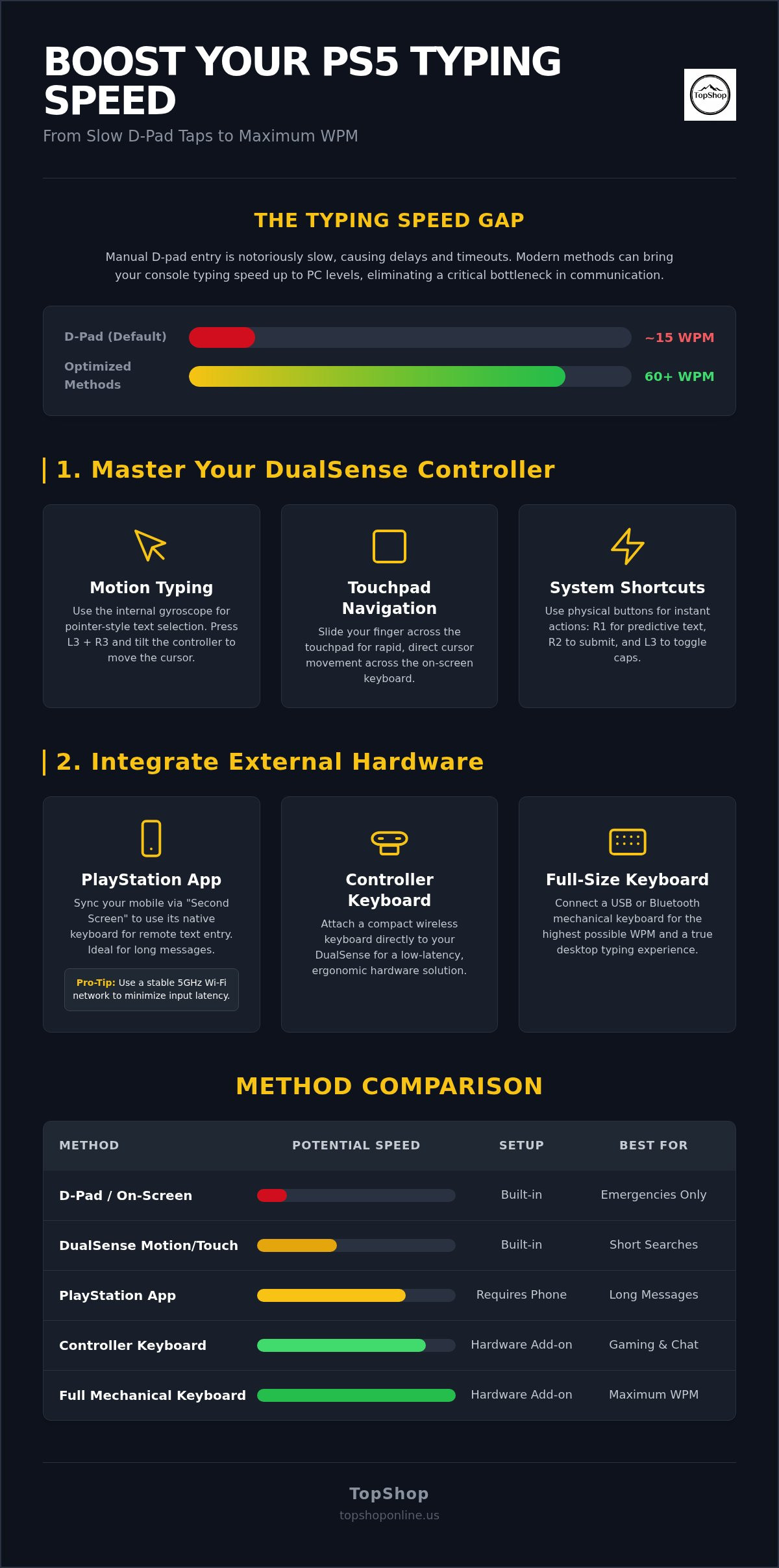
The standard directional pad (D-pad) method is the least efficient way to enter text on a console. To understand how to speed up typing on ps5, you must first master the built-in software acceleration features. These native tools utilize the unique PlayStation 5 hardware specifications to provide coordinate-based selection rather than sequential scrolling. By moving away from button-by-button navigation, you can reduce the time required to compose messages by a measurable margin.
Motion Control and Touchpad Input Protocols
Activating the internal gyroscope allows for pointer-style text selection. By clicking the L3 and R3 sticks simultaneously during text entry, the on-screen cursor follows the physical tilt of the DualSense controller. This method removes the latency associated with individual button presses. You can calibrate motion sensitivity within the system settings to prevent selection overshoot. High-sensitivity settings allow for faster movement across the virtual keyboard but require more precise motor control.
The touchpad offers a secondary rapid navigation layer. Sliding a finger across the capacitive surface moves the cursor across the keyboard grid instantly. Users can choose between touchpad click-to-select or the standard X button for confirmation. Coordinate-based input via the gyroscope or touchpad is often reported as being significantly faster than D-pad navigation for short phrases and search queries.
Software Shortcuts for Rapid Navigation
System-level shortcuts reduce the time spent navigating virtual menus. The R2 button serves as an immediate submit or done command, which bypasses the need to scroll to the on-screen enter key. The L3 button toggles capitalization for the current character or word. These physical button triggers are faster than selecting icons on the virtual keyboard grid. Using the R1 button allows you to select predictive text suggestions instantly, which is ideal for common words.
Effective use of the predictive text engine further accelerates input. The system tracks frequently used terms and presents them in a suggestion bar. You can manage the user-defined dictionary to include gaming-specific jargon or technical terms. This prevents the auto-correct engine from interfering with specialized vocabulary. Optimizing these software-level interactions is the first step in learning how to speed up typing on ps5 before transitioning to physical hardware solutions.
Utilizing the PlayStation App for Remote Text Input
The PlayStation App (version 26.8.0) serves as a technical bridge for users seeking how to speed up typing on ps5 without occupying physical desk space with a full-sized peripheral. This method leverages the smartphone's capacitive touchscreen to bypass the slow sequential navigation of the DualSense D-pad. By establishing a handshake between the mobile device and the console over a shared local area network (LAN), the app functions as a remote text entry terminal. This is particularly effective for long-form communication, such as community forum posts or detailed in-game instructions, where high words-per-minute (WPM) rates are required.
Mobile Integration Setup and Configuration
Successful integration requires synchronizing the same PlayStation Network (PSN) account across both the mobile hardware and the PS5 console. Once paired, the "Second Screen" functionality automatically detects active text fields on the console. When a text box appears on the TV, a corresponding keyboard interface opens on the mobile device. Users should ensure their mobile operating system is updated to maintain low-latency handoff. For those requiring a more tactile experience while holding the controller, a Wireless Keyboard for PS5 Controller provides a physical alternative that mounts directly to the DualSense.
Latency is a critical factor in remote input performance. WiFi signal strength directly impacts the responsiveness of the mobile keyboard. Using a 5GHz frequency band reduces the risk of interference from Bluetooth devices and other household electronics. If the connection is unstable, users may experience character dropouts or significant input lag, making the mobile method less reliable than direct hardware connections. For a deeper look at physical connection standards, consult this PS5 mouse and keyboard guide for technical setup details.
Efficiency Metrics: Mobile vs. Controller Input
Data indicates a substantial increase in input speed when transitioning from a controller to a mobile interface. Standard mobile typing speeds often reach 30 to 50 WPM, whereas D-pad navigation typically averages fewer than 10 WPM. The presence of mobile haptic feedback and familiar QWERTY layouts contributes to higher accuracy and reduced correction time. However, switching focus between a smartphone screen and the television can disrupt gameplay flow. This situational trade-off makes mobile input ideal for system searches and lobby chats, while controller-mounted hardware remains superior for real-time, mid-match communication.
Hardware Integration: Controller-Mounted Wireless Keyboards
Controller-mounted peripherals represent the most space-efficient hardware upgrade for users researching how to speed up typing on ps5. The Wireless Keyboard for PS5 Controller utilizes a center-mounted QWERTY layout that integrates directly into the DualSense architecture. This physical interface allows for rapid thumb-based input without requiring the user to release the controller grips. By utilizing Bluetooth 5.0 pairing protocols, these devices maintain a low-latency connection that matches the polling rate of the primary controller. This ensures that text appears on-screen without the processing delays often seen in software-based remote apps.
Wireless Keyboard Attachment Functional Design
The functional design of the keyboard attachment prioritizes the retention of original controller features. Key technical specifications include:
- Port Accessibility: Precision-molded chassis ensures the 3.5mm audio jack remains accessible for wired headsets.
- Tactile Feedback: High-density membrane switches provide clear tactile response metrics, reducing input errors compared to virtual keys.
- Component Pass-through: Integrated cutouts allow the DualSense built-in speaker and microphone to function without acoustic interference.
The ergonomic impact of the center-mounted layout is minimal. Weight distribution is centered between the palms to prevent wrist fatigue. This layout facilitates a natural transition from analog sticks to the keyboard grid, which is a primary factor in how to speed up typing on ps5 during active gameplay sessions where speed is critical.
Installation and Connectivity Standards
Pairing a wireless keyboard accessory follows standard Bluetooth HID (Human Interface Device) protocols. Users must activate the pairing mode on the keyboard and select the device within the PS5 Accessories menu. Once established, the connection remains stable even in high-interference environments where multiple 2.4GHz signals are present. Power management is handled by an internal rechargeable battery, typically requiring a standard USB-C cable for charging. While active wireless transmission does draw power, it operates independently of the controller's power supply. This prevents any reduction in the DualSense battery life. Connection stability is verified through the system's peripheral management dashboard, where users can monitor signal strength and firmware status.
Full-Scale Mechanical and Wireless Keyboard Compatibility
The PlayStation 5 supports the USB-HID (Human Interface Device) protocol, allowing for immediate plug-and-play functionality with external mechanical keyboards. This hardware-level integration is the most effective solution for users determining how to speed up typing on ps5 to achieve PC-equivalent words-per-minute (WPM) rates. Utilizing an RGB Mechanical Gaming Keyboard provides superior tactile feedback compared to standard membrane-based controller attachments. Mechanical switches offer precise actuation points, which reduces missed keystrokes during high-speed text entry in competitive lobbies.
Connectivity standards directly impact input lag. While Bluetooth 5.0 is a common standard, it doesn't always provide the stability of a 2.4GHz connection. 2.4GHz wireless dongles provide a stable 1ms polling rate, which minimizes the latency between a physical keypress and the on-screen character appearance. Competitive users should prioritize hardware with specific technical features:
- N-Key Rollover: Ensures every simultaneous keypress is registered during rapid sequences.
- Anti-Ghosting: Prevents the registration of unintended "ghost" keys during high-speed input.
- 1ms Polling Rate: Provides near-instantaneous data transmission to the console hardware.
Mechanical Switch Performance for PS5 Chat
Actuation force and travel distance determine the physical speed of text entry. Linear switches typically require 45g of force and lack a physical bump, allowing for rapid, repetitive keystrokes. Tactile switches provide physical and acoustic confirmation of a successful input through a distinct mechanical click. Customizable RGB lighting synchronization improves visibility in low-light gaming environments. This ensures accuracy during late-night sessions without requiring external ambient light sources, which is a key factor in how to speed up typing on ps5 effectively.
Wired vs. Wireless Desktop Keyboard Configuration
Living room console setups require specific cable management and ergonomic considerations. Wired mechanical keyboards often necessitate 3-meter cables to reach seating areas from the console. Wireless models must balance high-speed 2.4GHz transmission with battery endurance. Active LED backlighting increases power draw, which reduces the operational time between charging cycles. For extended sessions, a lap-board or dedicated desk surface is necessary to maintain proper typing posture and maximize WPM throughput.
Achieve maximum text entry efficiency by integrating a high-performance RGB Mechanical Gaming Keyboard - ROG Strix Flare into your PlayStation 5 hardware configuration.
Technical Specifications of TopShop PS5 Typing Peripherals
Technical hardware selection dictates the maximum achievable input velocity on console systems. The Wireless Keyboard for PS5 Controller is a specialized, direct-mount peripheral featuring 47 individual keys for thumb-based entry. This hardware bypasses the high-latency D-pad interface entirely, providing a physical QWERTY layout for real-time communication. For users prioritizing maximum words-per-minute (WPM) rates, the RGB Mechanical Gaming Keyboard - ROG Strix Flare provides a full-sized desktop solution with dedicated media keys and a high-speed polling rate. This device utilizes the USB-HID protocol to provide near-PC levels of responsiveness. Understanding these technical specifications is the final step in mastering how to speed up typing on ps5.
Optimizing the Wireless Controller Keyboard Setup
The Wireless Keyboard for PS5 Controller requires a standard Bluetooth 5.0 handshake for operation. Its technical dimensions are engineered for a seamless fit with the DualSense controller, adding only 60 grams of mass to the handheld unit. This lightweight construction prevents wrist strain during long sessions. Benchmarks indicate that users can achieve 25 to 35 WPM using this hardware, compared to the 8 to 12 WPM average of the standard on-screen keyboard. The internal 200mAh battery supports extended standby time, ensuring the device is available for immediate text entry in competitive lobbies without frequent charging cycles.
Infrastructure for High-Performance Gaming Peripherals
Supporting a high-speed typing environment requires a robust power management system. Integrating a power strip with USB ports allows for the simultaneous charging of the controller, keyboard attachment, and mobile devices used for remote input. For desktop-based console setups, a power strip 6 outlet 6 usb provides the necessary amperage to power RGB-backlit mechanical hardware without causing voltage fluctuations. Proper cable routing is also essential for maintaining signal integrity and physical organization.
Implementing cable management for home office standards prevents physical obstruction and reduces electromagnetic interference from nearby electronics. This technical infrastructure ensures that your hardware remains charged and responsive for consistent high-speed text entry. By combining professional-grade power delivery with specialized input peripherals, you can eliminate the hardware bottlenecks that typically restrict console communication speeds.
Optimizing Console Input Velocity for Future Gaming Standards
Achieving high-speed text entry on the PlayStation 5 requires a multi-layered approach involving software calibration and hardware integration. Users can significantly reduce input latency by mastering motion sensor typing and system-level shortcuts. For maximum performance, transitioning from the default D-pad interface to physical hardware is the primary method for how to speed up typing on ps5. High-performance mechanical switches and controller-mounted attachments provide the tactile feedback necessary for rapid, error-free communication in competitive environments.
Effective power management and cable organization ensure that these peripherals remain operational during extended sessions. By utilizing professional-grade power strips and low-latency wireless protocols, you eliminate the technical bottlenecks associated with standard console navigation. Upgrade your PS5 typing speed with our Wireless Controller Keyboard to access low-latency Bluetooth 5.0 connectivity and a tactile QWERTY layout designed for rapid text entry. We provide national shipping across the United States to ensure your setup is equipped with the latest input technology. You now have the technical framework to maintain peak communication efficiency on your console.
Frequently Asked Questions
How do I connect a wireless keyboard to my PS5?
To connect a wireless keyboard, navigate to the Settings menu, select Accessories, then General, and finally Bluetooth Accessories. Activate pairing mode on your keyboard hardware. Once the device name appears on the PS5 screen, select it to complete the handshake. For keyboards utilizing a 2.4GHz wireless dongle, simply insert the USB receiver into an available port for immediate plug-and-play functionality via the system's HID driver.
Can I use any USB keyboard with the PlayStation 5?
The PlayStation 5 is compatible with most standard USB keyboards that utilize the universal USB-HID protocol. This includes wired mechanical models and wireless peripherals with 2.4GHz USB-A or USB-C receivers. While most basic typing functions work instantly, some advanced features like proprietary macro keys or specialized RGB software might not be supported. Standard alphanumeric input remains stable for system navigation and in-game text chat across all compliant hardware.
Why is typing on the PS5 controller so slow?
Standard controller typing is slow because it relies on sequential D-pad navigation across a virtual grid. This method requires multiple physical inputs to select a single character, creating significant latency. To understand how to speed up typing on ps5, you must replace these sequential movements with direct coordinate-based inputs or physical keys. Utilizing the built-in motion sensors or attaching a dedicated QWERTY peripheral eliminates the need for slow, button-by-button cursor scrolling.
How do I use the PS App as a keyboard for my console?
Download the PlayStation App (version 26.8.0) on your mobile device and ensure it's signed into the same PSN account as your console. Connect both devices to the same local WiFi network. When you select a text entry field on your PS5, a notification will appear on your smartphone. Tapping this prompt activates the mobile keyboard interface, allowing you to type messages on your phone that appear instantly on the console screen.
Does the PS5 support Bluetooth mechanical keyboards?
The PS5 supports Bluetooth mechanical keyboards that follow standard HID profiles. You can pair these devices through the Bluetooth Accessories sub-menu under system settings. While Bluetooth 5.0 is supported, competitive users often prefer 2.4GHz wireless or wired connections to minimize input lag. Mechanical keyboards provide tactile feedback and precise actuation points, making them a superior technical choice for users who require high-speed text entry during gameplay or system searches.
What is the fastest hardware for typing in PS5 game chat?
The RGB Mechanical Gaming Keyboard - ROG Strix Flare is the fastest hardware for maximum words-per-minute throughput due to its full-sized layout and mechanical switches. If you require speed while maintaining a handheld grip, the Wireless Keyboard for PS5 Controller is the most efficient choice. This attachment allows for rapid thumb-typing without releasing the controller. Both options significantly outperform the standard on-screen keyboard by providing direct physical access to all alphanumeric characters.
How do I enable motion control typing on the PS5?
You can enable motion control typing by opening any text field and clicking the L3 and R3 sticks at the same time. This toggles the gyroscope pointer, which follows the physical movement of the DualSense controller. Tilting the controller allows for faster cursor navigation than the D-pad. You can calibrate the tracking speed in the Accessories menu to ensure the pointer moves accurately across the virtual keyboard without overshooting the intended letters.
Will a controller keyboard attachment drain my DualSense battery?
A Wireless Keyboard for PS5 Controller won't drain your DualSense battery because it operates on an independent power circuit. These attachments contain a dedicated internal 200mAh battery that handles all wireless transmission and key processing. You charge the keyboard peripheral separately using a USB-C cable. This design ensures that the controller's power reserves are reserved exclusively for haptic feedback, adaptive triggers, and standard gameplay inputs without any interference from the keyboard.