

A higher-resolution camera isn’t necessarily a better Wyze Cam v3 replacement if it can’t save the footage you need. The key question behind wyze cam v3 alternatives with local micro sd recording is whether video is stored on a microSD card, how recording works, and whether clips remain accessible without a cloud subscription. Cloud storage, motion-event clips, and continuous local recording aren’t interchangeable.
That distinction matters when you want recordings on your own card but don’t want to discover that a camera saves only short event clips or uses a different playback process. This comparison explains which local-storage details to check, how indoor, outdoor, and multi-camera options can differ, and which setup details affect everyday use.
You’ll see how alternatives such as the TP-Link Tapo C120 compare for 24/7 microSD recording, alongside options with broader local-storage systems. The guide also covers recording modes, card capacity and retention, app playback, and the difference between local and cloud features, so you can compare cameras against a clear storage requirement rather than headline specifications alone.
Key Takeaways
- Shortlist wyze cam v3 alternatives with local micro sd recording by confirming storage support on the exact camera model, not relying on a brand-level claim.
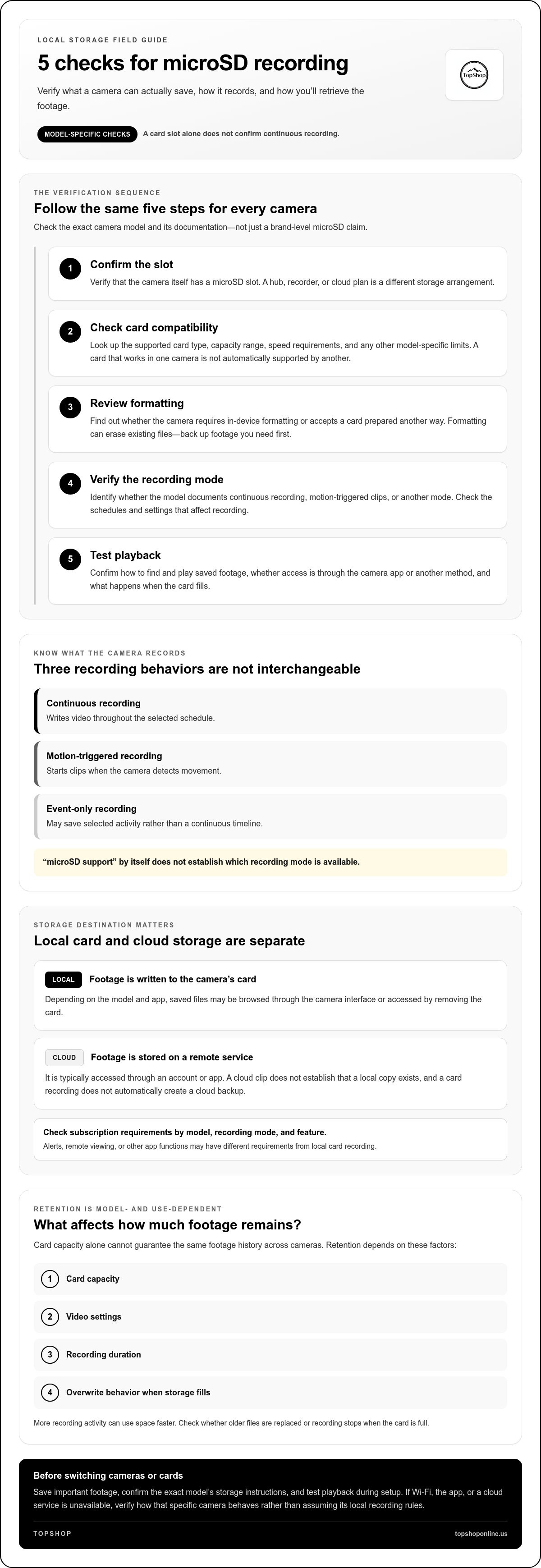
- Use a five-step check: card slot, supported card, format, recording mode, and playback method.
- Estimate retention based on card capacity, video settings, recording duration, and overwrite behavior.
- Compare camera models by card support, recording options, playback, and cloud dependence. Treat brand names as starting points, not blanket recommendations.
- Save important footage before changing cameras or cards, then test playback. TopShop’s 1080P HD Wireless Mini Security WiFi Camera is one security-camera option to consider.
Wyze Cam v3 alternatives: what local microSD recording actually means
Local microSD recording means video is written to a compatible card installed in the camera. The model’s hardware and software determine how recording works. A card slot alone doesn’t prove that a camera supports continuous recording. It may support only motion-triggered clips, event recording, or another limited mode.
When comparing wyze cam v3 alternatives with local micro sd recording, treat storage destination and recording behavior as separate requirements. A camera can offer local storage without matching the recording schedule, playback workflow, or network requirements you use with Wyze. Check the exact model’s documentation before relying on a specific feature.
Local recording versus cloud recording
Local recording stores footage on the camera’s card. Depending on the model and app, you may browse or play saved files through the camera interface or remove the card and access it with another compatible device. Cloud recording stores video on a remote service and is typically accessed through an account or app. The destinations are distinct: a cloud clip doesn’t establish that a local copy exists, and a card recording doesn’t automatically create a cloud backup.
Subscription requirements vary by camera, recording mode, and associated features. Confirm whether the model requires a plan for the recording you want, and distinguish that from requirements for alerts, remote viewing, or other app functions. A local card may preserve footage without a cloud plan, but it doesn’t automatically provide every connected feature. For background on card formats, capacities, and speed classes, see Understanding microSD Cards. The camera’s compatibility limits still determine which card works.
The recording behavior to confirm before switching
Continuous recording writes video throughout the selected schedule, while motion-triggered recording starts clips when the camera detects movement. Event-only recording may save selected activity rather than a continuous timeline. These modes affect what footage exists between events, how much card space it uses, and how you search playback. Don’t infer a recording mode from a product listing that simply says “microSD support.”
Also establish what happens if Wi-Fi drops, the app is unavailable, or a cloud service is disconnected. Some functions may depend on network or service access, while card recording may follow different rules. Verify each point in the exact model’s documentation and test it during setup. Wyze’s microSD guide explains its own card insertion, formatting, recording, and playback process, but those steps don’t establish how another brand works. For a related overview of a TopShop camera, see the wireless mini security camera guide. It covers a separate product.
How to evaluate microSD recording, card capacity, and playback
Use the same verification sequence for every camera you compare. It turns a broad microSD claim into model-specific checks and helps prevent a compatible-looking card from causing recording or playback problems. For wyze cam v3 alternatives with local micro sd recording, verify the exact model and its current documentation rather than relying on brand-level summaries.
- Confirm the slot. Check that the camera itself has a microSD slot. A hub, recorder, or cloud plan is a different storage arrangement.
- Check card compatibility. Confirm the supported card type, capacity range, and any speed or other model-specific requirements. Don’t assume a card that works in one camera is supported by another.
- Review formatting. Find out whether the camera requires in-device formatting or accepts a card prepared another way. Formatting practices vary by model and can erase existing files, so back up footage you need first.
- Verify recording mode. Identify whether the camera supports continuous recording, motion-triggered clips, or another documented mode. Note any schedule or settings that affect it.
- Test playback. Confirm how to find and play saved footage, whether access is through the camera app or another method, and what happens when the card fills.
Check card compatibility and formatting
Capacity alone doesn’t establish compatibility. A camera may impose a maximum card size, support only certain card types, or require a particular format. Use the model’s instructions to identify those limits before buying or reusing a card. If formatting is part of setup, follow the camera-specific steps and save needed recordings elsewhere first. Formatting can remove files already on the card.
Include security in your setup plan. A removable card can contain private footage, so control physical access and handle saved files deliberately. IEEE’s overview of the Security of Local microSD Recording provides context on SD-card security risks and practices. It’s a useful reminder that local storage still needs thoughtful handling.
Confirm recording and playback behavior
Retention depends on card capacity, video settings, recording duration, and the camera’s overwrite behavior, so no single capacity guarantees the same footage history across models. More recording activity can use space faster, while overwrite settings determine whether older files are replaced or recording stops when storage fills. Check how the camera handles both conditions.
Finally, distinguish local playback from remote access. The camera may require an app, an active network connection, or a specific account workflow to view saved clips. Exact requirements depend on the model. Test playback after setup, including the method you’ll use when away from the camera, and don’t infer remote access from local recording support. To compare security-camera options, browse TopShop’s security-camera options and assess each product against the same storage checklist.
Compare Wyze alternatives by local storage, not headline features
Compare exact camera models using the same storage fields. A brand may sell devices with different recording destinations, card support, and playback methods, so a general label such as “local storage” isn’t enough to establish a microSD match. The table highlights the details to compare, including fields to verify in each model’s documentation.
Use a model-by-model comparison table
Treat “not specified” as a prompt to look up that model’s current documentation, not as evidence that a feature is absent. Before treating a model as a match, focus on card limits, recording mode, and playback steps.
| Exact model | MicroSD slot | Recording mode | Card limits | Playback | Cloud dependence |
|---|---|---|---|---|---|
| Wyze Cam v4 | Local microSD recording supported | Specific mode not stated in the supplied research | Not specified | Not specified | Local recording is available without a subscription; other feature terms may vary |
| TP-Link Tapo C120 | MicroSD recording supported | 24/7 local recording supported | Not specified | RTSP supports viewing on a local NVR or PC; app playback details not specified | Local recording is supported; plan requirements for other features not specified |
| Generic Outdoor Cam X1 | Not specified | Local video storage; recording mode not specified | Not specified | Not specified | Local storage is stated; cloud requirements not specified |
Separate microSD from other local storage
Local storage can mean different hardware. A microSD card sits in the camera; internal storage or an NVR records through another device or system. Those options may suit different setups, but they don’t satisfy a requirement for an in-camera card slot. Record each destination separately rather than grouping them under one “local” label.
Lorex, Ring, and Arlo are research leads, not model-level recommendations. Security.org’s broad categories describe Lorex in connection with camera quality and on-site or internal storage, Ring with cloud storage, and Arlo with wireless use. Those descriptions don’t establish a particular model’s microSD support. Identify an exact model before adding its card slot, recording mode, limit, playback process, or cloud terms to a comparison.
Balance storage against camera priorities
Storage is the first filter, but it isn’t the only one. After confirming the required recording destination and mode, compare resolution, power source, indoor or outdoor suitability, and connectivity. Higher resolution can change storage consumption, but retention also depends on settings and recording duration. Don’t apply one camera’s estimates to another.
For wyze cam v3 alternatives with local micro sd recording, model-level evidence matters more than a brand label or headline specification. A camera with higher resolution or broader wireless features may still miss the core requirement if its exact model doesn’t document compatible microSD recording and usable playback. Treat unspecified table entries as items to verify, not assumptions.
Use this checklist to shortlist and set up a replacement
A replacement needs to work as a recording system, not just as a camera with similar image quality. Apply the same checks to each candidate, then validate setup and playback before relying on saved footage. Installation, Wi-Fi configuration, app access, and recording controls differ by model, so follow that camera’s instructions rather than transferring steps from another device.
Before removing or repurposing your current camera or card, save any existing footage you need. A reset, format, or change in storage setup could make recordings unavailable. Copy important files to a separate location and confirm they open before making changes.
Shortlist a camera against your recording needs
Start with your recording requirement, then compare the practical fit. For wyze cam v3 alternatives with local micro sd recording, keep each decision tied to the exact model and its documentation.
- Verify local recording. Confirm that the exact model writes footage to an in-camera microSD card. Don’t treat cloud storage, an NVR, or another local-storage method as a substitute if you require a card in the camera.
- Choose the recording behavior. Decide whether you need continuous footage, motion-triggered clips, or another documented mode. Confirm that the model supports that mode under the conditions you plan to use.
- Check the card requirements. Record the supported card type, capacity limits, and any stated formatting or performance requirements. Use those specifications rather than assuming an existing card will work.
- Review retention and viewing. Find out how overwrite works and where saved video appears. Note any app, account, network, or cloud requirements that affect access.
- Match the camera to its location. Compare power needs, mounting position, indoor or outdoor suitability, and Wi-Fi coverage with the intended monitoring area. A camera that meets storage needs still has to suit its placement.
Test local recording before relying on it
Set up the camera using its own instructions. Install a compatible card and format it only if the model’s process calls for it, after backing up any files on the card. Configure the intended recording mode and schedule, then let the camera capture a short sample. Check the recording indicator or status shown by the camera or app, but treat that as an initial check rather than proof of playable footage.
Open the saved clip through the documented playback method. Confirm that it shows the expected time period and is stored where you expect. If you plan to view footage remotely, test that workflow separately and note whether it depends on Wi-Fi, app access, or a cloud service. Review how the camera behaves when the card fills: overwrite settings or recording limits can affect which footage remains available.
Use this checklist to assess TopShop’s security-camera selection alongside other candidates. Compare each product with the same storage requirements, and base your decision on documented recording behavior and a successful playback test.
Choose a camera that matches your local-recording requirements
Make the final choice by separating must-have recording requirements from secondary camera features. Confirm that the exact model supports local recording to your required storage type, then verify its recording mode, card limits, playback access, and any cloud dependencies. Resolution, design, and connectivity can help distinguish candidates, but they don’t make an undocumented storage feature reliable.
Match the final choice to your recording priority
Choose continuous recording only when the exact model documents that mode and its operating conditions. Check whether it runs on a schedule, depends on a network connection, or has other stated limits. Event-based recording may suit monitoring focused on detected activity, but confirm how events are triggered, saved, and accessed. Then compare card limits, playback access, and cloud requirements with your table. A match means the documented behavior fits the way you need to review footage, not just that the camera accepts a card.
Use a simple decision rule: if uninterrupted coverage is essential, remove models that document only event-based clips. If selected activity is enough, compare the documented event mode and confirm what happens between events. If recordings must be viewable without an account or remote service, verify that specific playback path rather than assuming “local” means every viewing feature works offline. Keep these requirements written down while comparing candidates, so a strong headline feature doesn’t distract from a storage limitation.
Before committing, revisit the model’s current instructions and confirm the precise variant. Product families can contain cameras with different recording capabilities. Check whether the intended power source, placement, and network conditions also align with the documented recording mode. A camera that meets the storage requirement on paper may not fit the location or use pattern if its operating conditions differ from your setup.
Browse compact camera options at TopShop
TopShop offers the 1080P HD Wireless Mini Security WiFi Camera, a 1080P, wireless, mini security WiFi camera. Consider it as a compact camera option while comparing your security-camera needs.
The final standard is straightforward: confirm exact-model local recording first, then weigh image quality, design, power, and connectivity. For a local microSD requirement, don’t substitute brand reputation or a general “local storage” label for documented card support and a usable playback method. This keeps the comparison focused on the footage you need and how you expect to retrieve it.
Browse TopShop security cameras to view the available camera options.
Make your next camera choice with confidence
Use your recording requirement as the decision filter, not a brand label or a list of headline features. Before switching, make sure the exact camera model documents the storage method and recording behavior you need. Then consider the practical fit for your space and routine. This keeps wyze cam v3 alternatives with local micro sd recording focused on footage access and setup, rather than assumptions about what a camera can do.
TopShop is a nationwide U.S. e-commerce store offering the 1080P HD Wireless Mini Security WiFi Camera. Compare it with your camera requirements and browse TopShop security cameras to view the selection. With a clear storage requirement and a model-specific playback test, you can make your next choice with confidence.
Frequently Asked Questions
Can a Wyze Cam v3 record to a microSD card without a subscription?
Yes. Wyze’s microSD guide describes saving videos to a card, and subscription features are separate from local recording. A subscription may affect other functions, so card recording doesn’t mean every feature works without a service plan. Before relying on a saved clip, review current instructions for your exact Cam v3 settings and current service terms, then test recording and playback in the app.
What should I check before buying a Wyze Cam v3 alternative with local microSD recording?
Check the exact model’s card slot, supported card types and capacities, recording modes, overwrite behavior, and playback method. If you need continuous footage, confirm that the model documents continuous recording under conditions that suit your setup. For wyze cam v3 alternatives with local micro sd recording, a brand-wide claim isn’t enough. Compare the model’s instructions with your needs, including how you’ll review footage when away from the camera.
Does a microSD card mean a security camera records continuously?
No. A card provides a storage destination, but the camera’s software determines whether it saves continuous footage, motion-triggered clips, or other events. For example, a camera may save activity clips without retaining the quiet periods between them. Check the exact model’s recording settings and operating requirements before buying. After setup, capture a short test during a quiet period and during motion, then confirm which footage is saved.
How much video can a security camera store on a microSD card?
There isn’t one reliable day-count for every camera. Retention varies with card capacity, resolution, compression, recording duration, and whether the camera records continuously or only when events occur. A camera recording all day will use storage differently from one saving brief event clips. Use the manufacturer’s guidance for the exact model, then review the card’s actual overwrite behavior after testing it with your chosen settings.
Can local microSD recordings be viewed remotely?
Sometimes, but remote access depends on the camera’s app, network connection, account setup, and feature design. A recording saved to a card may be available through an app while the camera is online, or it may require another documented playback method. That’s different from video stored in the cloud. Check whether the instructions explain remote access to card files specifically, and test it away from your home network.
What happens if a security camera’s microSD card fills up?
The camera’s settings determine what happens next. Some models may overwrite older footage, while others may stop recording or handle full storage another way. Check the instructions for the exact model and note whether important clips can be protected from replacement. Before formatting, reusing, or removing the card, copy any recordings you need to another location and confirm the copied files play correctly.
Is a local-storage camera completely independent of Wi-Fi?
Not necessarily. A camera might save video to its card but still need Wi-Fi for initial setup, app controls, alerts, or remote playback. Offline recording and offline playback are separate behaviors, and they vary by model. If network independence matters, check the operating instructions for what continues during an internet outage. Test by briefly disconnecting the network, then check whether recording continues and how footage can be retrieved.